Summary
The Notes Master feature is used to set the page layout for notes pages, including slide image position, notes text area, placeholder display, and styles.
Feature Description
| Feature Dimension | Description |
|---|---|
| Membership Restriction | No membership restriction |
| Version Restriction | No version restriction |
Steps
Enter Notes Master View
Feature Entry
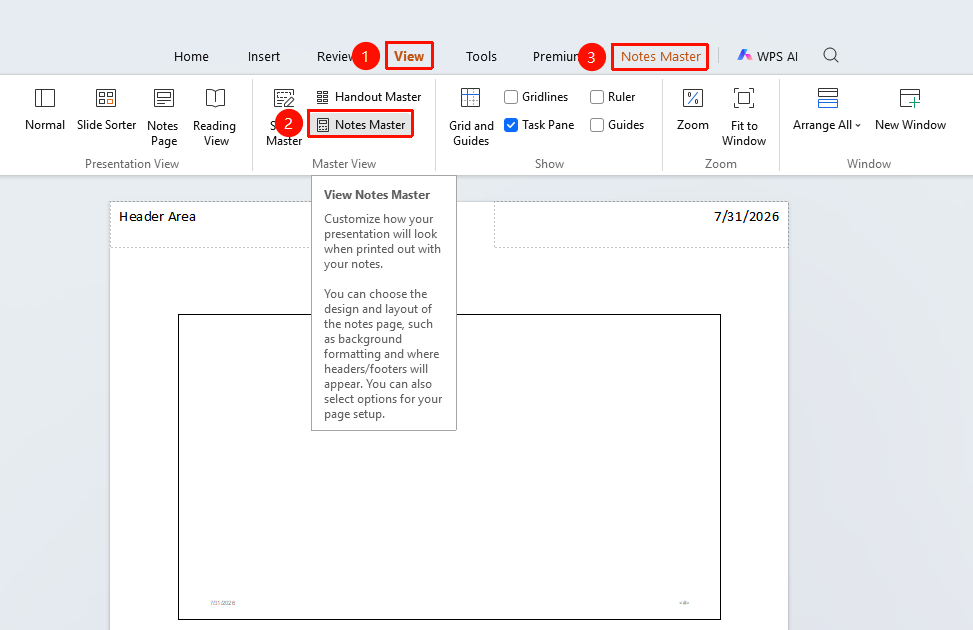
"View" tab → "Notes Master"
- Switch to the "View" tab
- In the "Master Views" group, find and click the "Notes Master" button
- Enter the Notes Master editing interface; the "Notes Master" tab appears at the top
Page Setup
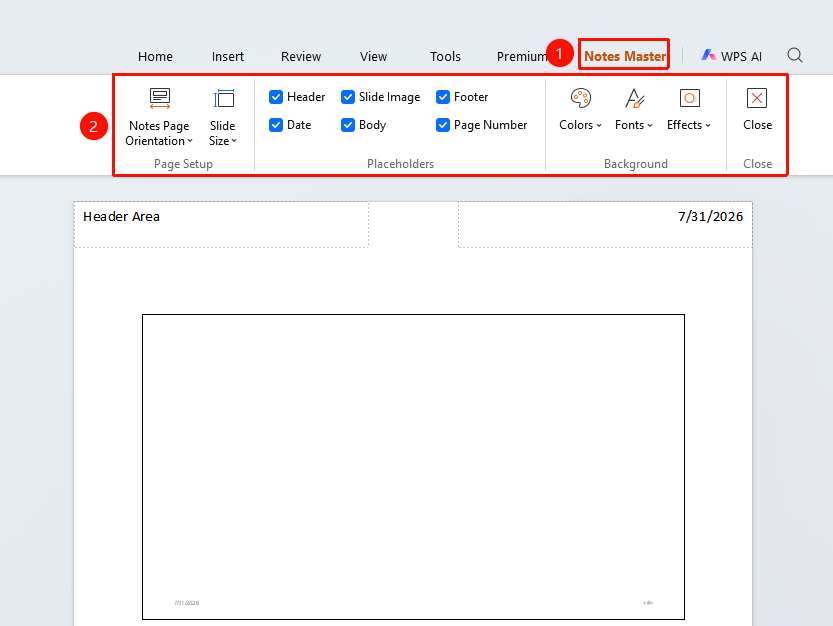
"Notes Master" tab → "Page Setup" area
- "Notes Page Orientation" : Set the notes page to portrait or landscape
- "Slide Size" : Set the display ratio of the slide on the notes page
Placeholder Settings
"Notes Master" tab → "Placeholders" area
Check or uncheck the following checkboxes to control the elements displayed on the notes page:
- "Header" : Display the header area at the top of the notes page
- "Date" : Display the date on the notes page
- "Slide Image" : Display the slide image on the notes page
- "Notes Text" : Display the notes text area on the notes page
- "Footer" : Display the footer area at the bottom of the notes page
- "Page Number" : Display the page number on the notes page
Background Settings
"Notes Master" tab → "Background" area
- "Color" : Set the color scheme for the notes page
- "Font" : Set the font used on the notes page
- "Effects" : Set the visual effect style for the notes page
Exit Notes Master
Feature Entry
"Notes Master" tab → "Close"
After completing the settings, click the "Close" button to exit Notes Master view
FAQ
Q1: Where can I view the notes page?
- Solution: In the "View" tab, click "Notes Page" to switch to Notes Page view and see the effect.
Notes
- Settings are automatically saved after closing Notes Master