Feature Summary
WPS Slides local mode supports inserting objects, allowing you to embed documents and content from other applications into slides.
Feature Description
| Feature Dimension | Description |
|---|---|
| Membership Restriction | No membership restriction |
| Version Restriction | No version restriction |
Operation Steps
Create New Object
Feature Entry
"Insert" tab → "Object" button
- Click the "Insert" tab in the top menu bar
- Click the "Object" button
- In the "Insert Object" dialog box, select the "Create New" option
- Select the object type you want to create from the object type list:
- .DOC file
- .DOCX file
- Microsoft Excel Worksheet
- Microsoft Excel Chart
- Microsoft PowerPoint Slides
- Click "OK" to complete the insertion
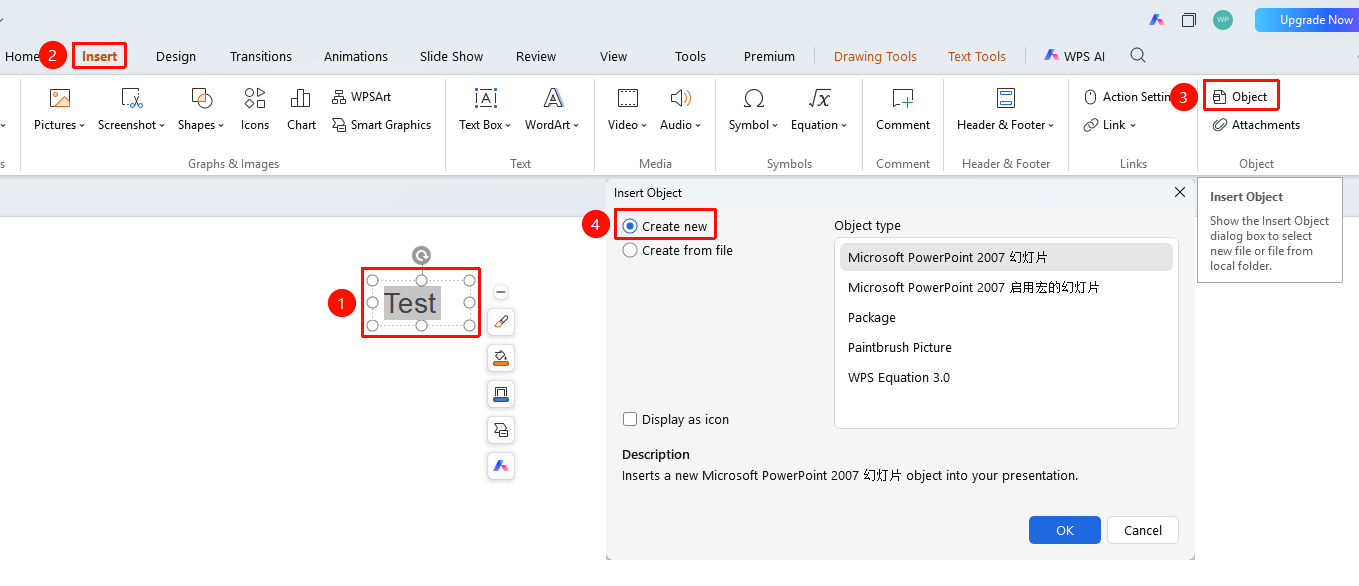
Create Object from File
Feature Entry
"Insert" tab → "Object" button → "Create from File"
- Click the "Object" button
- In the "Insert Object" dialog box, select the "Create from File" option
- Click "Browse" to select a file
- Optionally check the "Link" option to create a linked object
- Click "OK" to complete the insertion
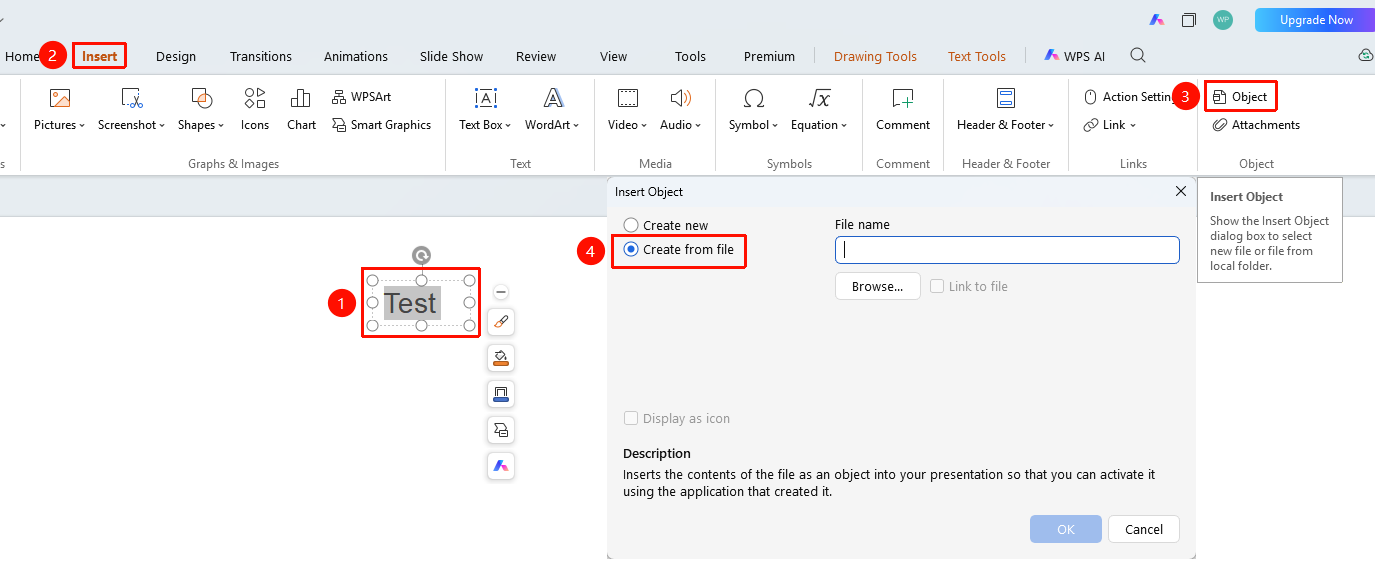
FAQ
Q1: Can inserted objects be edited?
- Solution: Yes, double-click the object to open the corresponding application for editing.
Q2: What is the difference between Create New and Create from File?
- Solution: Create New creates a blank object, while Create from File allows you to embed existing file content.
Q3: How to display as an icon instead of content?
- Solution: Check the "Display as icon" option in the Insert Object dialog box.
Notes
- Inserting objects will increase the PPT file size
- Embedded objects require corresponding software to edit on other computers