Feature Summary
WPS Slides local mode supports changing slide layouts, allowing you to quickly adjust the slide layout structure.
Feature Description
| Feature Dimension | Description |
|---|---|
| Membership Restriction | No membership restriction |
| Version Restriction | No version restriction |
Operation Steps
Change Layout via Right-Click Menu
Feature Entry
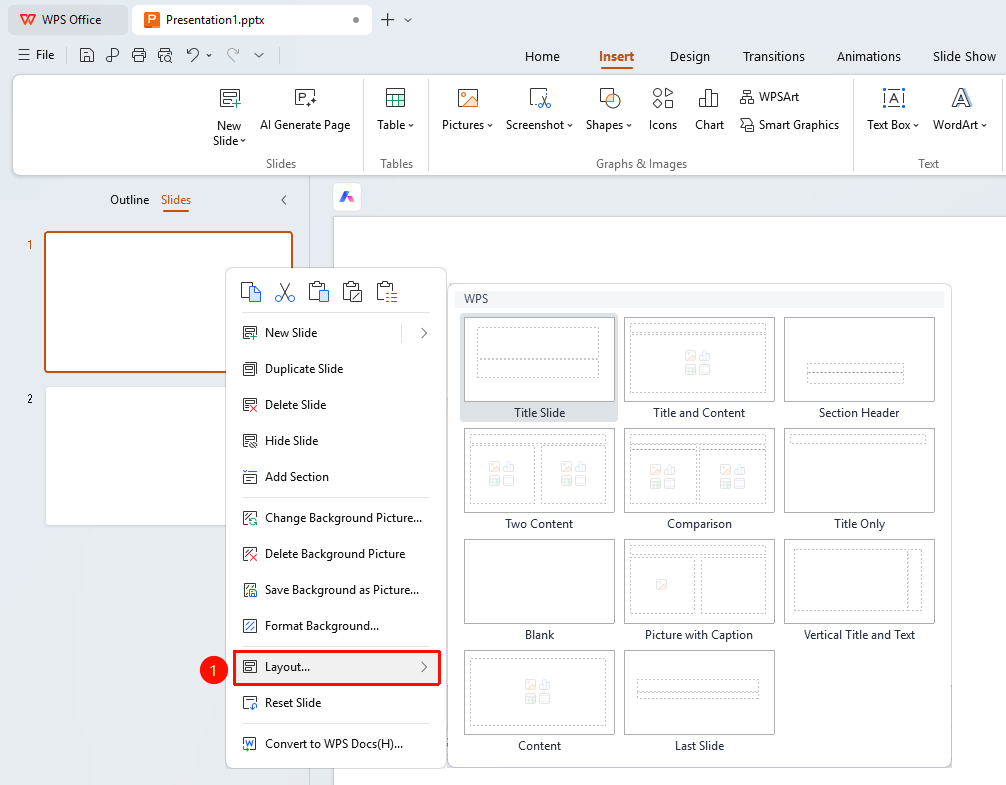
Left thumbnail → Right-click → "Layout"
- In the left slide thumbnail area, select the slide whose layout you want to change
- Right-click the selected slide
- Select the "Layout" option
- Choose a new layout in the layout panel
Change Layout via the Ribbon
Feature Entry
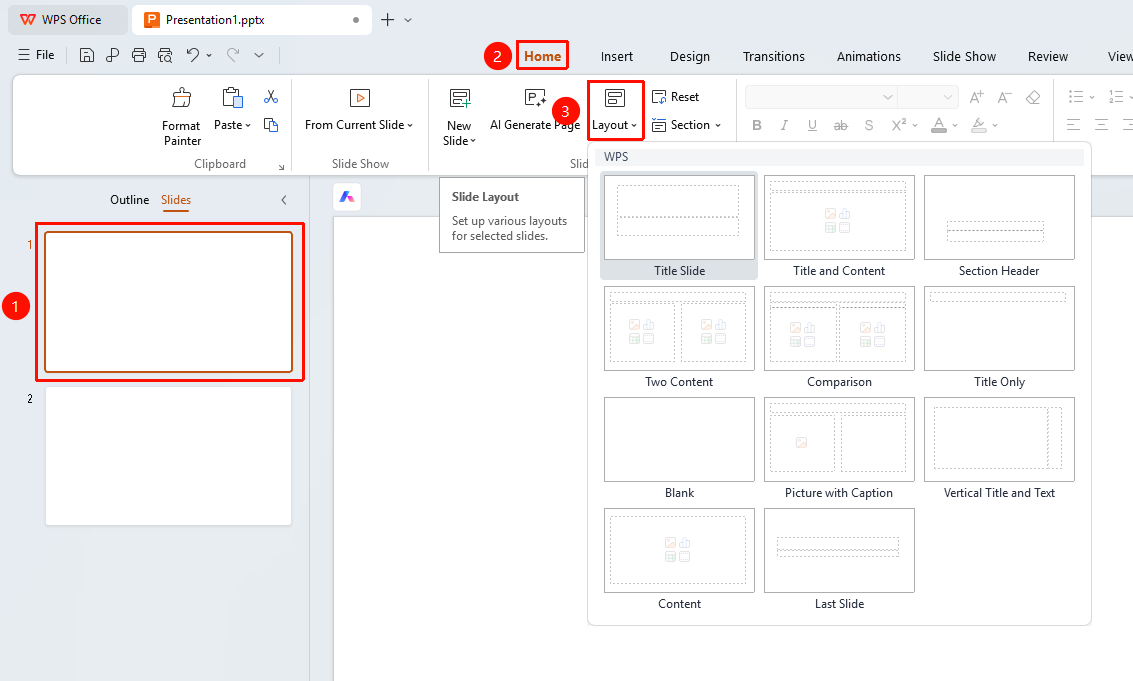
"Home" tab → "Layout" button
- Select the slide whose layout you want to change
- Click the "Home" tab in the top menu bar
- Click the "Layout" button
- Choose a new layout in the dropdown panel
FAQ
Q1: Will changing the layout cause content loss?
- Solution: Changing the layout may adjust content positions, but will not delete content.
Q2: What are some commonly used layouts?
- Solution: Commonly used layouts include Title Slide, Title and Content, Blank, Two-Column Content, etc.
Q3: How to customize a layout?
- Solution: You can customize slide layouts in the Slide Master view.
Notes
- Choosing an appropriate layout can improve content presentation effectiveness
- It is recommended to select the corresponding layout based on the content type