Feature Summary
The shape description feature lets you add alternative text (alt text) to shapes, including a title and description. You can set a title and description text as supplementary information for the shape.
Feature Description
| Feature Dimension | Description |
|---|---|
| Membership Restriction | No membership restriction |
| Version Restriction | No version restriction |
Steps
Add Shape Description
Feature Entry
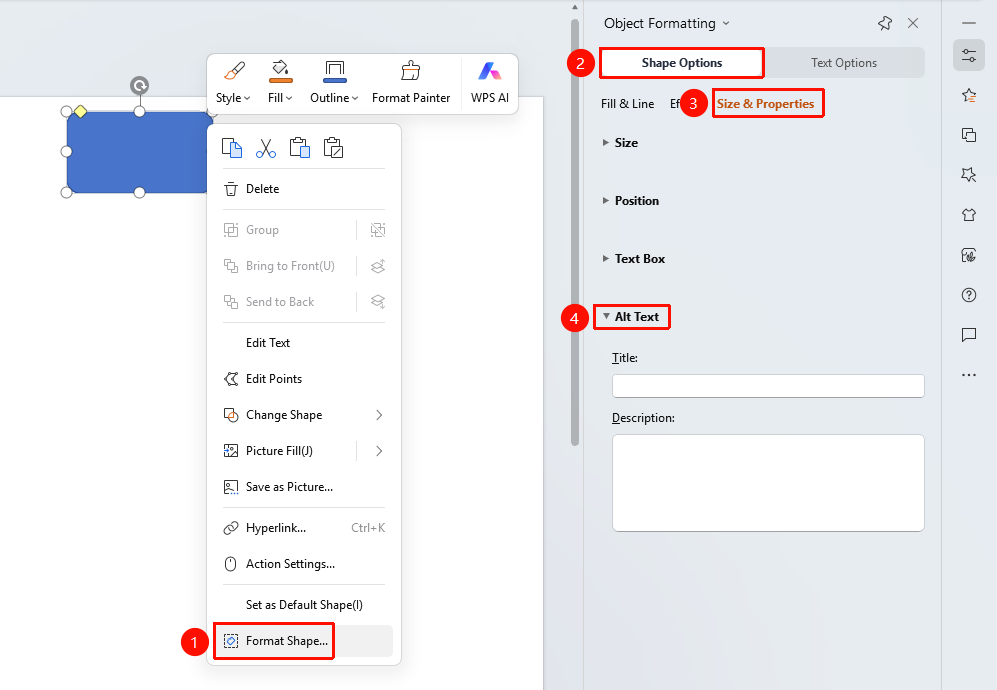
Shape right-click menu → "Format Object"
- Select the shape you want to add a description to
- Right-click the shape
- Select "Format Object"
- In the "Object Properties" sidebar on the right, click the "Size & Properties" tab
- Expand "Alt Text" to set the title and description
- "Title": Enter the shape title
- "Description": Enter the shape description text
Side Task Pane Settings
Feature Entry
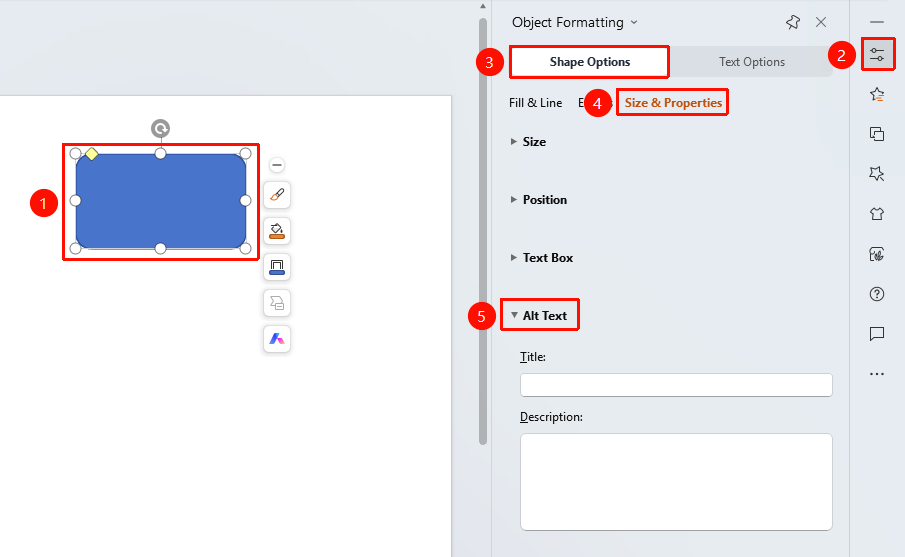
Side "Task Pane" → "Object Properties"
- Select the shape you want to add a description to
- Click the "Object Properties" button on the side
- Set the alt text in the "Object Properties" sidebar
FAQ
Q1: Will the shape description be displayed on the slide?
- Solution: The shape description (alt text) will not be displayed on the slide; it only serves as attribute information for the shape.
Q2: What is the purpose of the shape description?
- Solution: The shape description can serve as supplementary information for an image and will be read aloud by assistive technologies (e.g., screen readers) when the user opens the shape properties pane.
Q3: How to delete a shape description?
- Solution: Clear the title and description content in the alt text settings.
Notes
- The shape description will not be displayed on the slide
- Both title and description text can be set
- The shape description is suitable for use as supplementary information