Feature Summary
The save feature is used to save screenshot content as an image file. You can choose the save location, file name, and image format, making it convenient for long-term storage and subsequent use.
Feature Description
| Feature Dimension | Description |
|---|---|
| Membership Restriction | No membership restriction |
| Version Restriction | No version restriction |
Operation Steps
Save Screenshot as File
Feature Entry
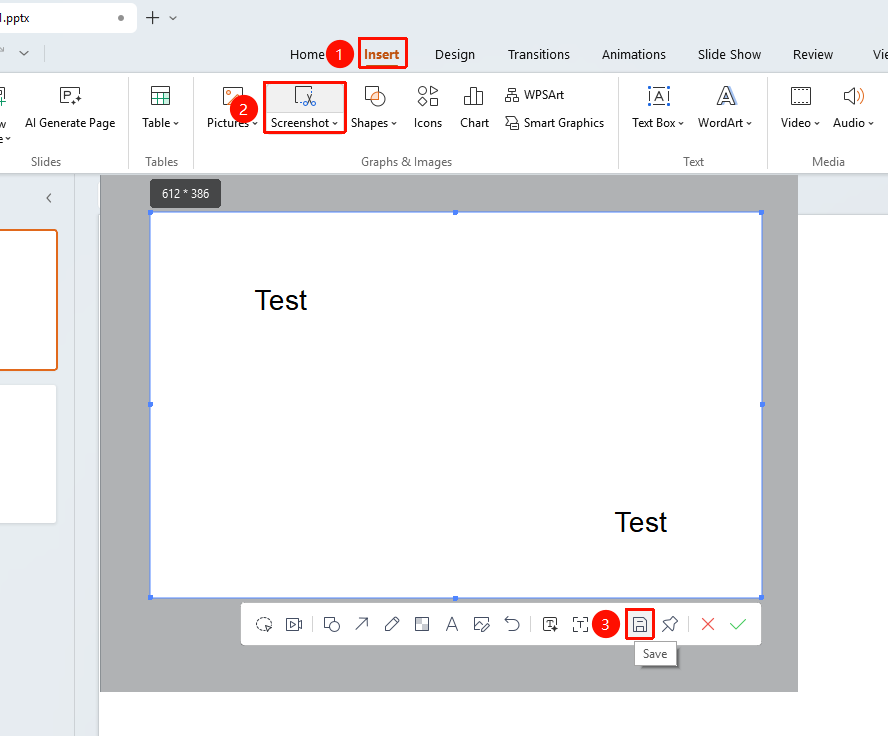
"Insert" tab → "Screenshot" button → Screenshot editing toolbar → "Save" button
- Under the top "Insert" tab, locate and click the "Screenshot" button, then drag the cursor to complete the screenshot
- Click the "Save" button in the screenshot toolbar
- Choose the save location in the pop-up dialog box
- Enter the file name
- Select the image format (PNG, JPG, etc.)
- Click "Save" to complete saving
Set Save Options
Feature Entry
Save dialog box → Format selection
- Click the format drop-down menu in the save dialog box
- Select the desired image format:
- "PNG"
- "JPG"
- "BMP"
- Confirm saving
FAQ
Q1: What is the difference between PNG and JPG formats?
- Solution: PNG supports transparent backgrounds and is lossless, resulting in larger files; JPG is compressed and results in smaller files, but does not support transparency.
Q2: Where can I find the saved images?
- Solution: You can manually choose the save location when saving, or view the full path in the save dialog box.
Q3: Can I save multiple screenshots at once?
- Solution: You need to save them one by one, saving one screenshot at a time. It is recommended to save them uniformly in the same folder for easier management.
Notes
- It is recommended to save uniformly in a fixed folder for easier management
- PNG format is suitable for screenshots that need to maintain high quality
- It is recommended to use meaningful names for saved files