Feature Summary
The screenshot feature is used to quickly capture screen content in WPS Slides. It supports multiple screenshot methods. After capturing, the screenshot can be directly inserted into a slide or edited and annotated, making it convenient for users to quickly obtain screen materials.
Feature Description
| Feature Dimension | Description |
|---|---|
| Membership Restriction | Some features require subscribing to WPS Premium |
| Version Restriction | No version restriction |
| Screenshot Methods | Rectangular area, Elliptical area, Rounded rectangle, Freeform area |
| Shortcut | Screen capture Ctrl+Alt+X, Hide window Ctrl+Alt+C |
Steps
Screenshot via Insert Menu
Feature Entry
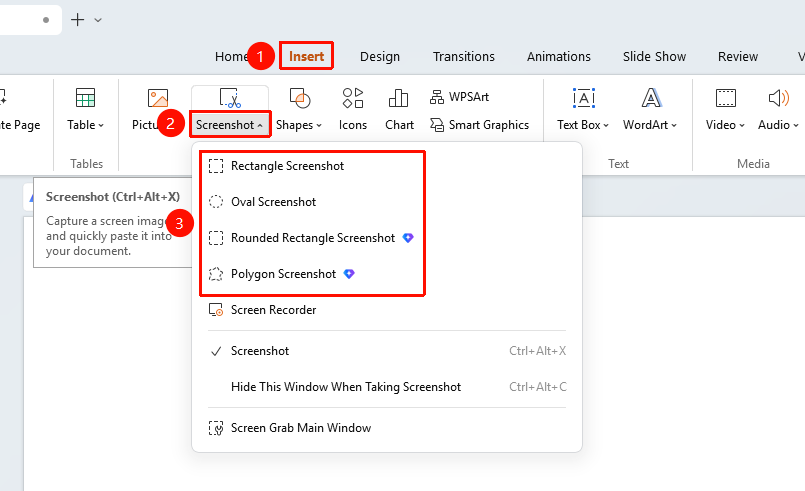
"Insert" tab → "Screenshot" button
- Click the "Insert" tab
- Click the "Screenshot" button
- Select a screenshot method:
- "Rectangular Area Screenshot": Capture a rectangular area
- "Elliptical Area Screenshot": Capture an elliptical area
- "Rounded Rectangle Area Screenshot": Capture a rounded rectangle area
- "Custom Area Screenshot": Freely draw the screenshot area
- Drag the mouse to select the screenshot area
- Right-click to redraw the selection boundary
- The screenshot is automatically inserted into the slide after completion
Screenshot Using Shortcut
Feature Entry
Shortcut Ctrl+Alt+X
- Press the Ctrl+Alt+X shortcut
- The screen enters screenshot mode
- Drag the mouse to select the screenshot area
- The screenshot is automatically inserted into the current slide after completion
Hide Current Window While Screenshotting
Feature Entry
"Insert" tab → "Screenshot" → "Hide current window when screenshotting"
- Click the "Screenshot" button
- Check "Hide current window when screenshotting"
- The WPS Slides window will automatically hide during screenshotting
- Shortcut: Ctrl+Alt+C
Open Screenshot Tool Window
Feature Entry
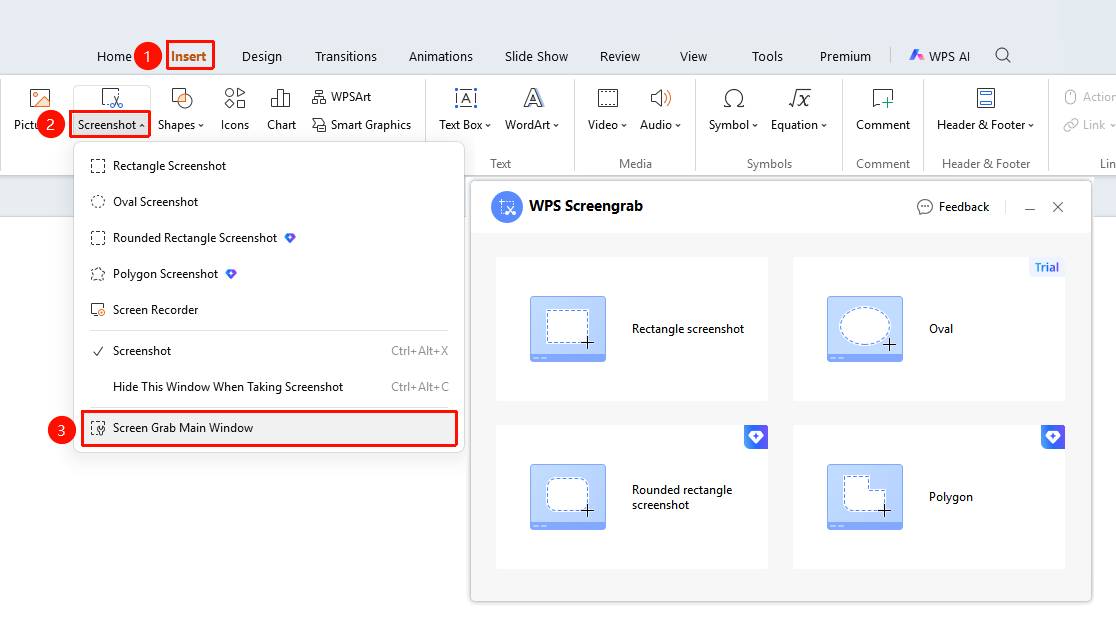
"Insert" tab → "Screenshot" → "Screenshot tool window"
- Click the "Screenshot" button
- Select "Screenshot tool window"
- Open the full screenshot tool interface
FAQ
Q1: What should I do if the screenshot is not inserted into the slide?
- Solution: Check if you have clicked the "Finish Screenshot" button (√) icon, or use Ctrl+V to paste the screenshot into the slide.
Q2: How to capture an irregularly shaped area?
- Solution: Select the custom area screenshot; you can freely draw the shape of the area you want to capture with the mouse.
Q3: How to hide the WPS Slides window while screenshotting?
- Solution: Check the 'Hide current window when screenshotting' option in the screenshot menu, or use the shortcut Ctrl+Alt+C.
Notes
- Rounded rectangle area screenshot and custom area screenshot are Premium features
- After screenshot capture, you will automatically enter Screenshot Editing Mode, where annotations and edits can be made