Feature Summary
The Screenshot Shape feature is used to reselect the shape of the screenshot area in screenshot editing mode. It allows you to change the capture shape after taking a screenshot without having to capture again.
Feature Description
| Feature Dimension | Description |
|---|---|
| Membership Restriction | Some features require you to subscribe to WPS Premium |
| Version Restriction | No version restrictions |
Steps
Switch Screenshot Area Shape
Feature Entry
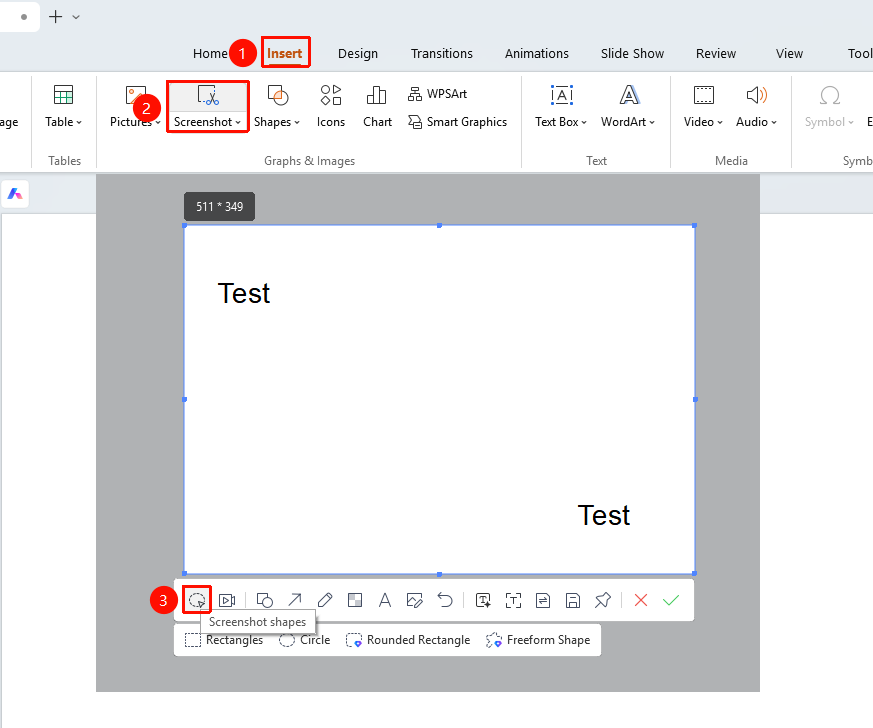
"Insert" tab → "Screenshot" button → Screenshot editing toolbar → Shape selection area
- Under the top "Insert" tab, locate and click the "Screenshot" button, then drag the cursor to complete the screenshot
- After taking a screenshot, enter Read Mode
- Find the shape selection area below the toolbar
- Select the desired screenshot shape:
- "Rectangle": Capture a rectangular area
- "Circle": Capture a circular or oval area
- "Rounded Rectangle": Capture a rectangular area with rounded corners
- "Freeform": Freely draw the capture area
- After clicking a shape, WPS Slides begins a new screenshot capture using that shape
FAQ
Q1: Can I change the capture shape after taking a screenshot?
- Solution: Yes. In screenshot editing mode, click the shape options in the toolbar to switch the capture shape at any time.
Q2: What is the use of Freeform screenshot?
- Solution: Freeform allows you to freely draw irregular capture areas, suitable for capturing content with special shapes or creating creative screenshots.
Q3: What is the difference between Rounded Rectangle and Rectangle?
- Solution: The four corners of a Rounded Rectangle are smooth arcs, while the corners of a Rectangle are right angles. Rounded Rectangles provide a softer and more aesthetically pleasing visual effect.
Notes
- After switching shapes, the screenshot will automatically restart with the new shape