Feature Summary
The Extract Text feature is used to recognize and extract text from screenshot content, supporting automatic text area detection, rotation, correction, and selection of recognition areas.
Feature Description
| Feature Dimension | Description |
|---|---|
| Membership Restriction | Premium feature |
| Version Restriction | No version restriction |
Operation Steps
Extract Text from Screenshot
Feature Entry
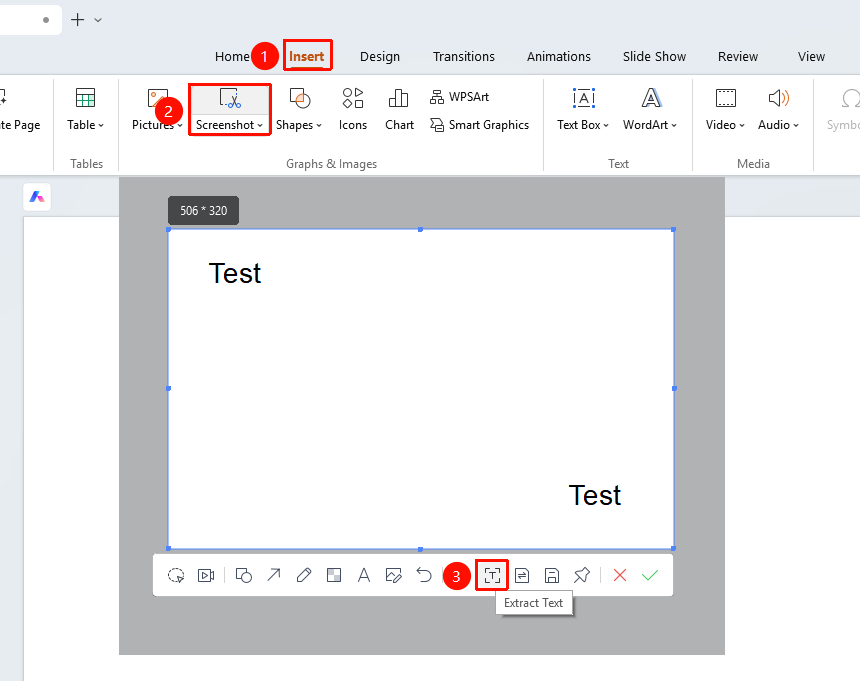
"Insert" tab → "Screenshot" button → Screenshot editing toolbar → "Extract Text" button
- Under the top "Insert" tab, locate and click the "Screenshot" button, then drag the cursor to complete the screenshot
- After taking a screenshot, enter Read Mode
- Click the "Extract Text" button in the toolbar
- The system automatically jumps to the standalone "Image to Text" window
- Wait for OCR recognition to complete
- The left side displays a screenshot preview and the recognition area (marked with a blue box)
- The right side displays the recognized text content
Adjust Recognition Settings
Feature Entry
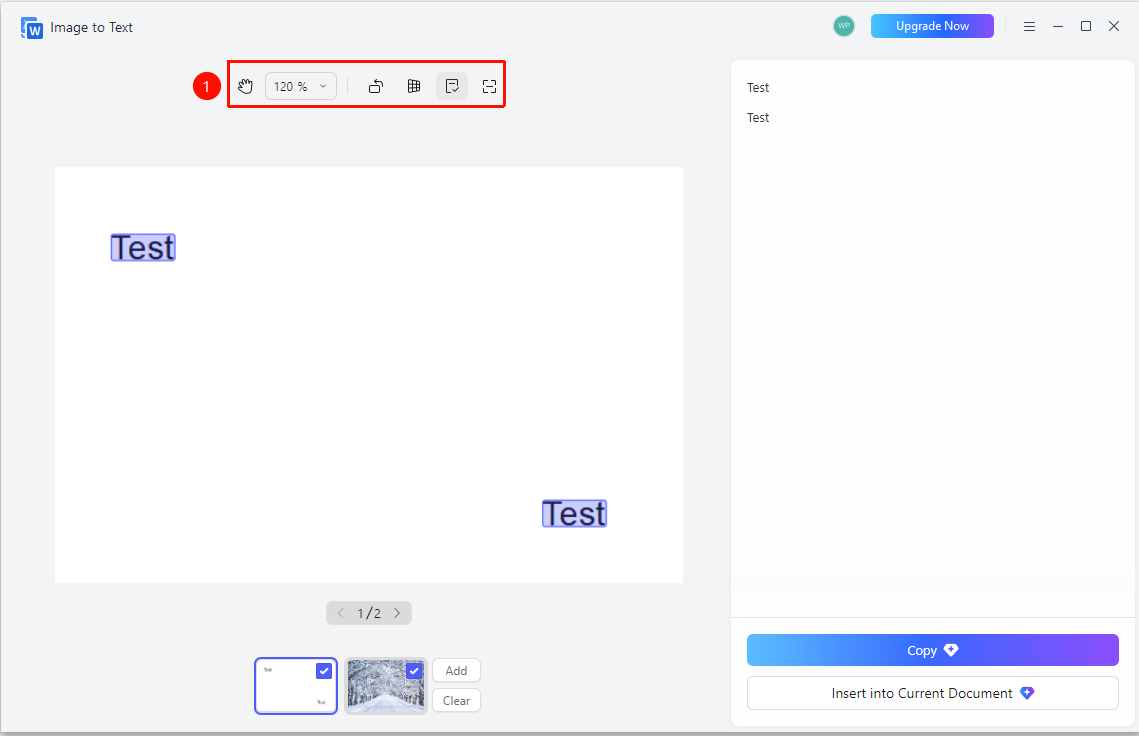
"Image to Text" window → Top toolbar
- "Zoom": Adjust the display scale of the screenshot preview
- "Rotate": Rotate the screenshot angle to correct tilted images
- "Correct": Automatically correct the text recognition of the screenshot
- "Select All Text / Deselect All": Select the text range to be recognized
- "Select Recognition Area": Manually draw a box to select the area to be recognized
Manage Recognized Images
Feature Entry
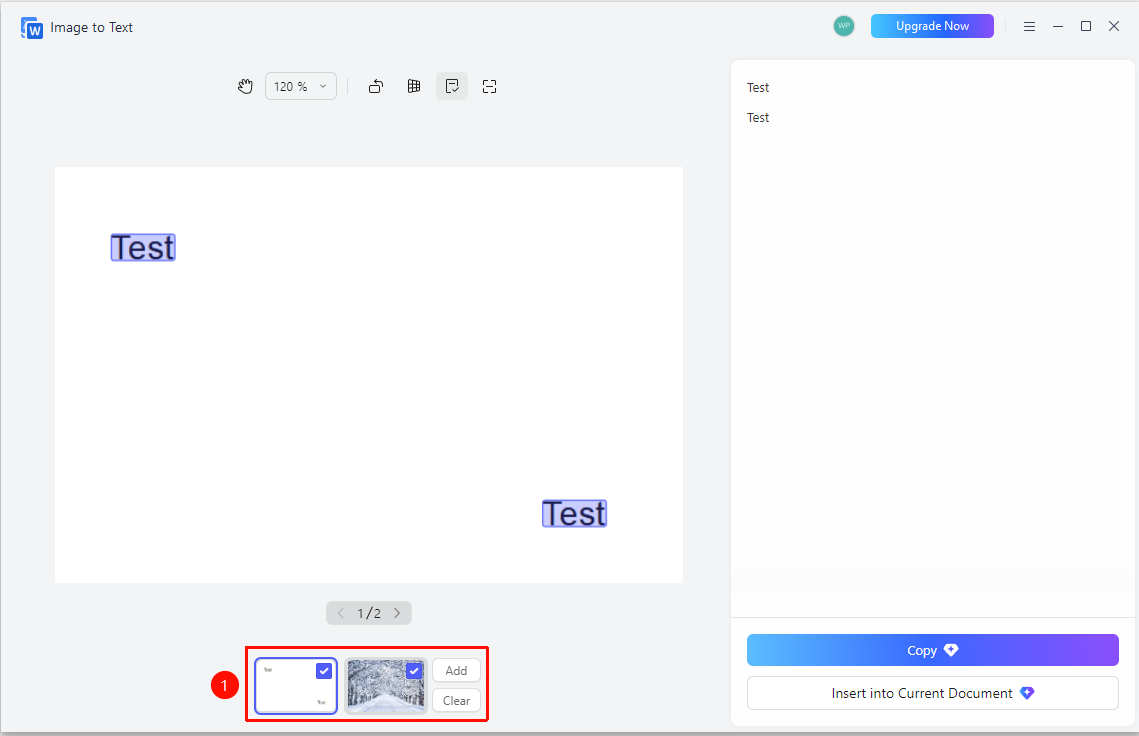
"Image to Text" window → Bottom image list
- The bottom displays the list of currently recognized images
- Click "Add" to add more screenshots for recognition
- Click "Clear" to clear the current image list
- Supports sequential recognition of multiple images
- Click an image thumbnail to switch and view
Copy or Insert Recognized Text
Feature Entry
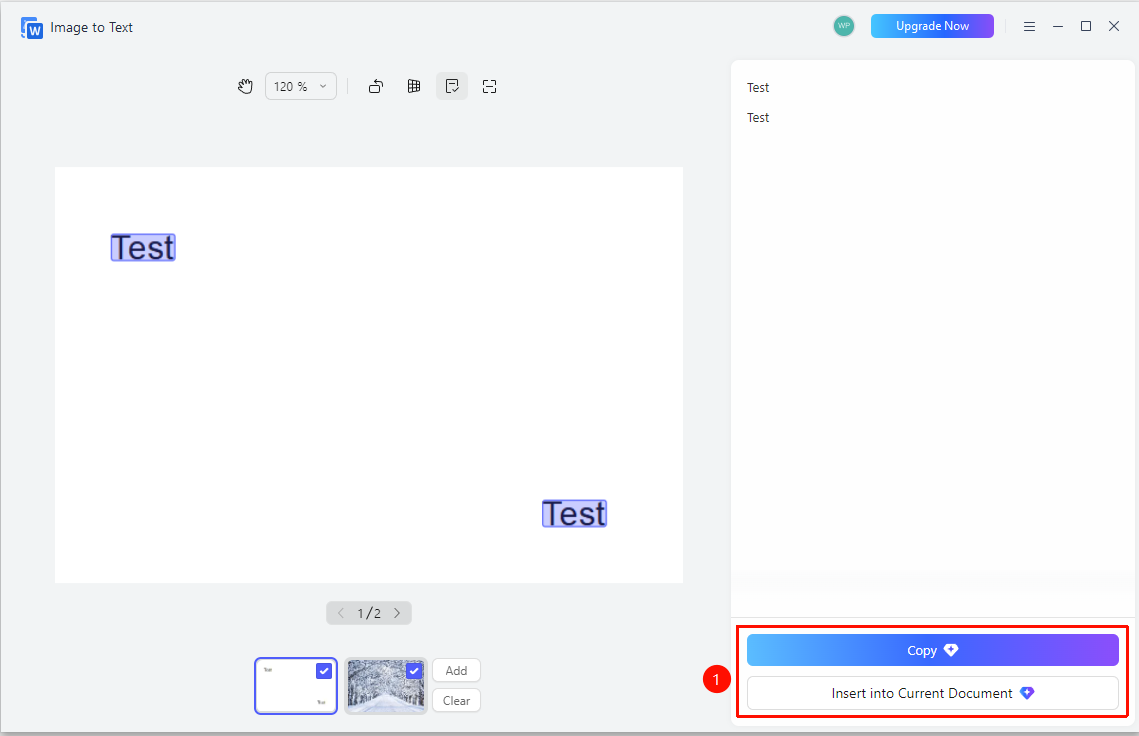
"Image to Text" window → Bottom right operation buttons
- After recognition is complete, view the results in the right text area
- Click the "Copy" button: Copy the recognized text to the clipboard
- Click the "Insert into current slide" button: Insert the text directly into the slide
- After copying, you can paste it anywhere for use
FAQ
Q1: What should I do if the recognition area is inaccurate?
- Solution: Click the "Select Recognition Area" button and manually draw a box to select the text area you want to recognize. This can improve recognition accuracy.
Q2: How can I improve text recognition accuracy?
- Solution: Use the Rotate and Correct features to adjust the screenshot angle, ensuring the text is clear and horizontal, which can improve recognition results. You can also use "Select Recognition Area" to recognize only the needed portion.
Notes
- Recognition accuracy depends on the screenshot quality and text clarity
- Multiple images can be added for batch recognition
- It is recommended to check the text content after recognition, as there may be recognition errors