Feature Summary
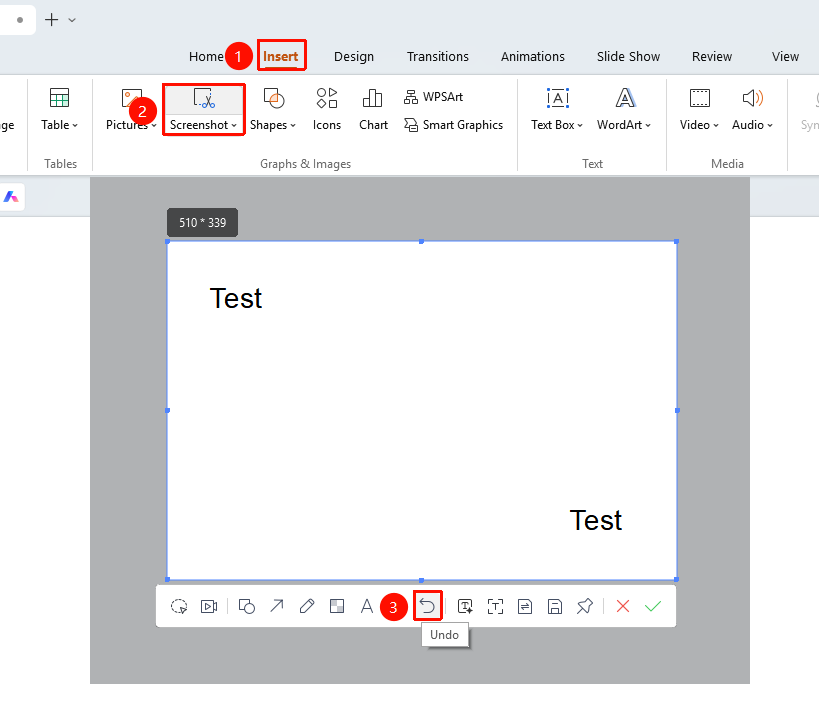
The undo feature is used to undo the previous step in screenshot Read Mode. It allows you to step back through the editing history, correct editing mistakes, or restore content that was changed by mistake.
Feature Description
| Feature Dimension | Description |
|---|---|
| Membership Restriction | No membership restriction |
| Version Restriction | No version restriction |
Steps
Undo the Previous Step
Feature Entry
"Insert" tab → "Screenshot" button → Screenshot editing toolbar → "Undo" button
- Under the top "Insert" tab, locate and click the "Screenshot" button, then drag the cursor to complete the screenshot
- Perform editing operations in screenshot Read Mode
- If you need to undo the previous step
- Click the "Undo" button in the toolbar
- The previous step is undone, and the screenshot reverts to its previous state
Undo Using a Shortcut
Feature Entry
Shortcut Ctrl+Z
- After performing an editing operation
- Press the Ctrl+Z shortcut
- Undo the previous step
- Press Ctrl+Z repeatedly to undo multiple steps sequentially
FAQ
Q1: How many steps can be undone
- Solution: Multiple undos are generally supported, allowing you to revert to the initial state after taking the screenshot. The specific number depends on the number of editing steps.
Q2: Is redo supported?
- Solution: Not currently supported.
Q3: Which operations can be undone
- Solution: Editing operations such as shape addition, pen drawing, text addition, mosaic, and cropping can all be undone.
Notes
- Undo operations are reverted in sequence; you cannot skip intermediate steps directly