Feature Summary
The Add Shape is used to add preset shape annotations to screenshots in Screenshot Editing Mode, highlighting key areas in the screenshot.
Feature Description
| Feature Dimension | Description |
|---|---|
| Membership Restriction | No membership restriction |
| Version Restriction | No version restriction |
Steps
Add Shape Annotation
Feature Entry
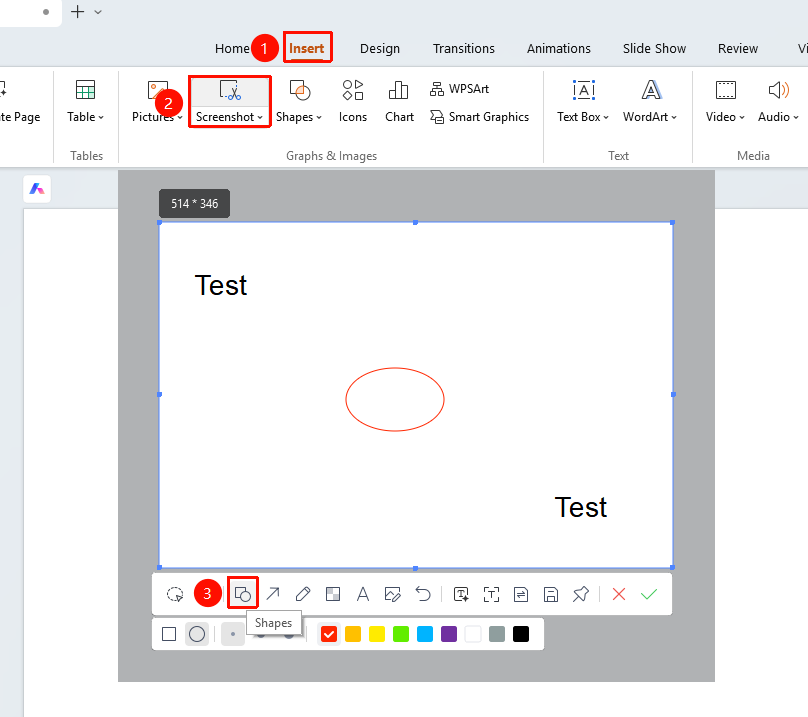
"Insert" tab → "Screenshot" button → Screenshot editing toolbar → "Add Shape" button
- Under the top "Insert" tab, locate and click the "Screenshot" button, then drag the cursor to complete the screenshot
- After taking a screenshot, enter Read Mode
- Click the "Add Shape" button in the toolbar
- Select the desired "Shape" (rectangle, circle) from the pop-up shape library
- Adjust "Line Thickness" and "Line Color"
- Click and drag on the screenshot to adjust the shape's position and size; release the left mouse button to add the shape
- Click the "Add Shape" button again to or click other feature options to exit adding shapes
FAQ
Q1: Can the added shape be moved?
- Solution: Not currently supported. You can use the "Undo" feature to undo the action and then re-add the shape.
Q2: How to add multiple shapes at once?
- Solution: Each click of the Add Shape button adds a new shape; you can add multiple shapes consecutively.
Notes
- Shapes are overlaid directly on the screenshot; it is recommended to plan the annotation positions before adding.
- Shapes of different colors are suitable for annotating different types of content.