Feature Summary
The Add Docs feature is used to add text descriptions to screenshots in screenshot editing mode. You can add text annotations anywhere on the screenshot to explain the screenshot content or add notes.
Feature Description
| Feature Dimension | Description |
|---|---|
| Membership Restriction | No membership restriction |
| Version Restriction | No version restriction |
Operation Steps
Add Text Annotation
Feature Entry
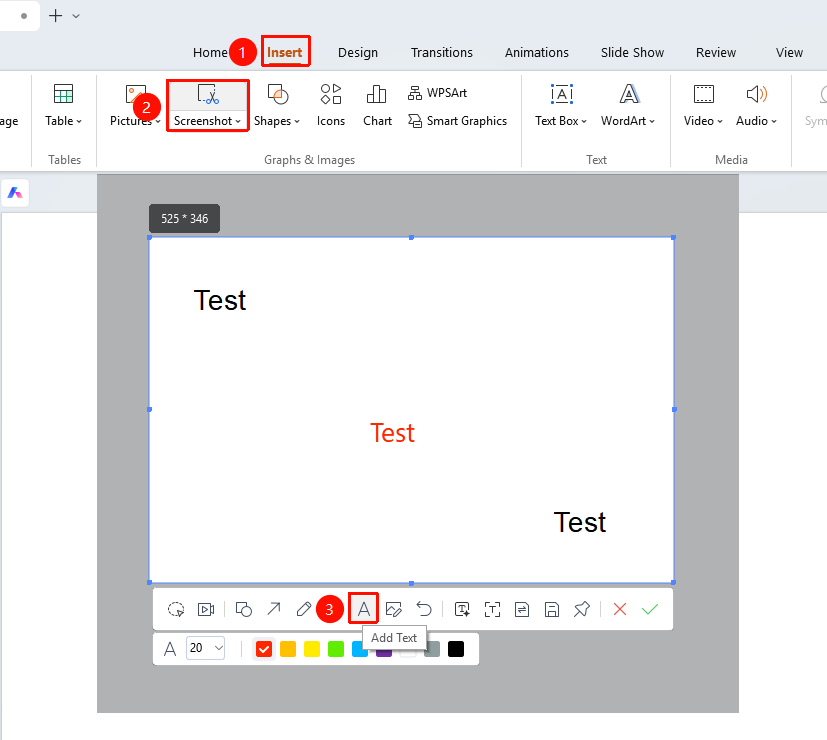
"Insert" tab → "Screenshot" button → Screenshot editing toolbar → "A" Text button
- Under the top "Insert" tab, locate and click the "Screenshot" button, then drag the cursor to complete the screenshot
- After taking a screenshot, enter Read Mode
- Click the "A" Docs button in the toolbar
- Select "Size" and "Color"
- Click on the screenshot where you want to add text
- Enter the text content
FAQ
Q1: Can the text wrap to a new line?
- Solution: Yes. You can press the Enter key to wrap to a new line while entering text, and multi-line text display is supported.
Notes
- Text annotations are added directly to the screenshot and cannot be exported independently
- It is recommended to use a text color that contrasts clearly with the screenshot background
- The text size should be moderate to ensure clarity and readability