Feature Summary
The Pen Tool feature is used for freehand annotation in screenshot editing mode. You can use freeform lines to highlight key areas or add handwritten marks, making annotations more intuitive and freeform.
Feature Description
| Feature Dimension | Description |
|---|---|
| Membership Restriction | No membership restriction |
| Version Restriction | No version restriction |
Operation Steps
Using the Pen for Freehand Annotation
Feature Entry
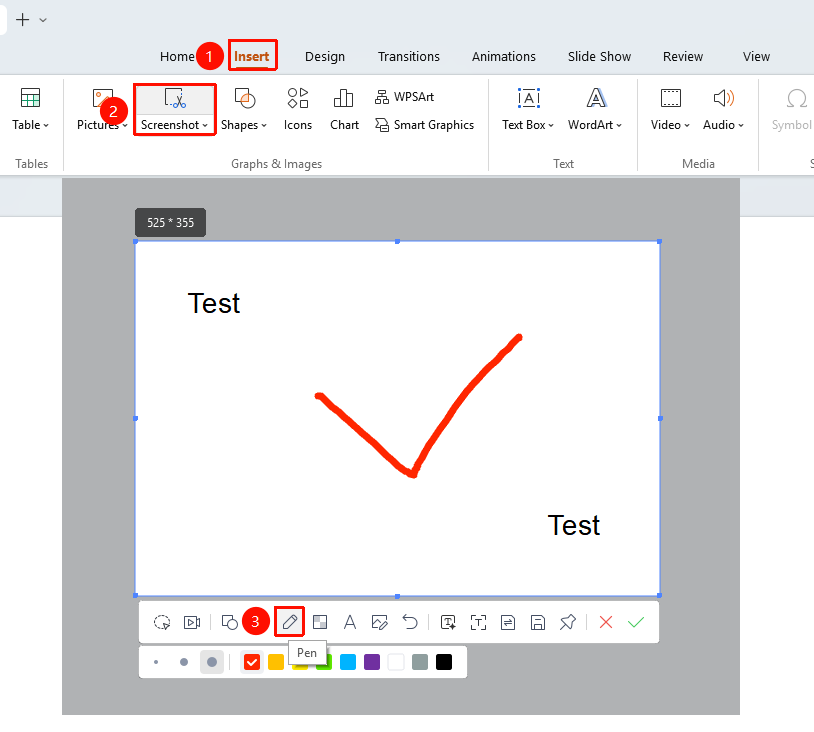
"Insert" tab → "Screenshot" button → Screenshot editing toolbar → "Pen" button
- Under the top "Insert" tab, locate and click the "Screenshot" button, then drag the cursor to complete the screenshot
- After completing the screenshot, enter Read Mode
- Click the "Pen" button in the toolbar
- Select stroke thickness and color
- Drag the mouse on the screenshot to draw
- Release the mouse to complete the drawing
FAQ
Q1: What should I do if I make a mistake with the pen?
- Solution: Click the undo button to undo the previous pen operation.
Notes
- The pen is suitable for quick freehand annotations; for precise annotations, it is recommended to use the Shapes tool
- Pen marks are added directly onto the screenshot and cannot be edited separately