Feature Summary
The Arrow feature is used to add arrow annotations to screenshots in screenshot editing mode, pointing to specific locations or areas in the screenshot to guide the audience's attention and make screenshot explanations clearer and more intuitive.
Feature Description
| Feature Dimension | Description |
|---|---|
| Membership Restriction | No membership restriction |
| Version Restriction | No version restriction |
Operation Steps
Adding Arrow Annotations
Feature Entry
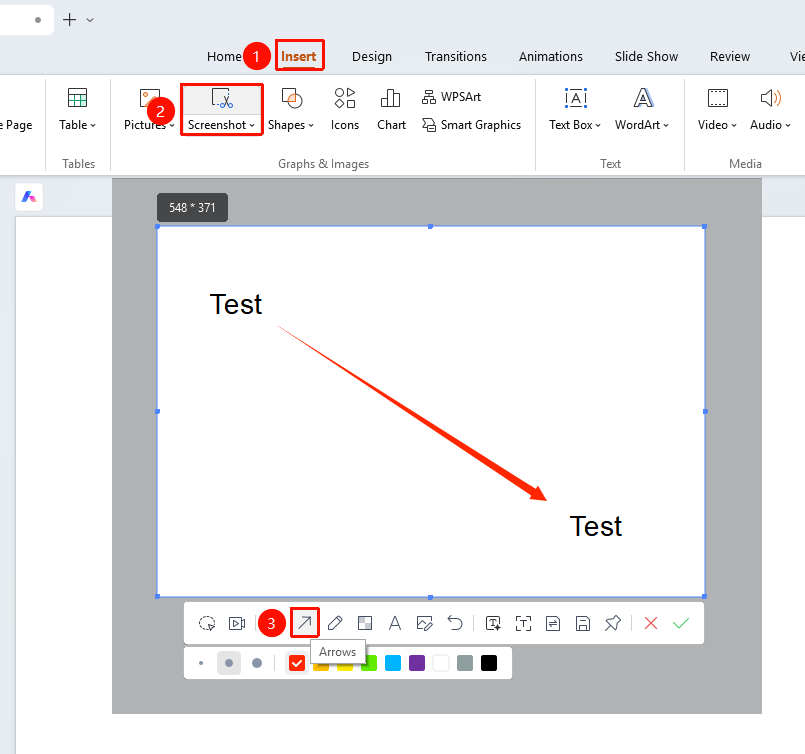
"Insert" tab → "Screenshot" button → screenshot toolbar → "Arrow" button
- Under the top "Insert" tab, locate and click the "Screenshot" button, then drag the cursor to complete the screenshot
- Enter editing mode after taking a screenshot
- Click the "Arrow" button in the toolbar
- Select the arrow stroke "Thickness" and "Color"
- Drag the mouse on the screenshot to draw the arrow
- The arrow points from the start point to the end point
FAQ
Q1: How to change the direction of the arrow
- Solution: Drag the start or end control point of the arrow to change its direction and length.
Q2: Can the arrow point to a specific element
- Solution: Yes. First determine the location of the element you want to point to, then draw the arrow by dragging from the periphery towards that location.
Notes
- Arrows are a common annotation tool, suitable for indicating operation steps or key areas
- It is recommended to use eye-catching colors (such as red) to make the arrow more prominent
- Keep the arrow length moderate; an excessively long arrow will affect the display of the screenshot content