Feature Summary
The Output Conversion feature is used to convert screenshot content into PDF files, allowing you to export screenshots as high-quality PDF documents.
Feature Description
| Feature Dimension | Description |
|---|---|
| Membership Restriction | Premium feature |
| Version Restriction | No version restriction |
Steps
Convert Screenshot to PDF
Feature Entry
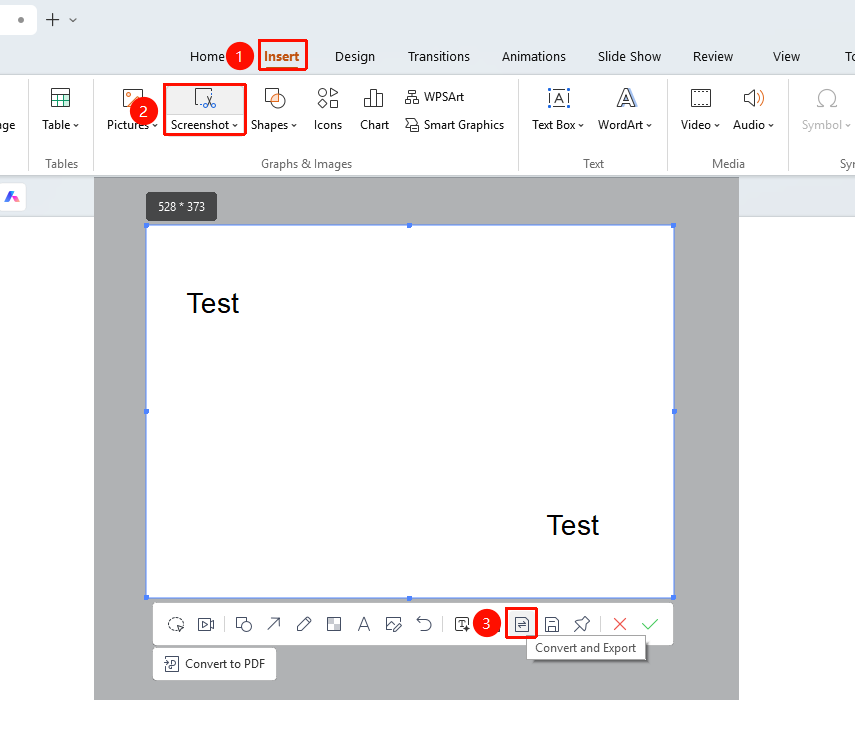
"Insert" tab → "Screenshot" button → Screenshot editing toolbar → "Output Conversion" → "To PDF"
- Under the top "Insert" tab, locate and click the "Screenshot" button, then drag the cursor to complete the screenshot
- After taking a screenshot, enter Read Mode
- Click the "Output Conversion" button in the toolbar
- Select the "To PDF" option
- The system automatically redirects to the standalone "Image to PDF" window
- Preview the screenshot content and configure settings
- Click the "Export" button to complete the conversion
Manage Image List
Feature Entry
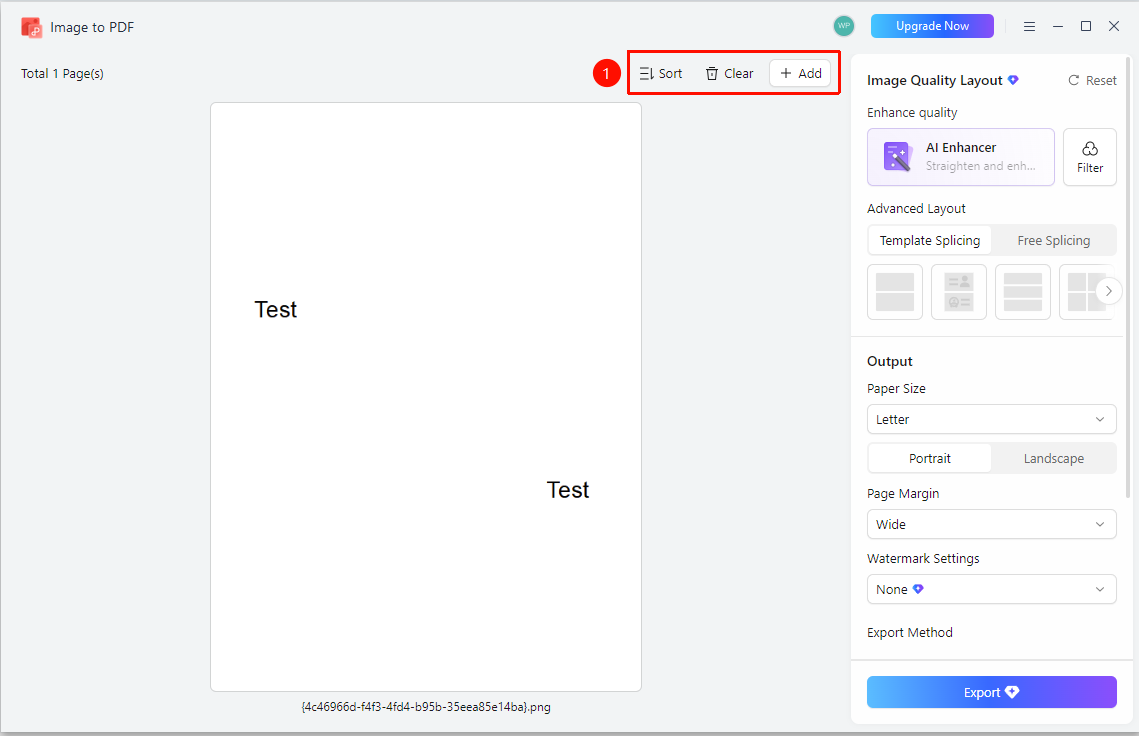
"Image to PDF" window → Top toolbar
- Click the "Add" button: Add more screenshots
- Click the "Clear" button: Clear the current image list
- Click the "Sort" button: Adjust image order
- Drag images to adjust the arrangement order
Set Image Quality and Layout
Feature Entry
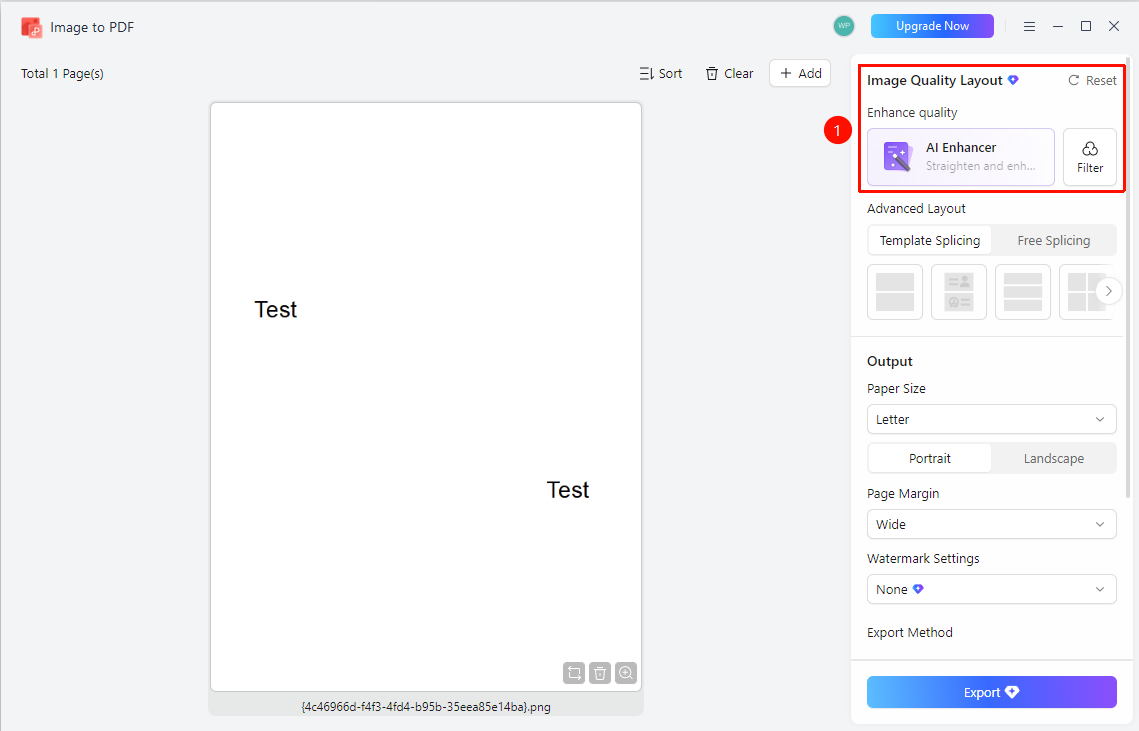
"Image to PDF" window → Right-side "Image Quality & Layout" panel
- "AI Auto Enhance": One-click correction and quality enhancement
- "Filter": Add image filters
- "Reset": One-click reset output settings
Set Advanced Layout
Feature Entry
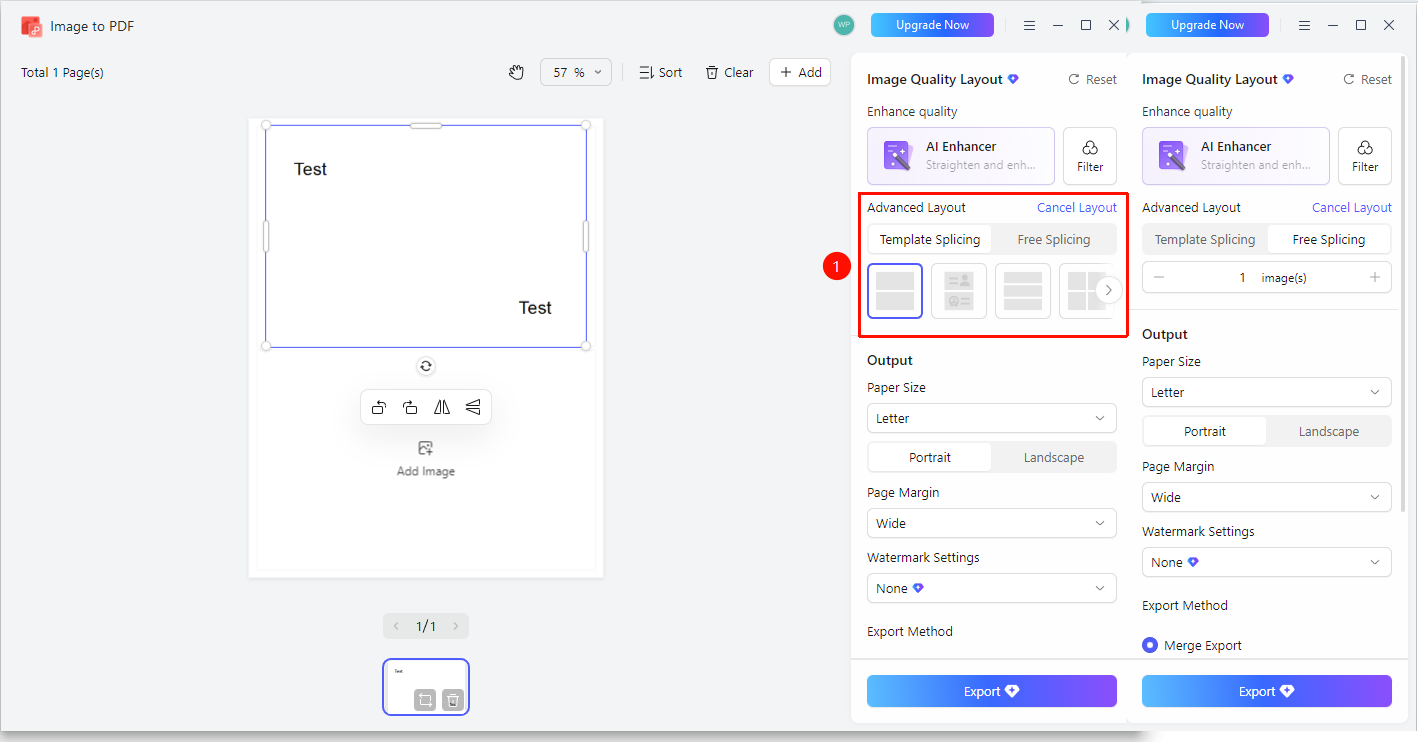
"Image to PDF" window → Right-side "Advanced Layout" panel
- "Template Stitching": Use preset templates to layout images
- "Free Stitching": Freely adjust the position of images on the page
- Select the desired layout style
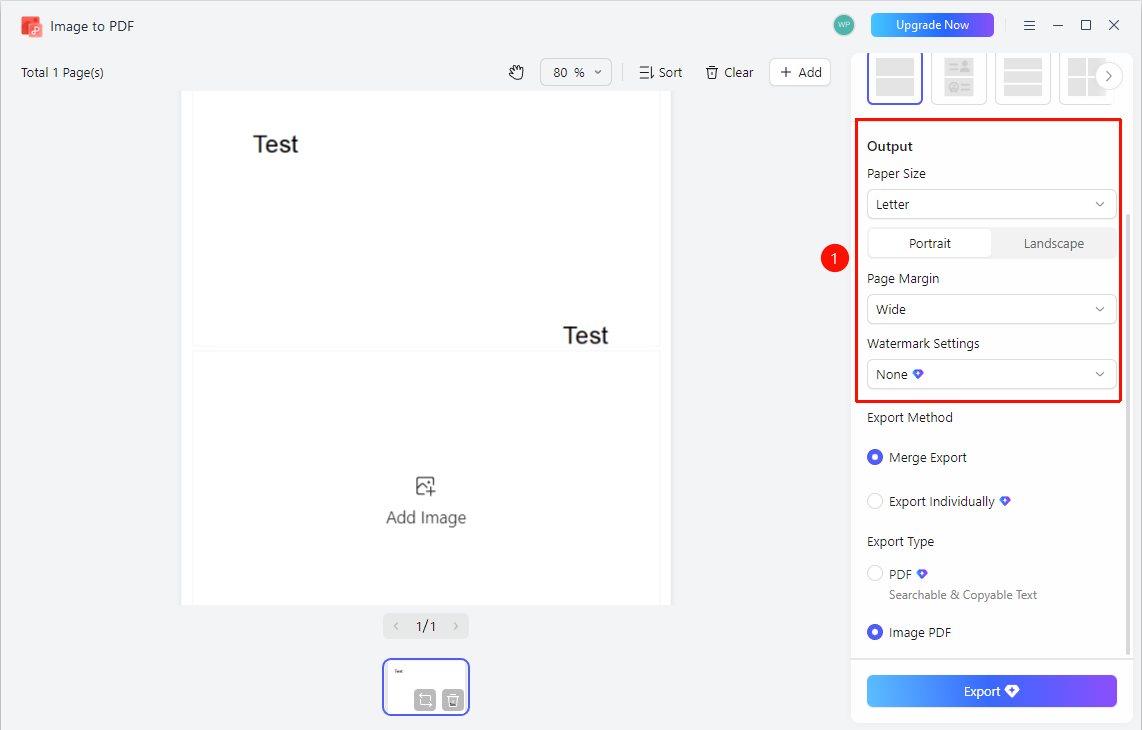
Set Output Parameters
Feature Entry
"Image to PDF" window → Right-side "Output Settings" panel
- "Paper Size": Select paper size (A4, A3, etc.)
- "Portrait/Landscape": Set page orientation
- "Page Margins": Select margin size (Wide, Narrow, etc.)
- "Watermark Settings": Add Watermark
Select Export Mode and Type
Feature Entry
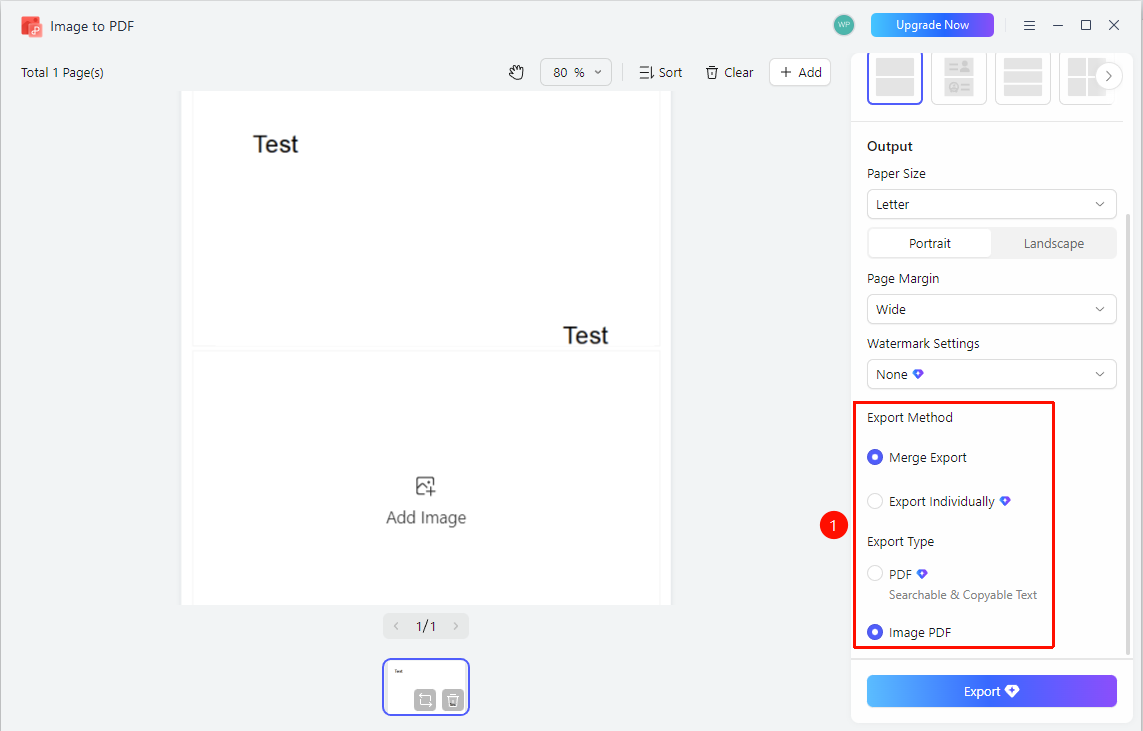
"Image to PDF" window → Right-side "Export Mode"/ "Export Type"
- "Export Mode":
- "Merge Export": Merge all images into a single PDF
- "Page-by-Page Export": Export each image as a separate page
- "Export Type":
- "PDF supports text search and copy": Searchable PDF
- "Image-Based PDF": Pure image format PDF
- Click the "Export" button to complete the conversion
FAQ
Q1: Why is there no response when clicking the Output Conversion button?
- Solution: This is a Premium feature and requires an internet connection. Please check the network connectivity of the current device and WPS.
Q2: What is the difference between Image-Based PDF and Searchable PDF?
- Solution: Image-Based PDF is a pure image format and does not support text search; Searchable PDF supports text search and copy.
Q3: How to merge multiple screenshots into one PDF?
- Solution: After adding multiple screenshots, select the "Merge Export" mode, and all images will be merged and exported as a single PDF file.
Notes
- It is recommended to preview and confirm the layout effect before exporting
- Supports adding multiple images for batch conversion