Feature Summary
The Pin on Screen feature keeps screenshots pinned to the topmost layer of your screen, enabling instant access for reference or step-by-step guidance—no need to switch between windows.
Feature Description
| Feature Dimension | Description |
|---|---|
| Membership Restriction | No membership restriction |
| Version Restriction | No version restriction |
Operation Steps
Pin a Screenshot to the Screen
Feature Entry
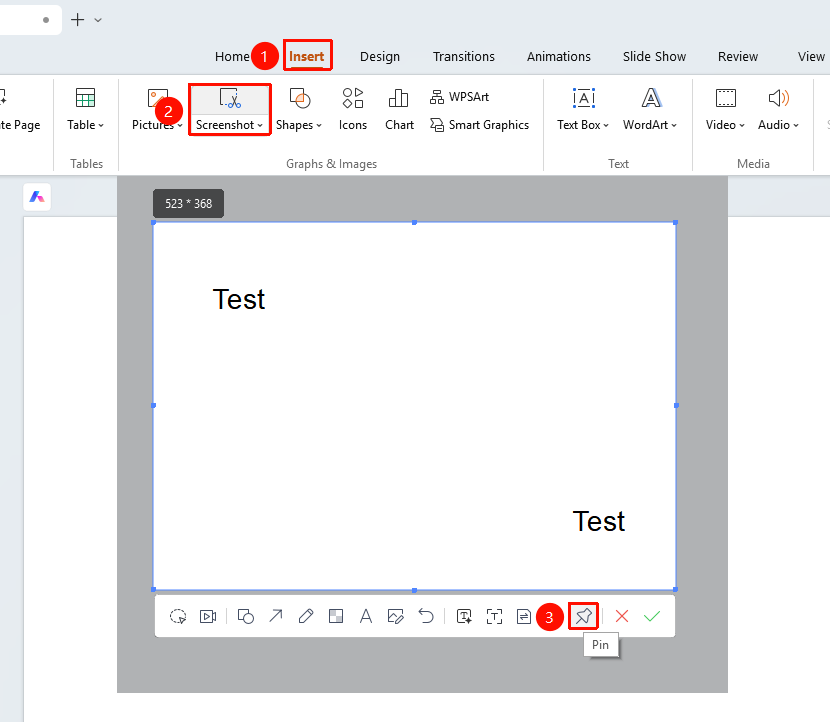
"Insert" tab → "Screenshot" button → Screenshot editing toolbar → "Pin on Screen" button
- Under the top "Insert" tab, locate and click the "Screenshot" button, then drag the cursor to complete the screenshot
- Click the "Pin on Screen" button in the toolbar
- The screenshot is fixed and displayed on top of the screen
- You can drag to adjust the screenshot position
- The screenshot always stays on the top layer
Manage Screenshots Pinned to the Screen
Feature Entry
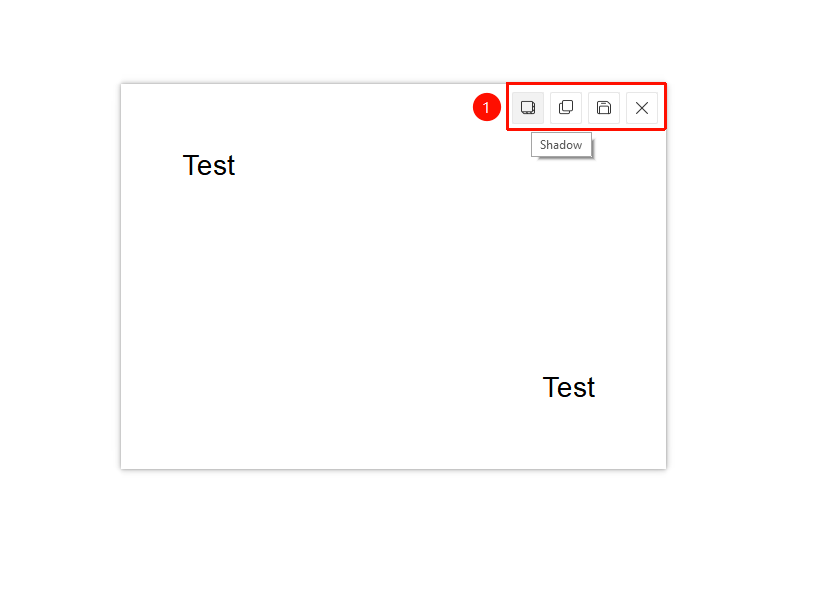
Edit area in the upper right corner of the pinned screenshot
- Move the mouse over the pinned screenshot
- Find and use the following options in the upper right corner of the screenshot:
- "Window Shadow" : Turn on/off the screenshot window shadow
- "Copy" : Copy the screenshot
- "Save" : Save the screenshot
- "Close" : Close the screenshot window pinned to the screen
FAQ
Q1: Can I edit a screenshot pinned to the screen?
- Solution: The screenshot pinned to the screen is in its final state and cannot be edited directly. If editing is needed, you must take a new screenshot.
Q2: How to adjust the display position of the screenshot?
- Solution: Drag the screenshot pinned to the screen to adjust its position; the screenshot will remain displayed on the top layer.
Q3: The boundary between the screenshot and other software is difficult to distinguish.
- Solution: Find and enable "Window Shadow" in the edit area at the upper right corner of the pinned screenshot. A black shadow will automatically appear around the screenshot edge, making the screenshot boundary more prominent.
Notes
- Screenshots pinned to the screen will occupy screen space
- It is recommended to close them promptly after finishing reference to avoid affecting normal operation
- Suitable for scenarios requiring long-term cross-reference with a screenshot for operation