Feature Summary
The mosaic feature is used to obscure sensitive information in screenshots during screenshot editing mode. It can blur or pixelate specified areas to protect private information from being disclosed.
Feature Description
| Feature Dimension | Description |
|---|---|
| Membership Restriction | No membership restriction |
| Version Restriction | No version restriction |
Operation Steps
Adding Mosaic Obscuration
Feature Entry
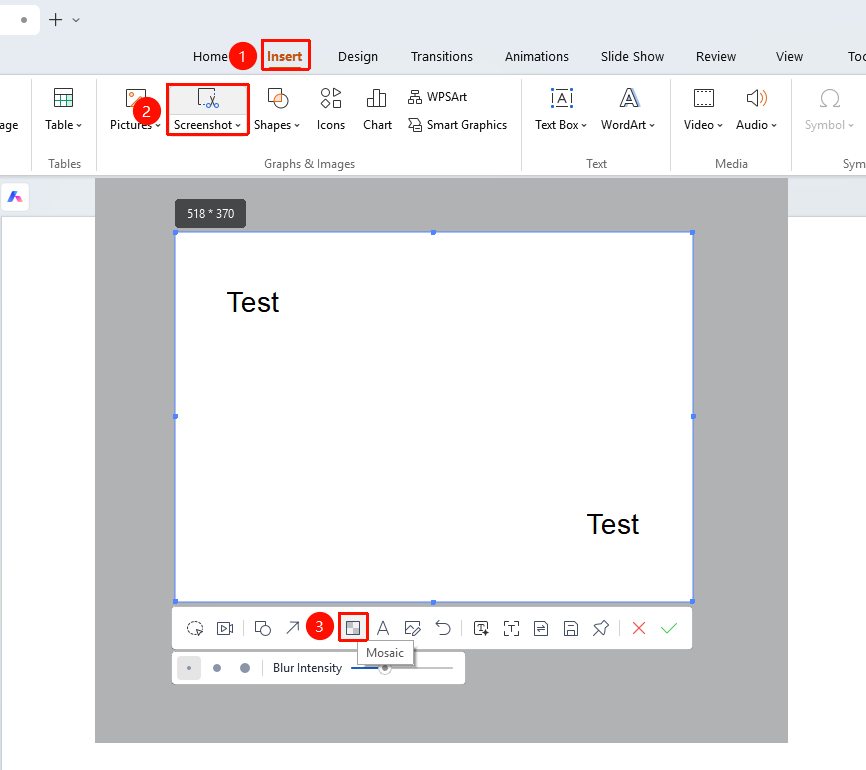
"Insert" tab → "Screenshot" button → Screenshot editing toolbar → "Mosaic" button
- Under the top "Insert" tab, locate and click the "Screenshot" button, then drag the cursor to complete the screenshot
- After taking a screenshot, enter editing mode
- Click the "Mosaic" button in the toolbar
- Select the default brush size and adjust the "Blur Intensity" level
- Drag the mouse over the area that needs to be obscured
- The selected area will automatically have the mosaic effect applied
- You can add mosaics to different areas multiple times
FAQ
Q1: How large an area can the mosaic cover?
- Solution: It can cover an area of any size. Simply drag the mouse to select the range you need to obscure.
Q2: Can the mosaic be undone?
- Solution: Yes. Click the undo button to undo the mosaic operation and restore the original screenshot content.
Notes
- Mosaic is an irreversible operation; the original content cannot be restored after it is added
- It is recommended to confirm the area to be obscured before adding the mosaic
- Commonly used to obscure sensitive information such as names, phone numbers, and addresses