Feature Summary
The spell check feature is used to check for spelling errors in slides, helping users identify and correct spelling issues. It supports custom dictionaries and multiple ignore options.
Feature Description
| Feature Dimension | Description |
|---|---|
| Membership Restriction | No membership restriction |
| Version Restriction | No version restriction |
Steps
Open Spell Check
Feature Entry
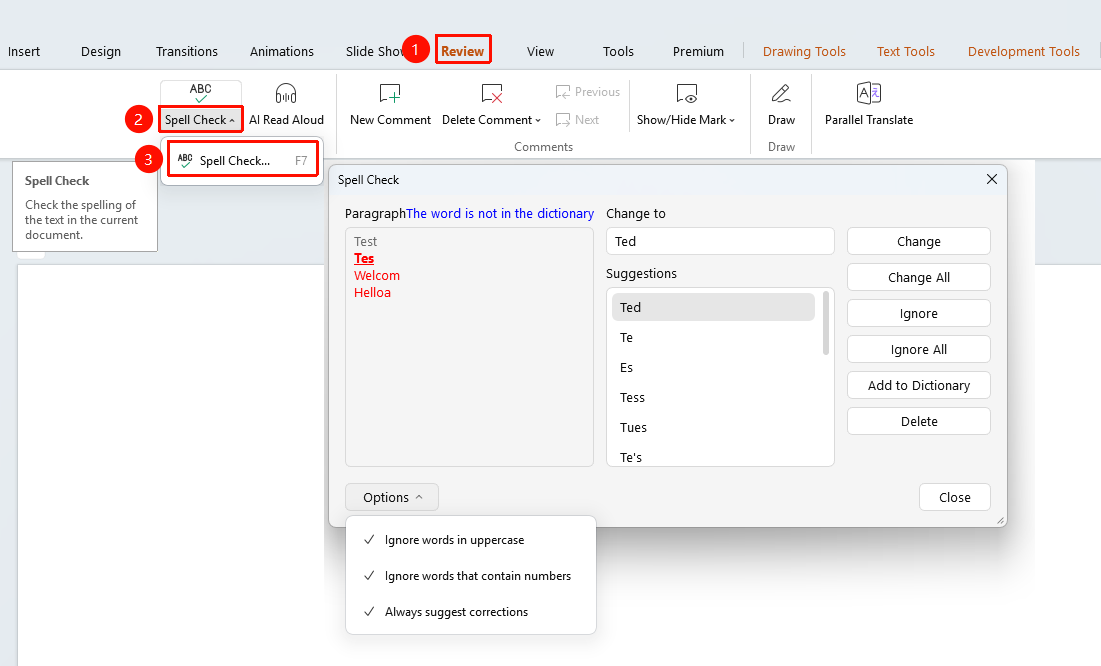
"Review" tab → "Proofing" → "Spell Check"
- Click the top "Review" tab
- In the "Proofing" area, find and click the "Spell Check" button
- The system automatically checks for spelling errors in the slides and launches the Spell Check dialog
- In the pop-up dialog, you can check the following:
- "Checked Paragraph": Displays the text content currently being checked, with incorrect words highlighted in red
- "Change To": Enter or select the content to correct to
- "Suggestions": Displays the system's recommended correction options
- Perform change actions:
- "Change": Correct the currently selected error
- "Change All": Correct all identical errors in the document
- "Ignore": Skip the current error without modifying
- "Ignore All": Skip all identical errors in the document
- "Add to Dictionary": Add the current word to the custom dictionary
- "Delete": Delete the misspelled word
- Click the "Options" button in the lower-left corner of the dialog to set the following options
- "Ignore words in UPPERCASE": Do not check all-uppercase words
- "Ignore words with numbers": Do not check words containing numbers
- "Always suggest corrections": Always display the list of correction suggestions
Custom Dictionary Settings
Feature Entry
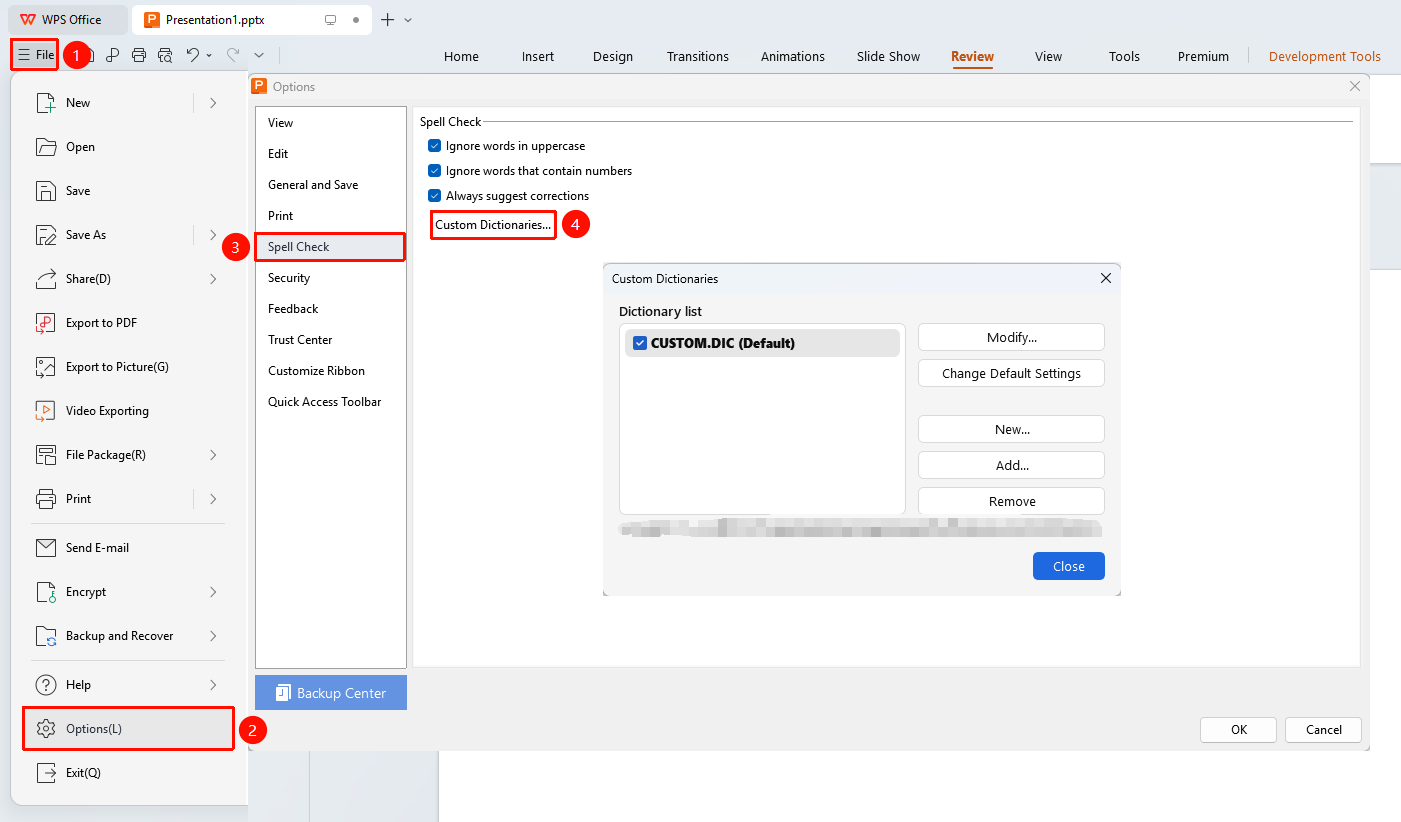
"File" → "Options" → "Spell Check" → "Custom Dictionaries"
- Click the "File" tab
- Select "Options"
- Select "Spell Check" on the left
- Click the "Custom Dictionaries" button
- In the pop-up dialog, you can perform the following actions
- "Modify": Modify an existing dictionary
- "New": Create a new custom dictionary
- "Add": Add an existing dictionary file
- "Delete": Delete a dictionary
- "Change Default": Set the default dictionary to use
FAQ
Q1: Where is the spell check
- Solution: Click the "Review" tab → "Proofing" → "Spell Check", or press the F7 shortcut.
Q2: How to ignore a spelling error
- Solution: In the spell check dialog, click "Ignore" to skip the current error, or click "Ignore All" to skip all errors.
Q3: How to add a custom dictionary
- Solution: Click "Options" → "Custom Dictionaries" to create, add, or modify dictionary files.
Notes
- Spell check only checks text content