Feature Summary
The Control Properties feature is used to view and modify the property parameters of inserted controls, allowing you to set various properties such as the control's name, appearance, and behavior.
Feature Description
| Feature Dimension | Description |
|---|---|
| Membership Restriction | No membership restriction |
| Version Restriction | No version restriction |
Operation Steps
Opening Control Properties
Feature Entry
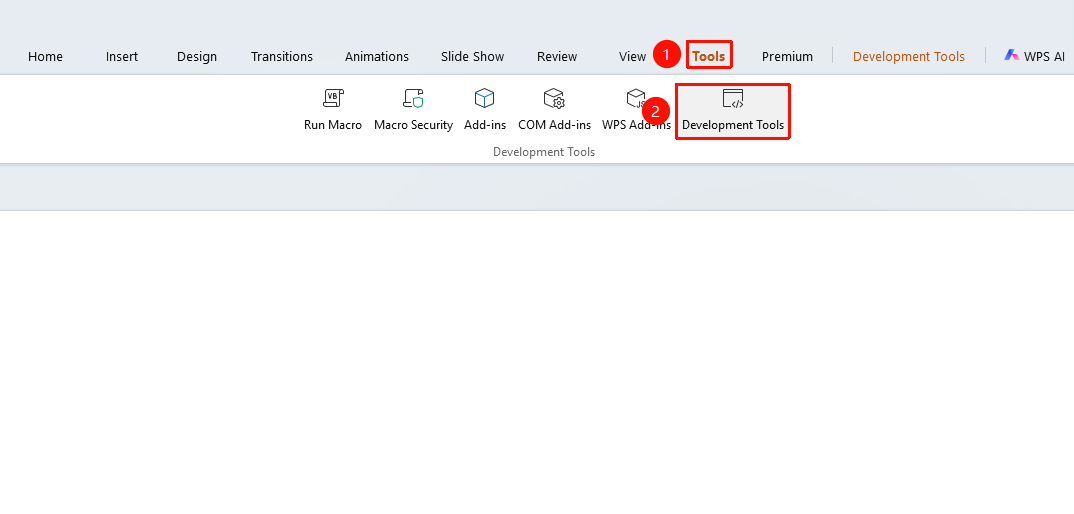
"Tools" tab → "Developer Tools" button → "Developer Tools" tab → "Control Properties"
- Click the "Tools" tab at the top, locate and click the "Developer Tools" button to bring up the "Developer Tools" tab at the top
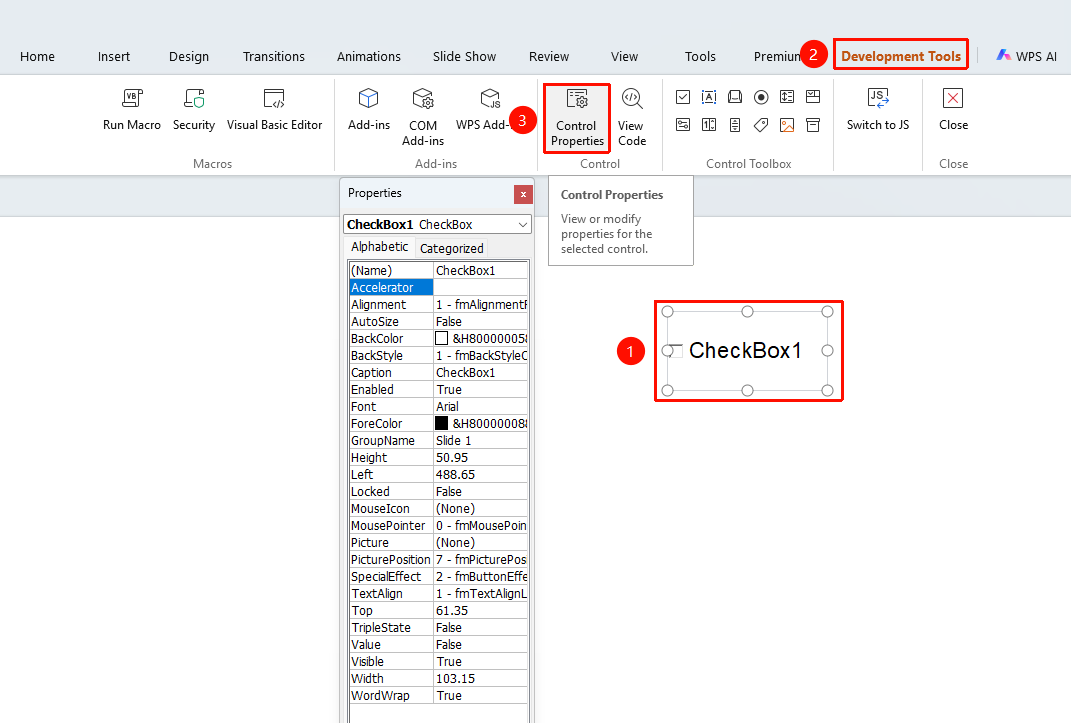
- Select the inserted control
- Click the top "Developer Tools" tab
- Locate and click the "Control Properties" button
- View and modify control properties in the properties panel
Common Control Properties
- "Name": Control name
- "Caption": Control display text
- "Visible": Whether the control is visible
- "Enabled": Whether the control is enabled
- "Height/Width": Control height and width
- "Top/Left": Control position
Frequently Asked Questions
Question 1: Where is the Control Properties panel
- Solution: After selecting the control, open the properties panel via "Tools" → "Developer" → "Control Properties".
Question 2: Why is Control Properties grayed out
- Solution: You need to first select an inserted control to view and edit its properties.
Question 3: How to modify the display text of a control
- Solution: Find the "Caption" property in the properties panel and modify its value to change the text content displayed on the control.
Notes
- Ensure you understand the meaning of each property before making modifications
- Some property changes take effect only after restarting the slideshow