Feature Summary
The Insert/Delete Rows and Columns feature is used to adjust the number of rows and columns in a table on a slide. It allows you to flexibly increase or decrease the number of rows and columns according to content needs, making it one of the most commonly used basic operations in table editing.
Feature Description
| Feature Dimension | Description |
|---|---|
| Membership Restriction | No membership restriction |
| Version Restriction | No version restriction |
Steps
Insert Rows and Columns via Right-Click Menu
Feature Entry
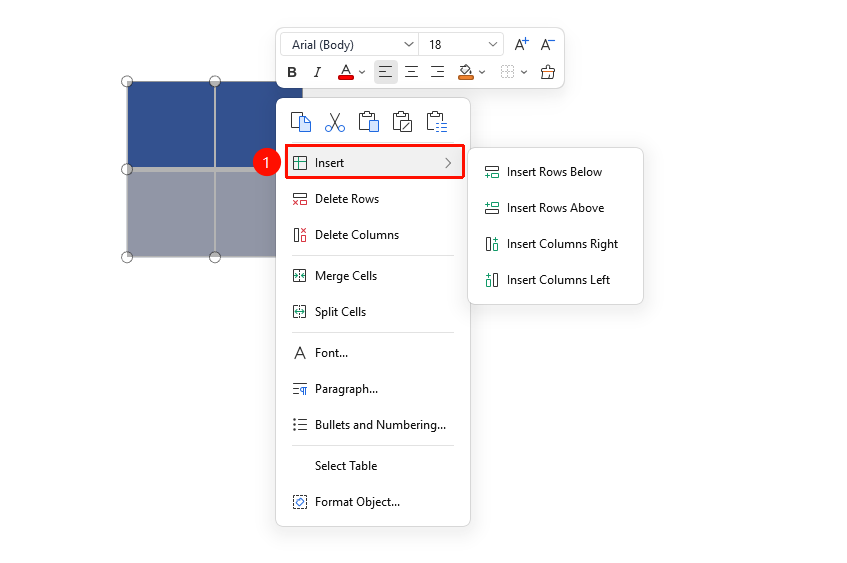
Select a table cell → Right-click menu → Insert
- Click the cell in the table next to which you want to insert a row or column
- Right-click and select Insert from the pop-up menu
- Choose the insertion method: Insert Column to the Left, Insert Column to the Right, Insert Row Above, or Insert Row Below
- The table will automatically add the corresponding rows or columns
Delete Rows and Columns via Right-Click Menu
Feature Entry
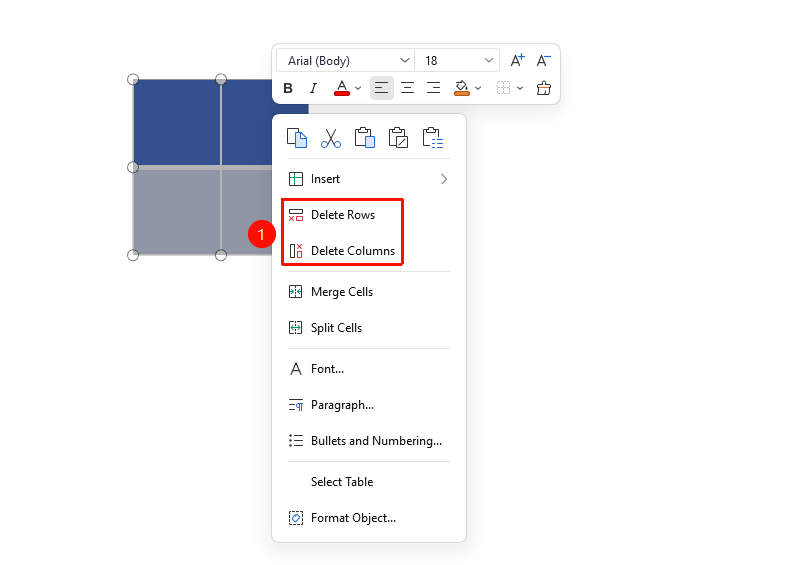
Select a table row or column → Right-click menu → Delete
- Select the row or column you want to delete
- Right-click the selected area
- Select Delete from the pop-up menu
- Choose Delete Row or Delete Column
- The table will automatically adjust after confirming the deletion
Process Sheet Rows and Columns via the Ribbon
Feature Entry
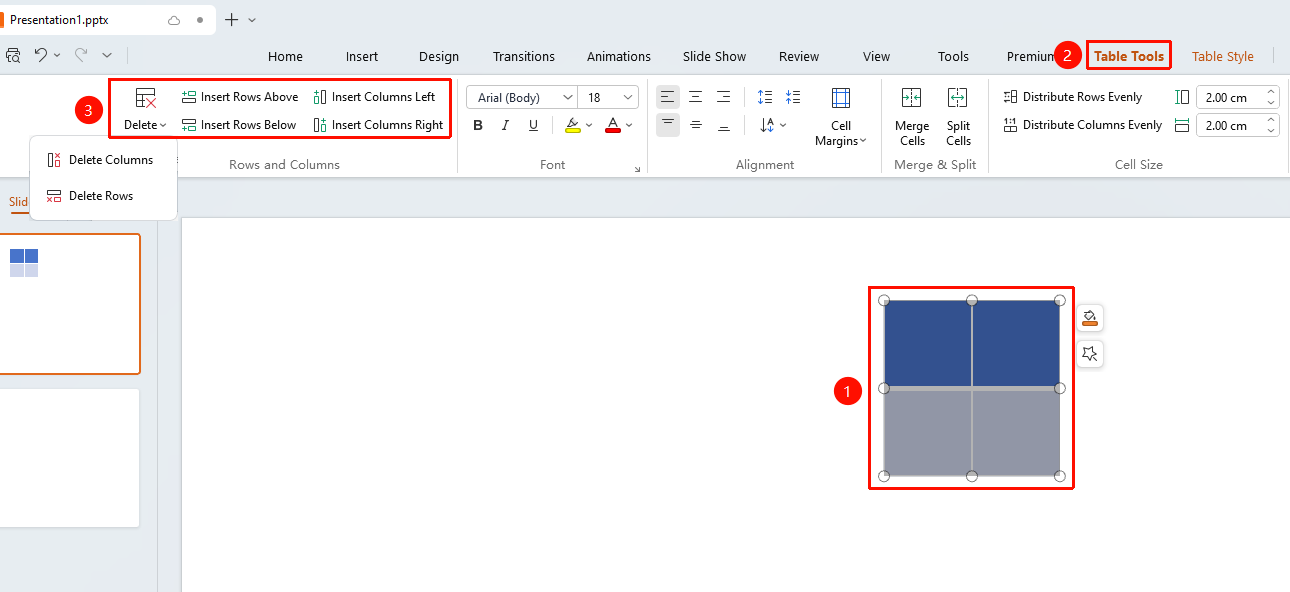
Table Tools tab → Rows & Columns group
- Click any cell in the table
- Click the Table Tools tab
- Find the insert and delete buttons in the Rows & Columns group
- Click the corresponding button to insert or delete rows or columns
FAQ
Q1: Will table content be lost after inserting rows or columns?
- Solution: No. Inserting rows or columns adds new blank rows or columns adjacent to the existing ones, and the original content will not be affected. However, if you delete a row or column that contains content, the content in that row or column will be deleted.
Q2: Can I insert multiple rows or columns at once?
- Solution: Yes. First select the number of rows or columns you want to insert, then perform the insert operation. The system will insert the corresponding number of new rows or columns at once.
Q3: How do I undo a row or column deletion?
- Solution: Use the shortcut Ctrl+Z to undo the deletion and restore the deleted rows or columns along with their content.
Notes
- When inserting rows or columns, the new rows or columns will inherit the formatting style of the adjacent rows or columns.