Feature Summary
WPS Slides local mode supports inserting mathematical formulas, offering LaTeX syntax input and a visual formula editor.
Feature Description
| Feature Dimension | Description |
|---|---|
| Membership Restriction | No membership restriction |
| Version Restriction | No version restriction |
Operation Steps
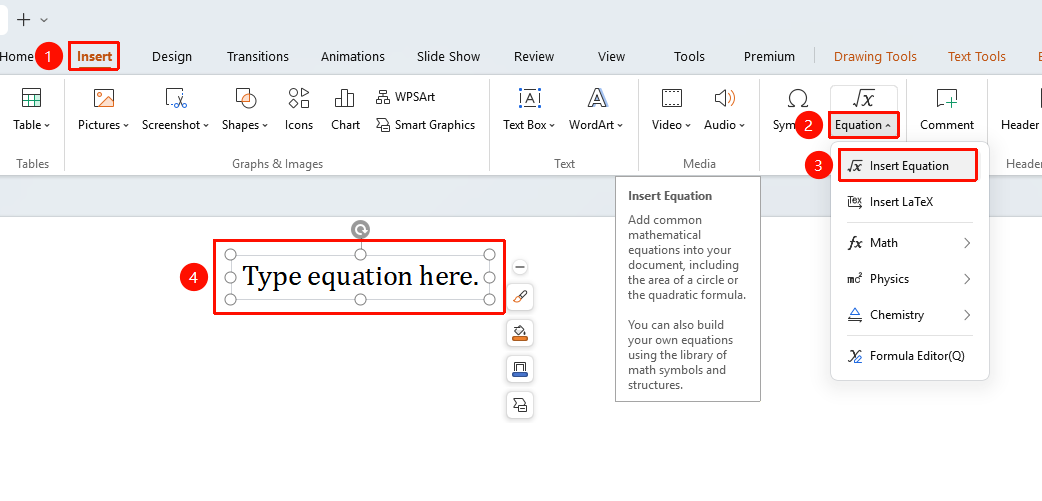
Insert Formula via the Ribbon
Feature Entry
"Insert" tab → "Formula" button
- Click the "Insert" tab in the top menu bar
- Click the dropdown arrow next to the "Formula" button
- Select a preset formula or click "Insert New Formula"
- Enter the formula content in the formula editor
- Click outside the editor area to complete the insertion
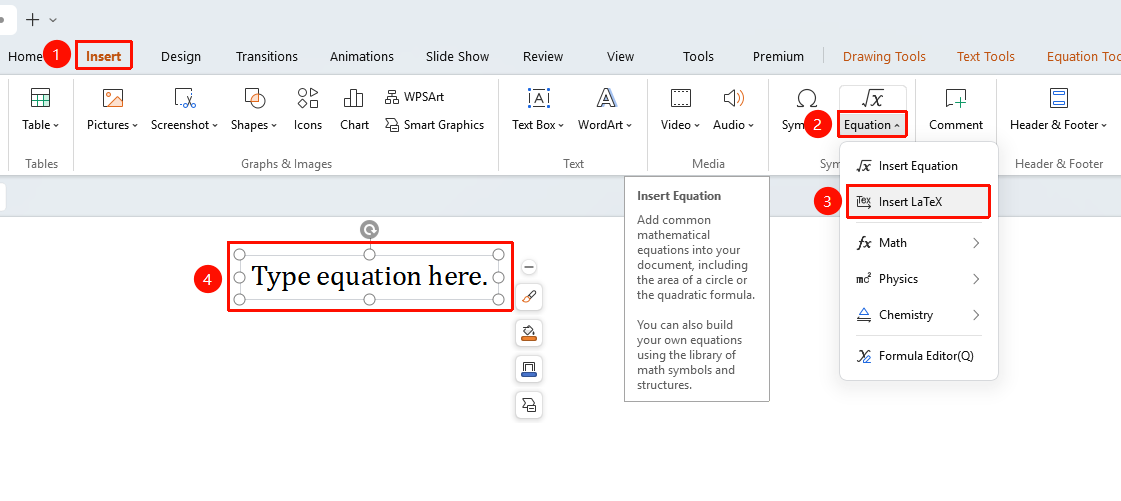
Enter Formula Using LaTeX Syntax
Feature Entry
"Insert" tab → "Formula" → "LaTeX"
- Select "LaTeX" in the formula options
- Enter the formula syntax in the LaTeX editor
- Preview the formula effect in real time
- Click "Insert" to complete
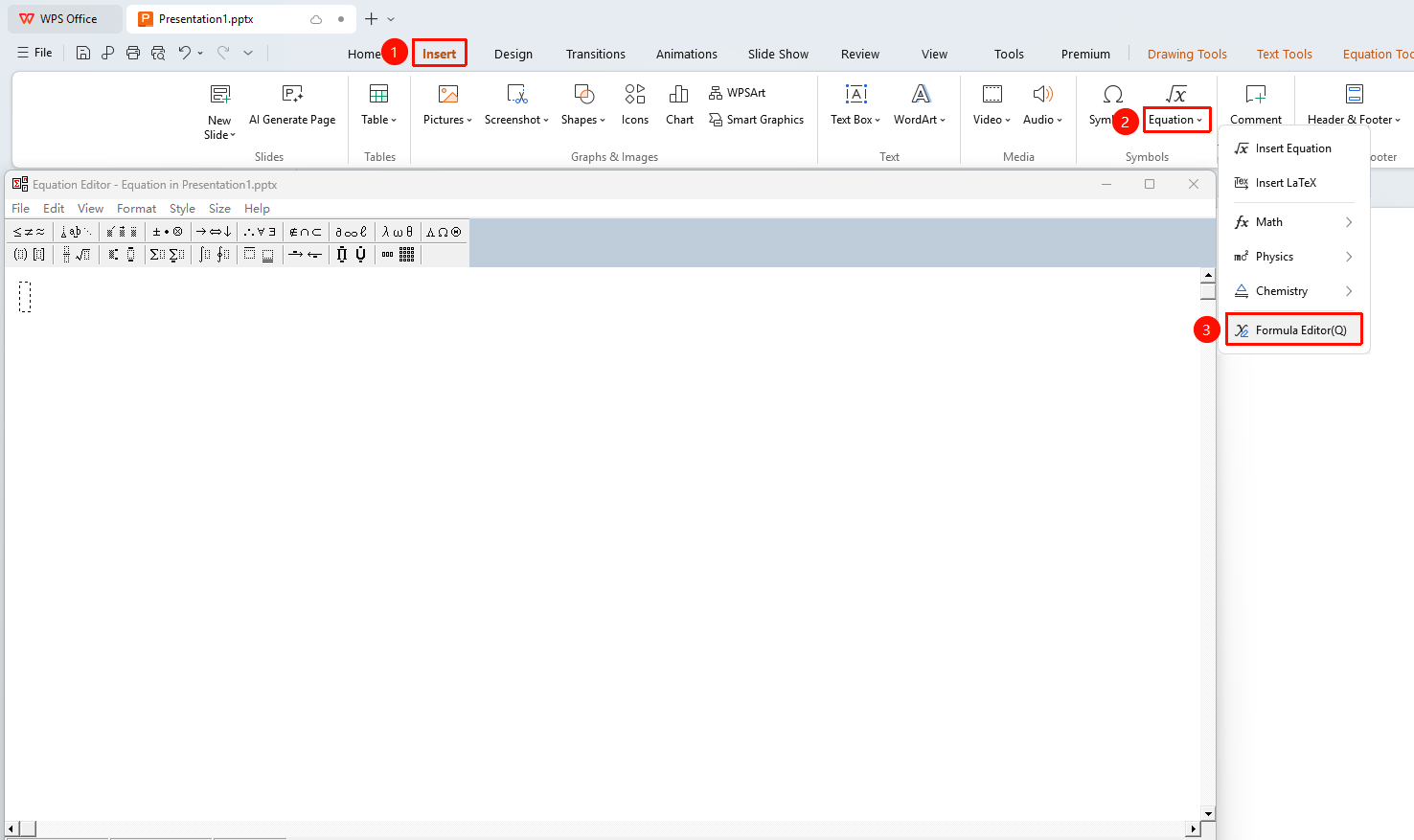
Using the Formula Editor
Feature Entry
Formula Editor Toolbar
- After inserting a formula, double-click the formula to open the editor
- Use the symbols and templates in the toolbar
- Enter the mathematical expression
- Click outside the editor area to complete editing
Frequently Asked Questions
Question 1: How to edit an already inserted formula?
- Solution: Double-click the formula to go to the formula tools tab for modification.
Question 2: Can the formula be resized?
- Solution: Yes, select the formula and drag the control points to resize.
Notes
- Formula objects can be moved and resized