Feature Summary
The insert/delete comment feature is used to add, edit, reply to, and delete comments in a presentation, facilitating feedback and discussion to collaborate effectively within teams.
Feature Description
| Feature Dimension | Description |
|---|---|
| Membership Restriction | No membership restriction |
| Version Restriction | No version restriction |
Operation Steps
Add Comment
Feature Entry
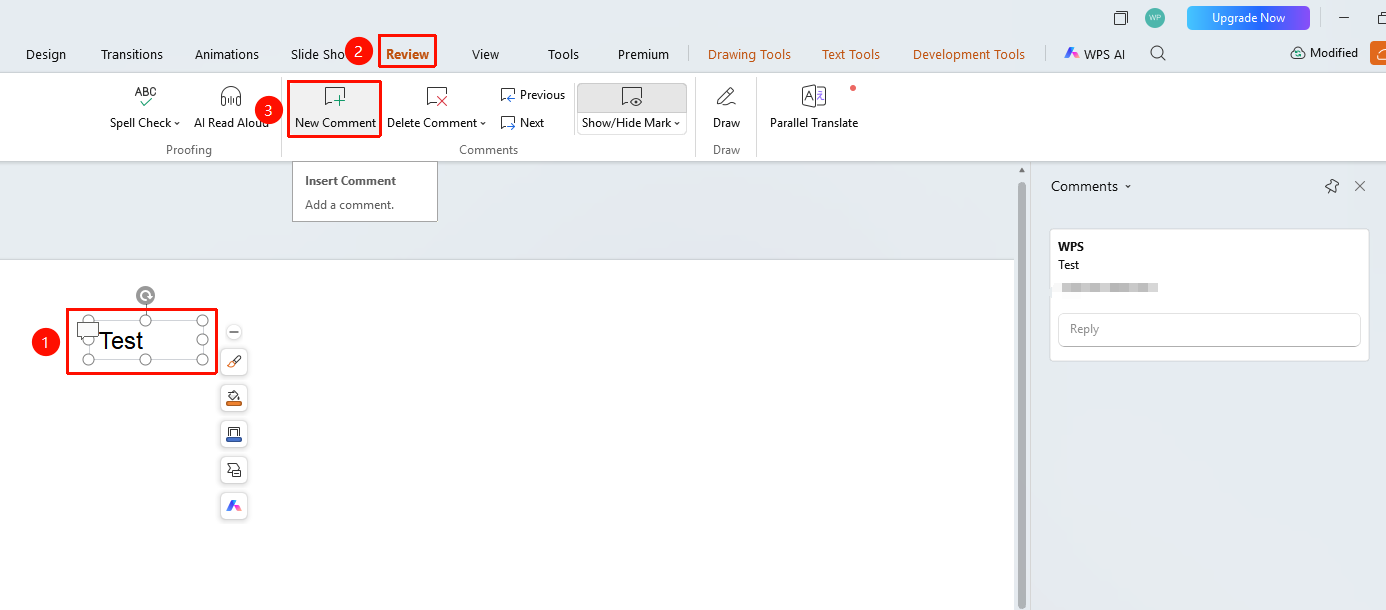
"Review" tab → "Insert Comment"
- Select the object or text you want to add a comment to
- Click the top "Review" tab
- Find and click the "Insert Comment" button
- Enter the comment content in the comment pane on the right
- Click "Send" to finish adding
After adding a comment, a dialog box icon appears above the object or text. Click it to bring up the side comment pane and browse the added comments.
Add Comment via Insert Tab
Feature Entry
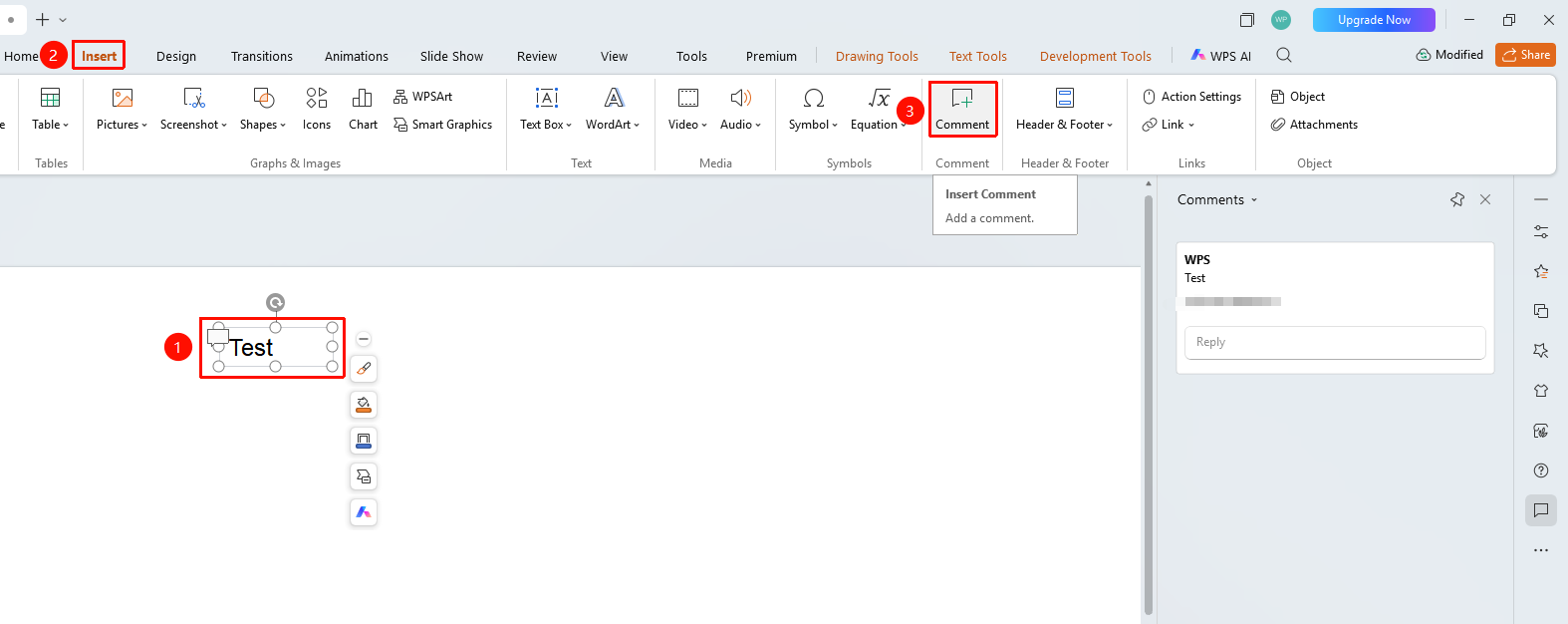
"Insert" tab → "Comment"
- Select the object or text you want to add a comment to
- Click the top "Insert" tab
- Find and click the "Comment" button
- Enter the comment content in the comment pane on the right
- Click "Send" to finish adding
Add Comment via Bottom Status Bar
Feature Entry
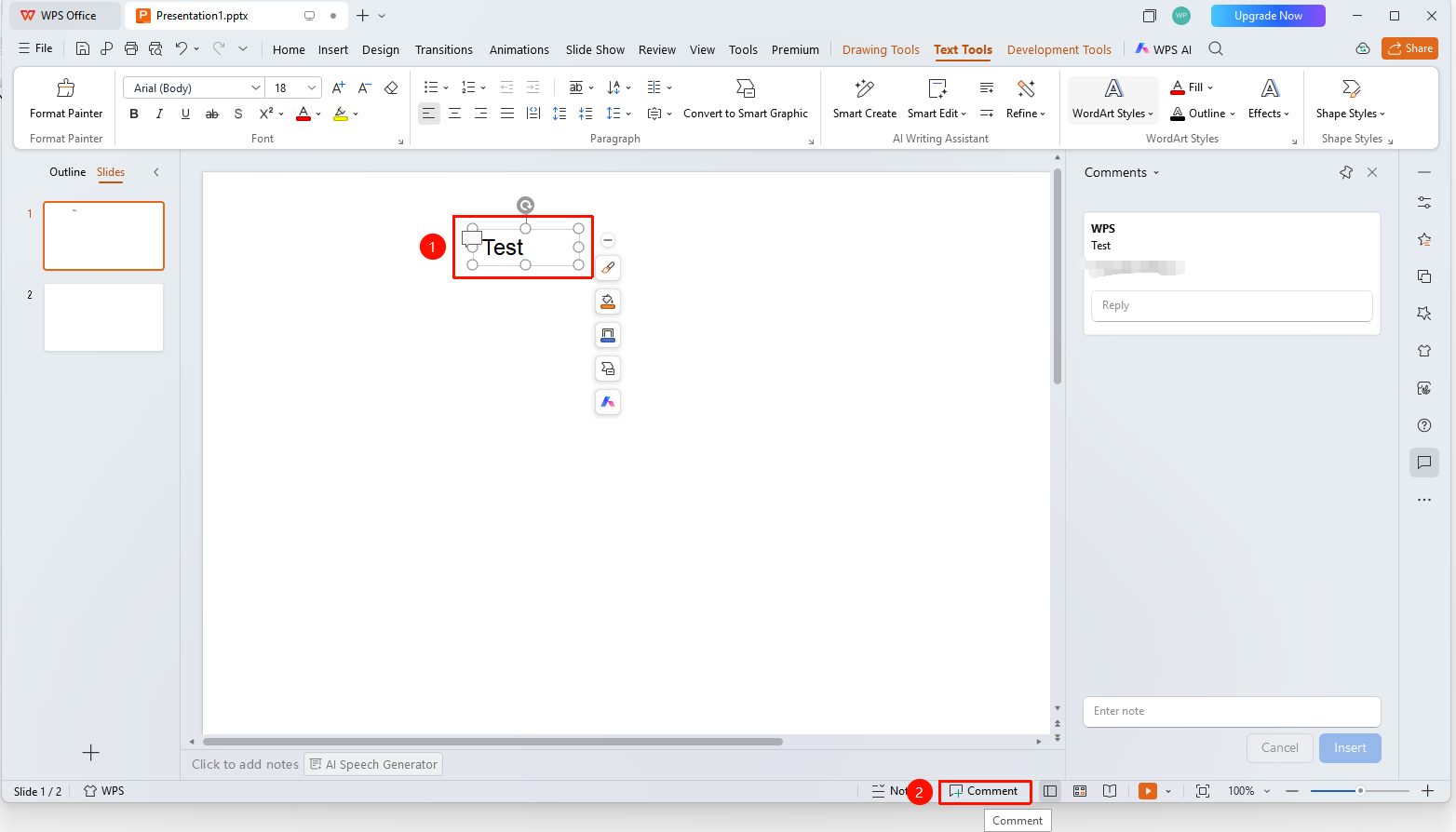
Status Bar → "Comment" button
- Click the "Comment" button on the bottom status bar
- The comment pane appears on the right
- Enter the comment content in the input box at the bottom
- Click "Send" to finish adding
Quickly Insert a Comment
Feature Entry
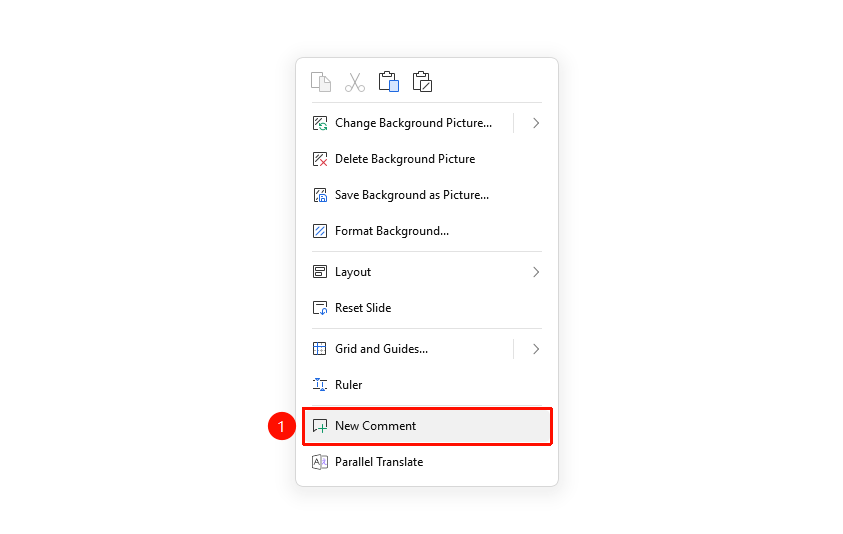
Right-click menu on blank area of slide → "Insert Comment"
- Right-click on a blank area of the slide
- Find and click the "Insert Comment" button to open the side comment pane
Manage Comments
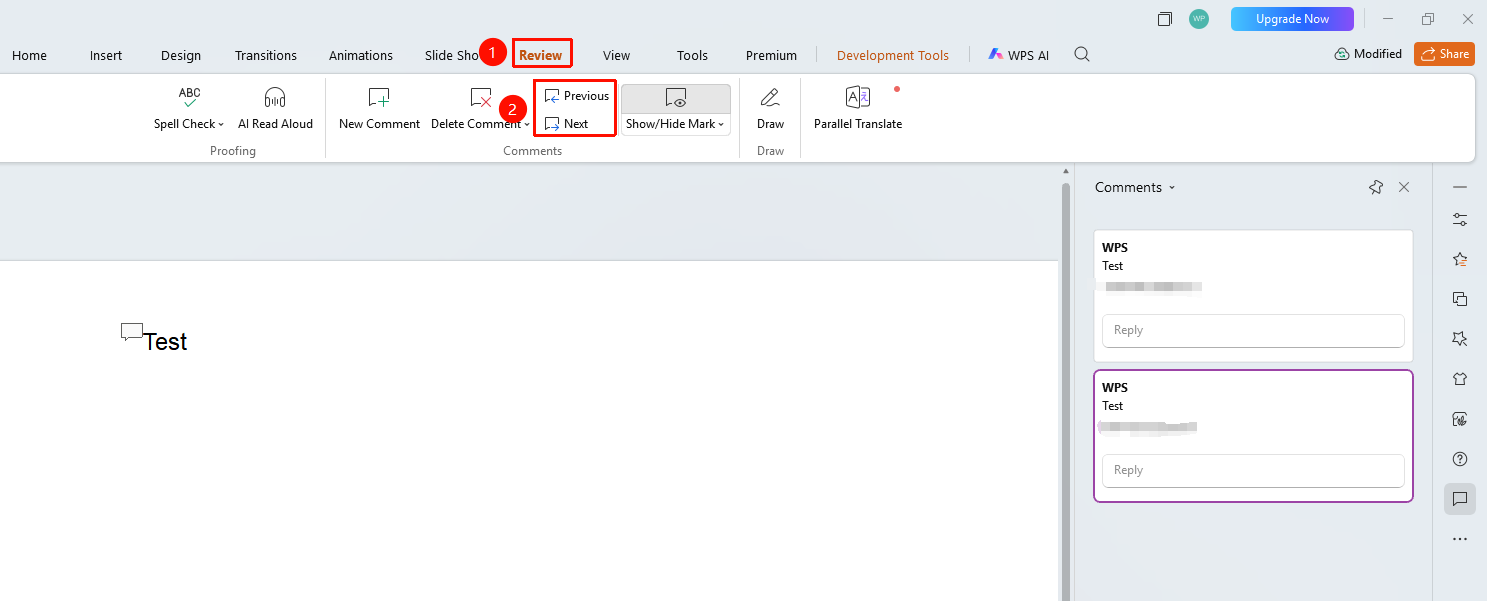
View Comments
Feature Entry
"Review" tab → "Previous" / "Next"
- Click the top "Review" tab
- Click the "Previous" or "Next" button
- View comment details in the comment pane
Edit Comment
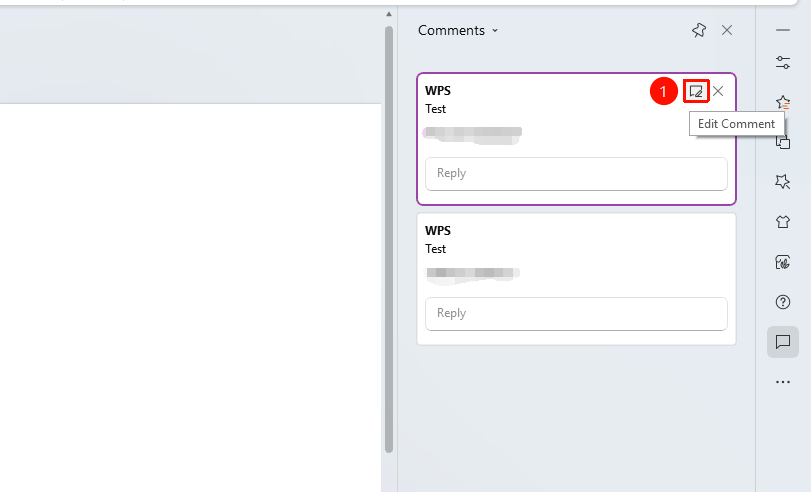
- Find the comment you want to edit in the comment pane on the right
- Click the "Edit" button in the upper right corner of the comment
- Modify the comment content or reply to the comment
- Click "Send" to confirm the modification or add a reply
Delete a Single Comment
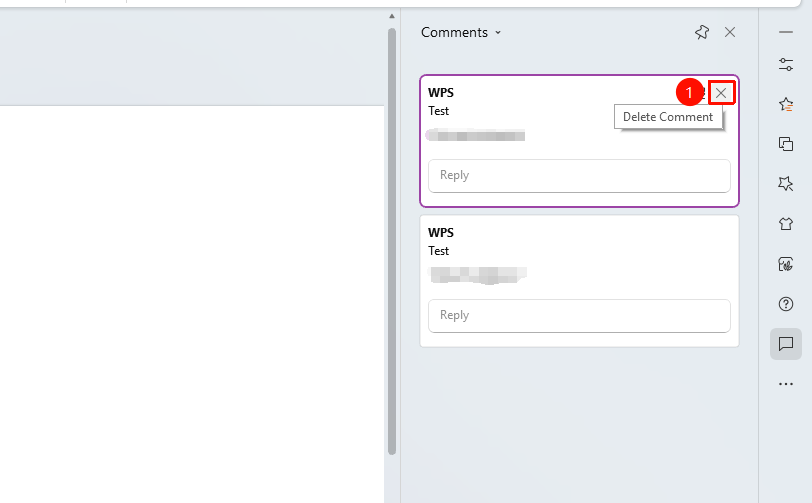
- Find the comment you want to delete in the comment pane on the right
- Click the "X" button in the upper right corner of the comment
- The comment will be deleted
Batch Manage Comments
Delete All Markers on Current Slide
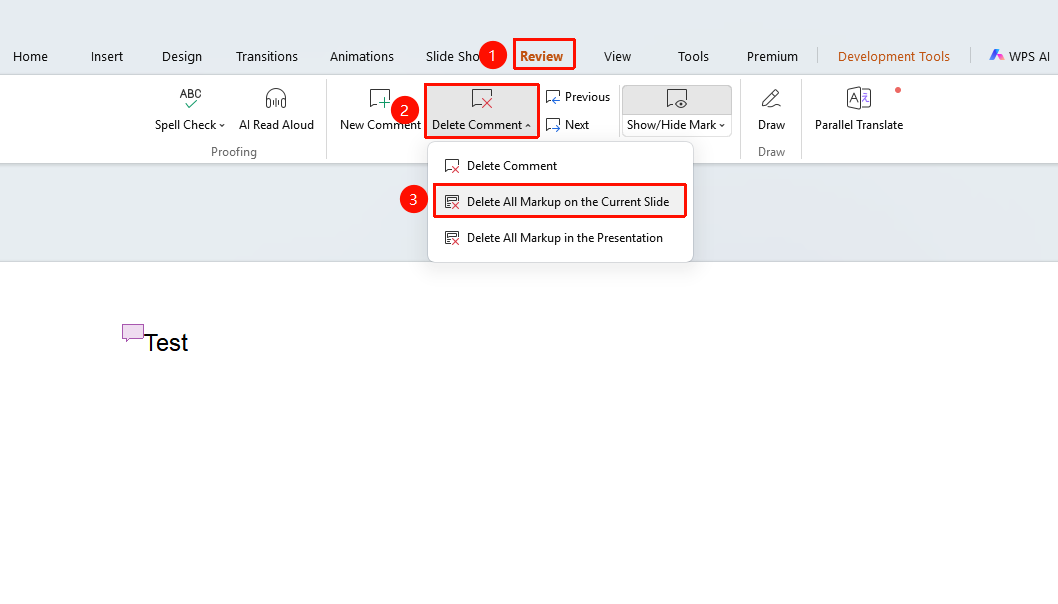
Feature Entry
"Review" tab → "Delete Comment" → "Delete All Markers on Current Slide"
- Select the slide from which you want to delete comments
- Click the top "Review" tab
- Click the "Delete Comment" dropdown button
- Select "Delete All Markers on Current Slide"
- All comments on the current slide will be deleted
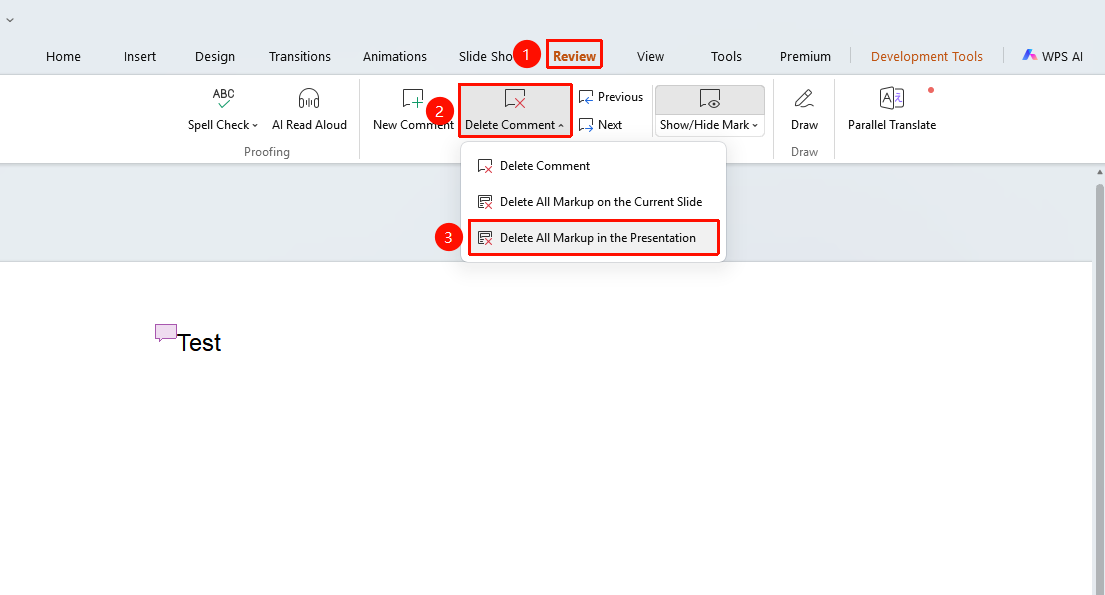
Delete All Markers in Presentation
Feature Entry
"Review" tab → "Delete Comment" → "Delete All Markers in Presentation"
- Click the top "Review" tab
- Click the "Delete Comment" dropdown button
- Select "Delete All Markers in Presentation"
- All comments in the entire presentation will be deleted
FAQ
Q1: How to delete all comments on the current slide at once
- Solution: Click the "Review" tab → "Delete Comment" → "Delete All Markers on Current Slide".
Q2: How to delete all comments in the entire document at once
- Solution: Click the "Review" tab → "Delete Comment" → "Delete All Markers in Presentation".
Q3: Can I undo after batch deletion
- Solution: You can press Ctrl+Z to undo the batch deletion operation and restore all deleted comments.
Notes
- Batch deletion cannot recover a single comment individually
- It is recommended to save the document before batch deletion
- Comments will not be displayed during the slideshow
- Comments can be used for feedback and communication during team collaboration