Feature Summary
The Insert Placeholder feature is used to add content placeholder areas in a layout, defining where placeholder content is placed.
Feature Description
| Feature Dimension | Description |
|---|---|
| Membership Restriction | No membership restriction |
| Version Restriction | No version restriction |
Steps
Insert Placeholder
Feature Entry
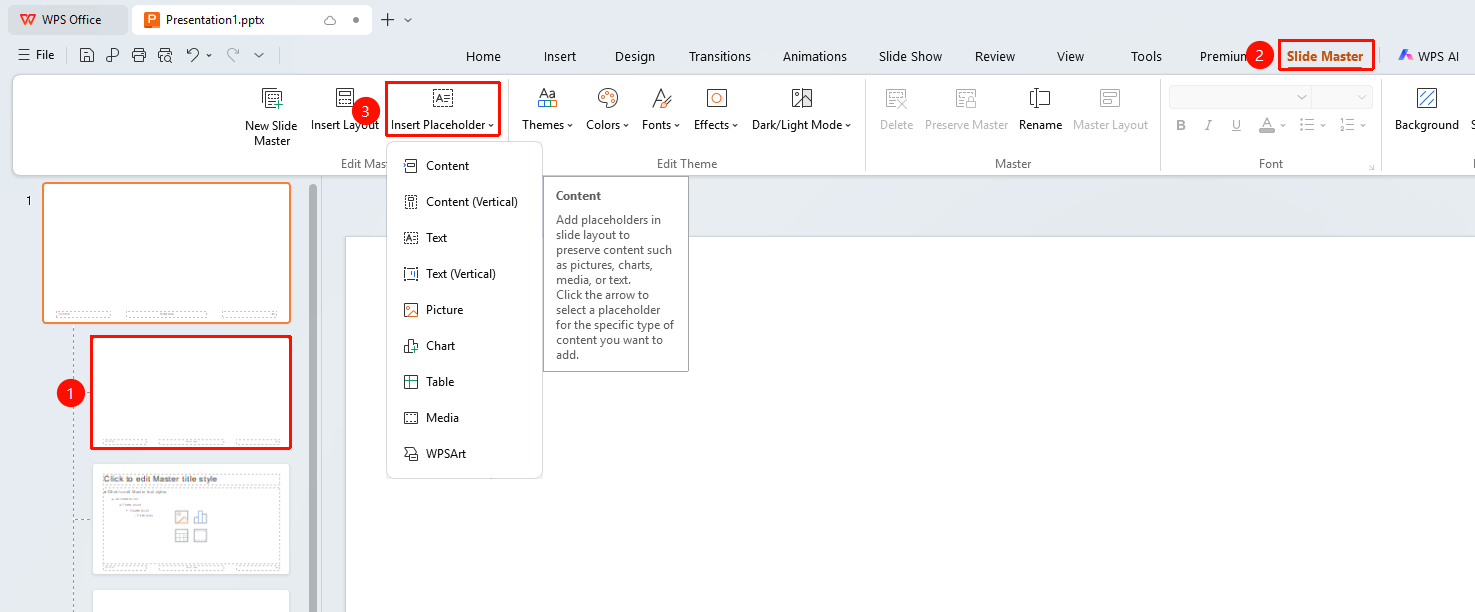
"Slide Master" tab → "Insert Placeholder"
- Switch to the "Slide Master" tab
- Click the "Insert Placeholder" button
- Select the placeholder type (Content, Text, Chart, WPSArt, etc.)
- Drag on the layout to draw the placeholder area
The "Slide Master" tab needs to be enabled by first clicking the "Slide Master" option under the "View" tab
FAQ
Q3: Can the placeholder be resized?
- Solution: Yes, after insertion, drag the control points around the placeholder to adjust its size and position.
Notes
- The placeholder determines where users add content in Normal view.