Feature Summary
The Insert Icon feature is used to insert preset icon materials into slides, providing a wealth of vector icon resources for quickly adding professional graphic elements.
Feature Description
| Feature Dimension | Description |
|---|---|
| Membership Restrictions | Includes some member-only features |
| Version Restrictions | No version restrictions |
Operation Steps
Some icon styles require you to subscribe to WPS membership. Please note the membership label before applying.
Insert Icon
Feature Entry
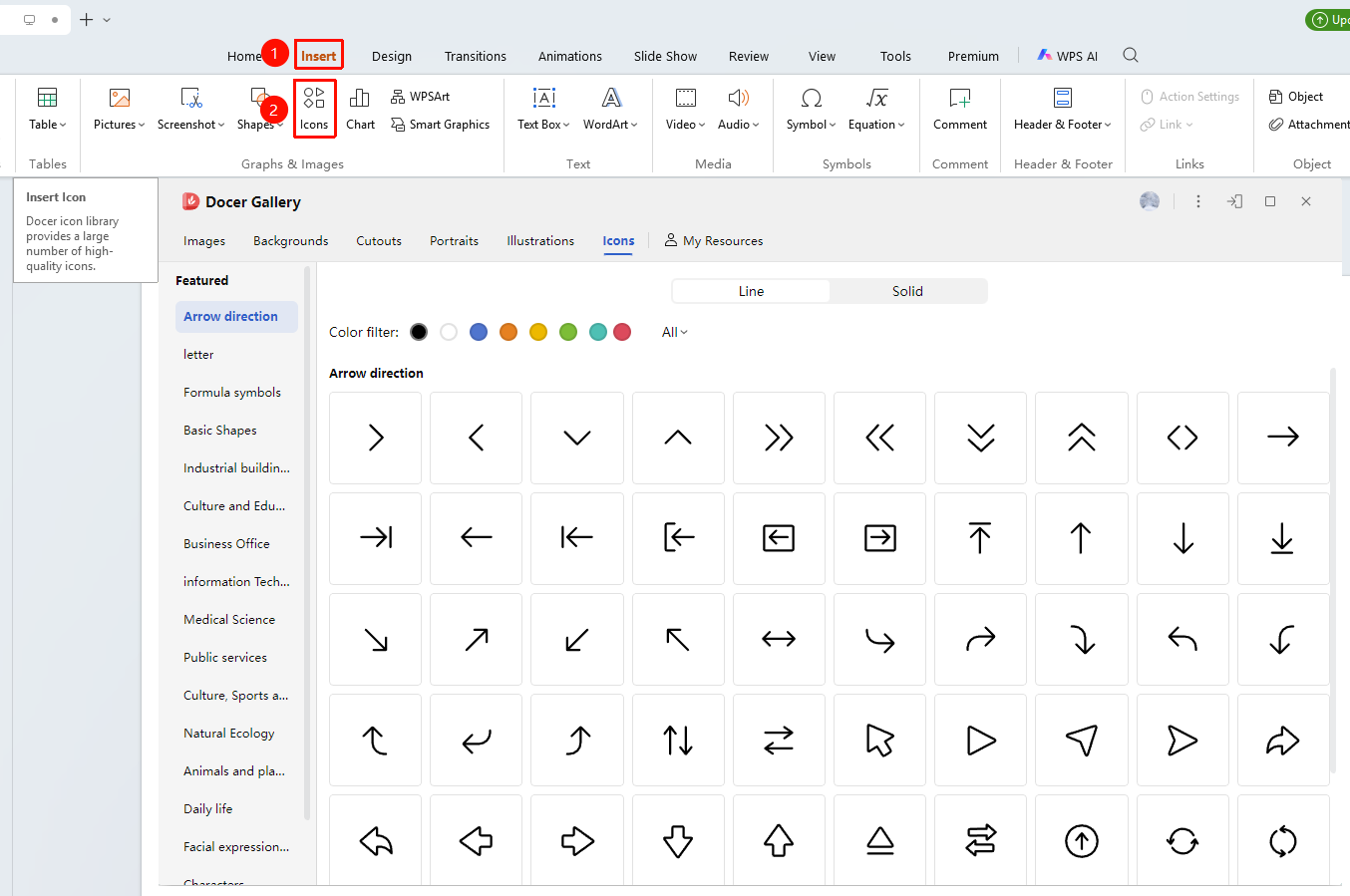
"Insert" tab → "Icon"
- Click the top "Insert" tab
- Find and click the "Icon" button
- Browse or filter for the desired icon in the icon library
- Click the icon you want to insert
- The icon will be inserted into the current slide
FAQ
Q1: Unable to insert icon
- Solution: Some paid icons are member-only online resources. Please check the network connection between your device and WPS.
Q2: Can the color of the inserted icon be modified?
- Solution: Yes, after selecting the icon, you can modify the fill color, outline, etc., in the "Graphic Tools" tab.
Q3: Which icons require a membership?
- Solution: Some premium icons require a membership to use. Icons requiring membership will be marked with a membership label.
Notes
- Icons can be edited and styled just like shapes