Feature Summary
When you need to add images, create mixed text-and-image reports, or design beautifully laid-out pages in WPS Presentation, the Insert Picture feature provides a variety of flexible image import capabilities to help you efficiently create documents that combine text and graphics.
- Supports inserting local images and online images
- Supports batch insertion, improving multi-image processing efficiency
Feature Description
| Feature Dimension | Description |
|---|---|
| Membership Restrictions | Basic insertion features have no membership restrictions; some online images and features require membership |
| Version Restrictions | No version restrictions |
| Shortcut Key | Screenshot: Ctrl+Alt+X |
| Shortcut Key | Hide current window during screenshot: Ctrl+Alt+C |
Operation Steps
Method 1: Insert from Local File
Feature Entry
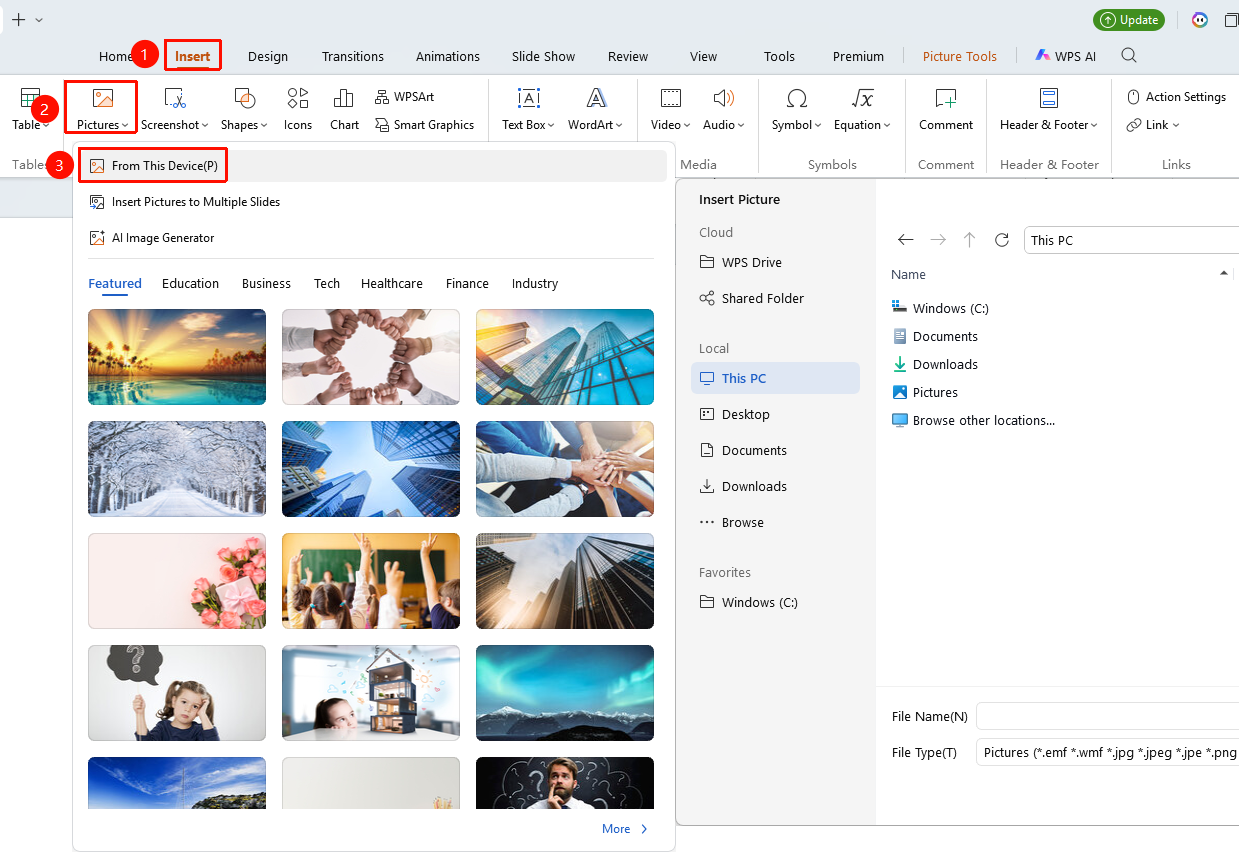
"Insert" tab → "Picture" → "Local Picture"
- Position the cursor where you want to insert the picture
- Click the "Insert" tab in the top ribbon
- Click the Picture button and select "Local Picture"
- In the file selection window that pops up, navigate to the picture's path and select the target picture
- Click "Open" to complete the insertion
Method 2: Quick Insert by Drag and Drop
- Open the folder window containing the picture
- Select the target picture and drag it directly to the desired location in the WPS Presentation document
- Release the mouse button to complete the insertion
Method 3: Insert Online Pictures (Including Some Paid Pictures)
Some pictures require membership activation before use. Please check the membership indicator of the desired picture before inserting.
Feature Entry
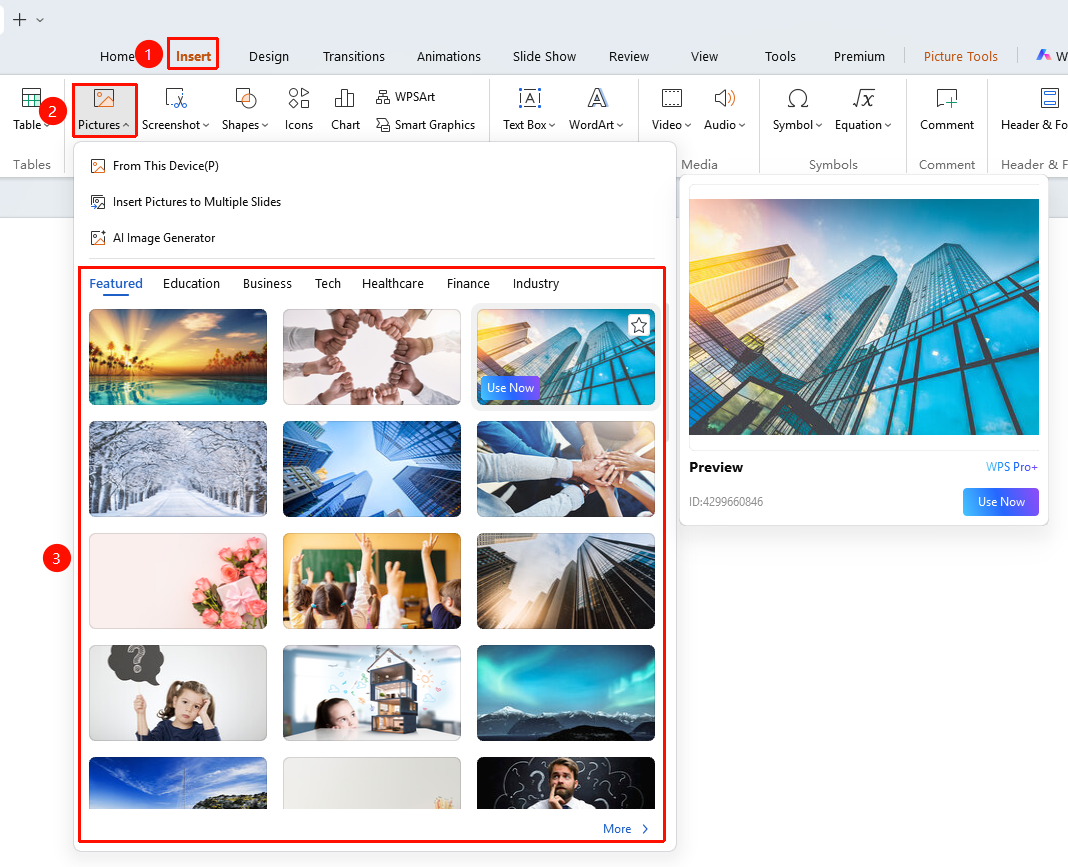
"Insert" tab → "Picture" → "More Pictures"
- Click the "Insert" tab in the top ribbon
- Click the Picture button and browse online picture resources at the bottom, such as Featured , Business , Education , etc.
- Click "More Pictures" to expand the Docer Gallery
- Enter keywords in the search box to search for online pictures
- Select the picture and click Insert (pay attention to using copyright-compliant pictures)
Method 4: Batch Insert Multiple Pictures
Feature Entry
"Insert" tab → "Picture" → "Local Picture"
- Click the "Insert" tab in the top ribbon
- Click the Picture button and select "Local Picture"
- In the file selection window, hold down the Ctrl key to select multiple pictures one by one
- Click "Open" to complete the batch import at once
Method 5: Copy/Paste Picture
Feature Entry
After copying the picture, use right-click paste or shortcut key paste
- Copy the picture from any path and open the WPS Presentation editing area
- Position the cursor where you want to insert the picture and use the shortcut key paste or right-click paste
Method 6: Screenshot Insertion (Including Some Membership Features)
Feature Entry
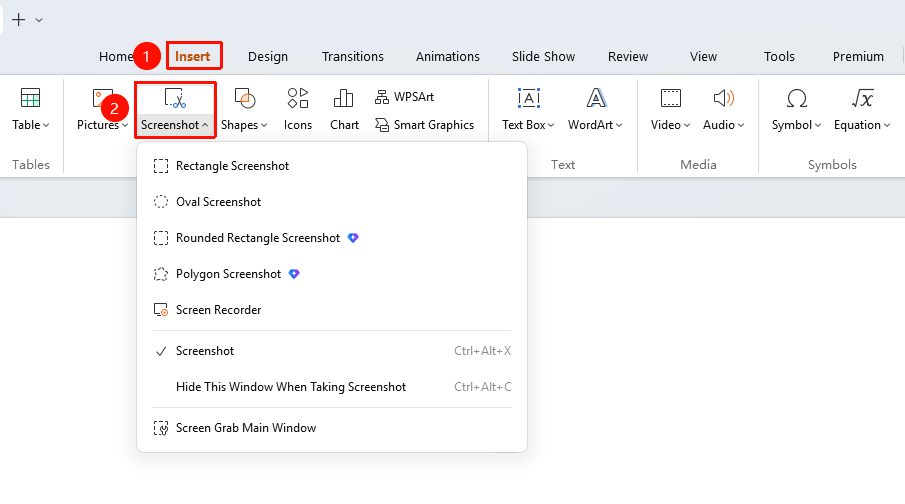
"Insert" tab → "Screenshot"
- Click the "Insert" tab in the top ribbon
- Click the Screenshot button and select the desired screenshot option
- Double-click the left mouse button to complete the screenshot; right-click to re-capture
Insert from Home Tab
Feature Entry
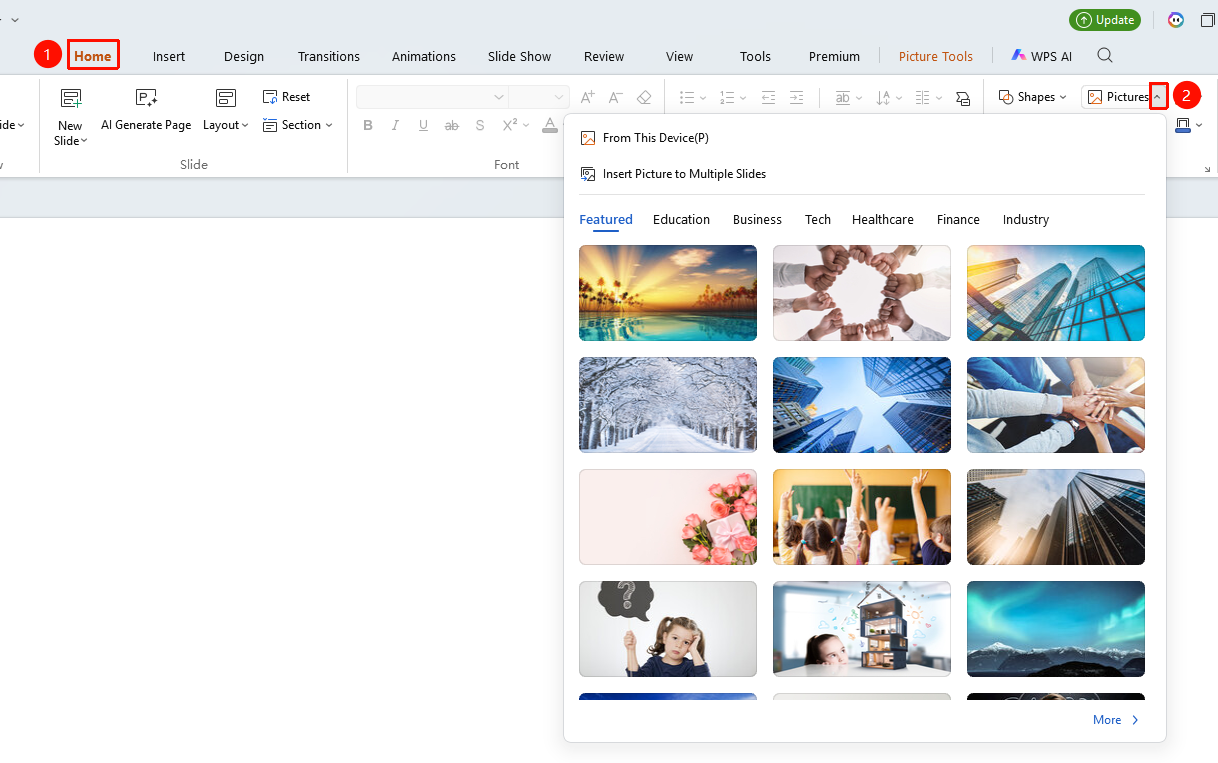
"Home" tab → Drop-down button on the right side of "Picture"
- Click the "Home" tab in the top ribbon
- Click the drop-down button on the right side of "Picture" to expand the insert menu
- Quickly apply local illustrations, page-break illustrations, and browse online picture resources
Frequently Asked Questions
Issue 1: Prompt says unable to insert picture / picture does not display
- Solution:
- Check image format: WPS supports common formats such as JPG, PNG, GIF, and BMP. Uncommon formats (e.g., TIFF, WEBP) need to be converted first.
- Check image file name: Remove special characters and spaces from the file name.
- Confirm that the document is not protected/locked. You can insert images after unlocking it.
Issue 2: Pasted/copied images are blurry
- Solution:
- Try exporting and saving the image as a local file first;
- Then import it via the "Insert" tab → "Local Image".
Issue 3: Pasting/copying images fails or displays as blank
- Solution:
- Verify whether the image was copied and pasted from a website, and check whether that website or the browser used has permission to copy images;
- Download the required image and then import it via the "Insert" tab → "Local Image".
Notes
- Image format compatibility: JPG and PNG formats are recommended for best compatibility; formats such as WEBP and TIFF may require conversion.
- File naming conventions: Avoid using special characters, spaces, and Chinese characters in image file names to prevent insertion failures.
- Copyright compliance: Pay attention to copyright issues when using online images. It is recommended to use licensed image libraries for commercial purposes.
- Document size control: A large number of high-resolution images will significantly increase the document size. It is recommended to use the compression function when appropriate.
- Check before saving: It is recommended to save the document promptly after inserting images to avoid accidental loss.