Feature Summary
The Insert Shape feature is used to insert various preset shapes into slides, including rectangles, circles, arrows, lines, etc., allowing you to quickly create graphic elements to enrich your presentation content.
Feature Description
| Feature Dimension | Description |
|---|---|
| Membership Restriction | No membership restriction |
| Version Restriction | No version restriction |
Operation Steps
Insert Shape
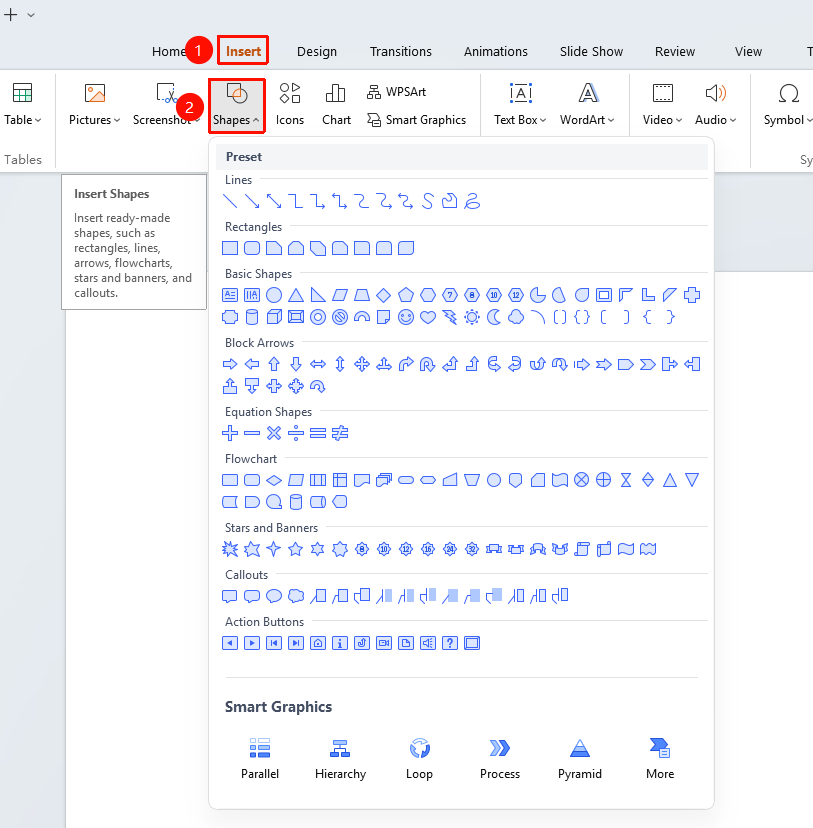
Feature Entry ①
"Insert" tab → "Shape"
- Click the top "Insert" tab
- Find and click the "Shape" button to expand the shape library
- Select the desired shape type in the shape library
- "Recently Used Shapes": Displays recently used shapes
- "Lines": Straight lines, arrows, curves, etc.
- "Rectangles": Various rectangle styles
- "Basic Shapes": Circles, triangles, stars, etc.
- "Block Arrows": Various arrow styles
- "FlowChart": Flowchart shapes
- "Callouts": Dialog boxes, callouts, etc.
- "Stars and Banners": Stars, banners, etc.
- Click the desired shape to insert it into the slide
- Drag the mouse on the slide to draw the shape
Feature Entry ②
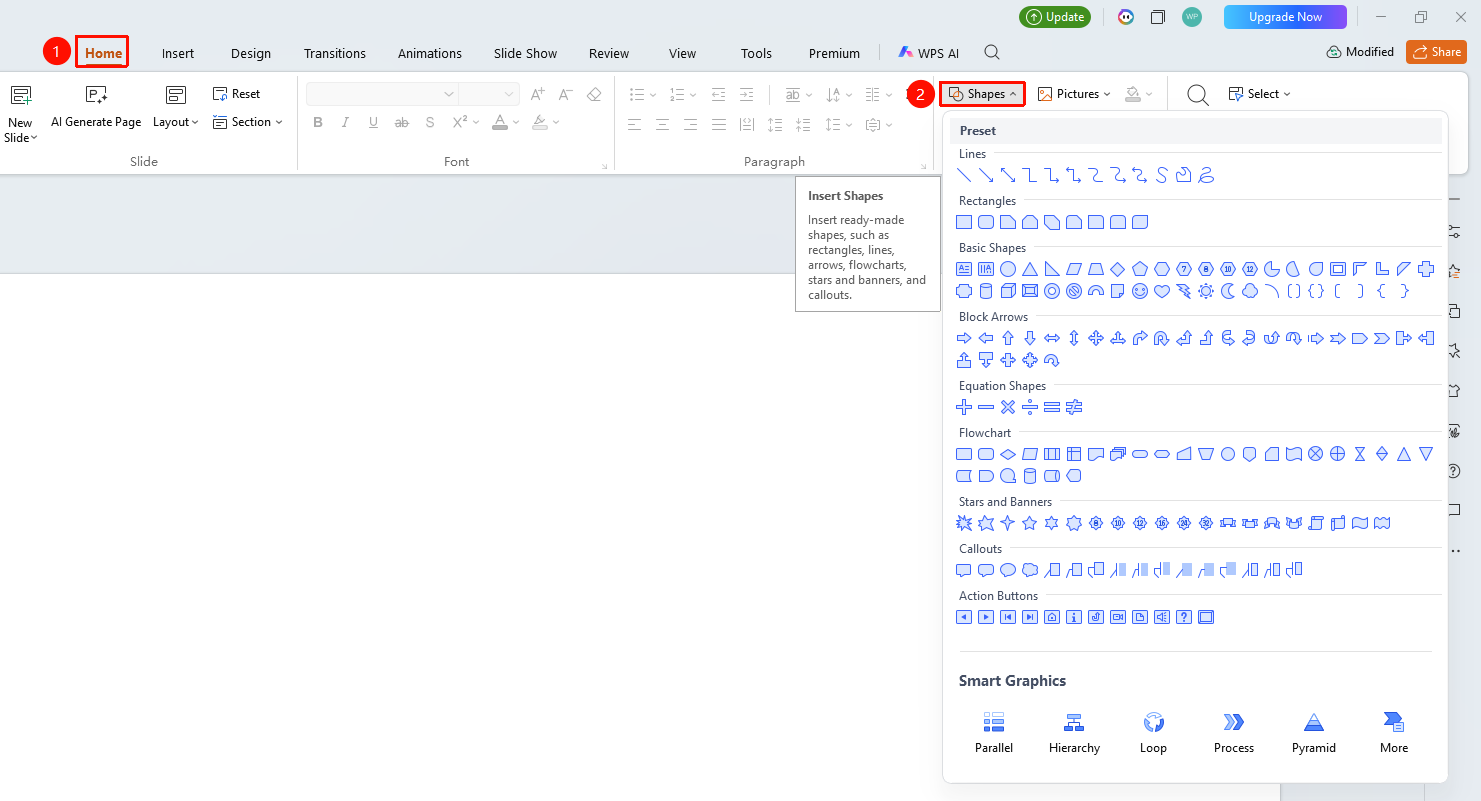
"Home" tab → "Shape"
- Click the top "Home" tab
- Find and click the "Shape" button to expand the shape library
- Select the desired shape in the shape library
- Click the desired shape to insert it into the slide
- Drag the mouse on the slide to draw the shape
Draw Shape
- After selecting a shape, the mouse pointer changes to a crosshair
- Click and drag the mouse on the slide to draw the shape
- Hold the "Shift" key to draw regular shapes such as squares and perfect circles
- Release the mouse to complete the drawing
Right-Click Menu Settings
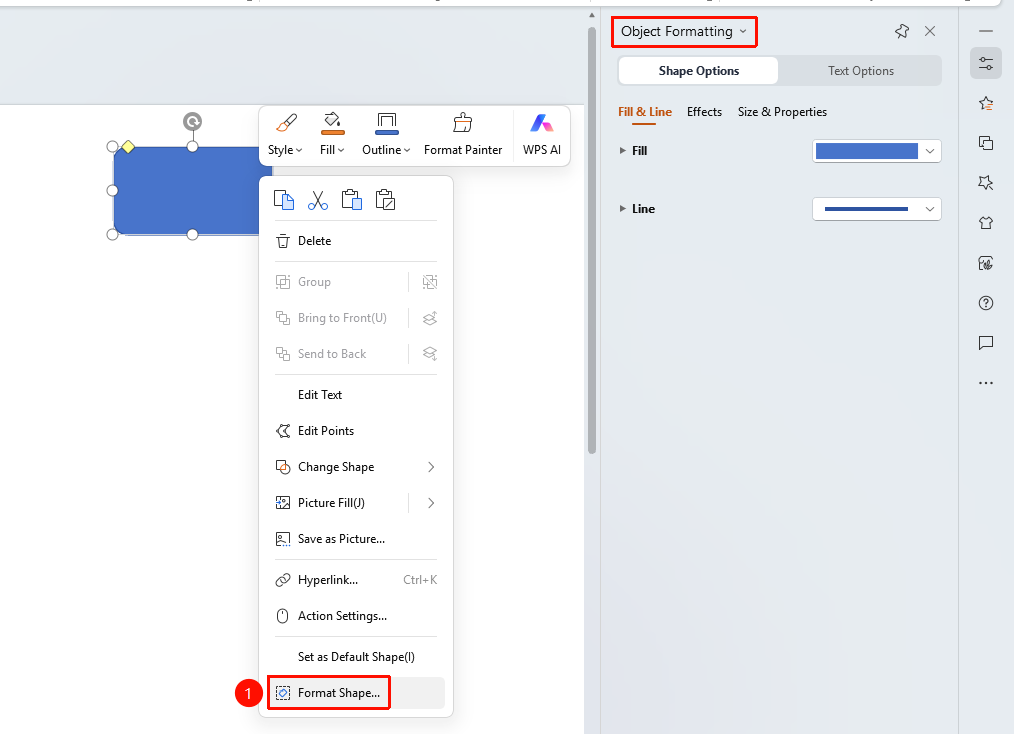
Feature Entry
Shape right-click menu → "Format Object"
- Select the inserted shape
- Right-click the shape
- Select "Format Object"
- Set the shape style in the "Object Properties" sidebar on the right
Side Task Pane Settings
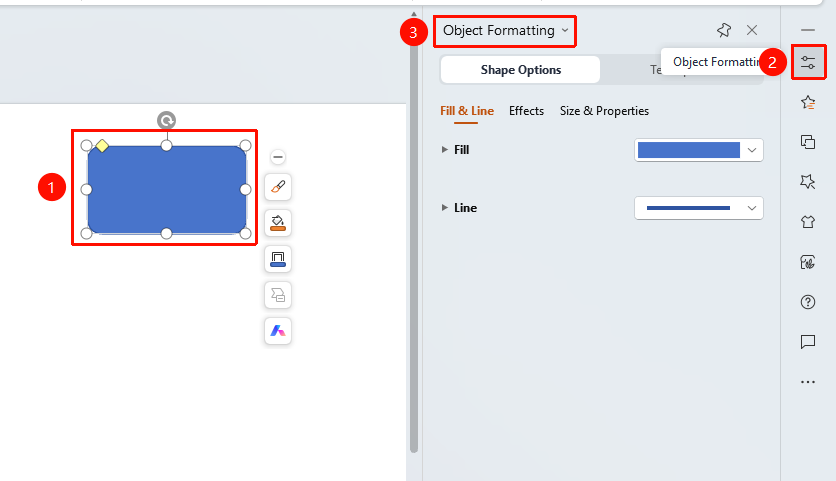
Feature Entry
Side "Task Pane" → "Properties"
- Select the inserted shape
- Click the side "Properties" button
- Set the shape style in the "Object Properties" sidebar
FAQ
Q1: How to draw a square or perfect circle
- Solution: Hold the "Shift" key while dragging the mouse to draw, which maintains a consistent aspect ratio.
Q2: How to add text inside a shape
- Solution: Double-click the shape to enter text directly inside it.
Q3: How to resize a shape
- Solution: After selecting the shape, drag the control points around it to adjust its size.
Notes
- Inserted shapes can be further edited via the "Drawing Tools" tab
- Select a shape to quickly set options such as shape fill, outline, and stacking order in the floating editing bar on the side
- Shapes can be combined with other shapes
- You can rotate a shape by dragging its rotation handle