Feature Summary
The Insert Master feature is used to add a new master to the current presentation, supporting the creation of multiple sets of master styles with different designs.
Feature Description
| Feature Dimension | Description |
|---|---|
| Membership Restriction | No membership restriction |
| Version Restriction | No version restriction |
Operation Steps
Insert Master
Feature Entry
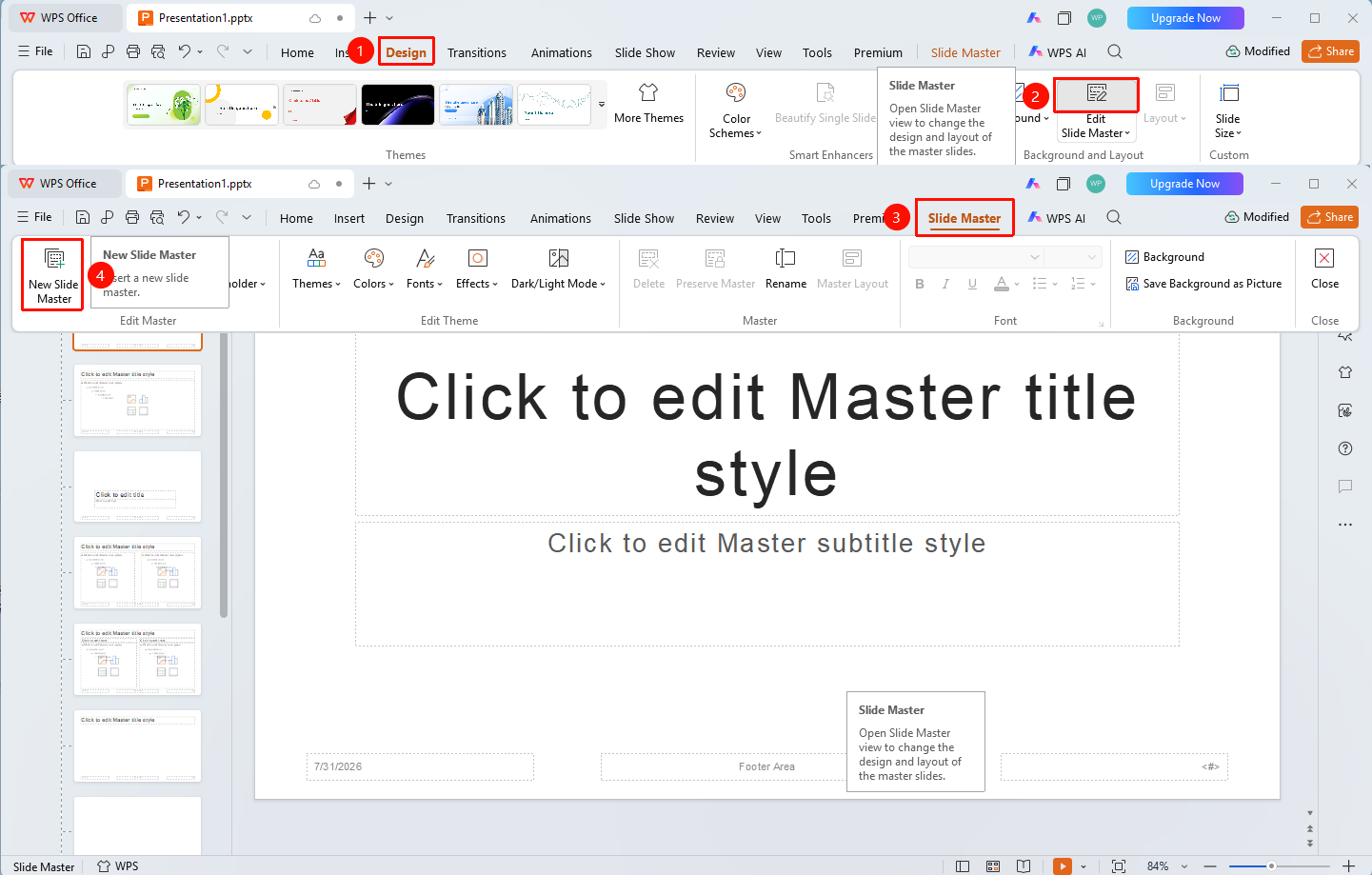
"Design" tab → "Master" → Enter Master View → "Slide Master" tab → "Insert Master"
- Click the top "Design" tab
- Click the "Master" button
- It will automatically switch to the "Slide Master" tab
- Click the "Insert Master" button
- A new master appears in the left thumbnail pane
FAQ
Q1: Where is Insert Master
- Solution: First enter Master View (click Master under the Design tab), then expand the "Slide Master" tab → "Insert Master".
Q2: Can I insert multiple masters
- Solution: Yes, each click of "Insert Master" will add a new master.
Q3: How to edit the new master
- Solution: Edit directly on the new master after insertion, setting background, fonts, layouts, etc.
Notes
- Each master can be independently set with different styles
- After inserting a master, you need to manually edit the content and format