Feature Summary
WPS Slides local mode supports inserting special symbols, including mathematical symbols, Greek letters, arrows, etc.
Feature Description
| Feature Dimension | Description |
|---|---|
| Membership Restriction | No membership restriction |
| Version Restriction | No version restriction |
Operation Steps
Insert Symbols via the Ribbon
Feature Entry
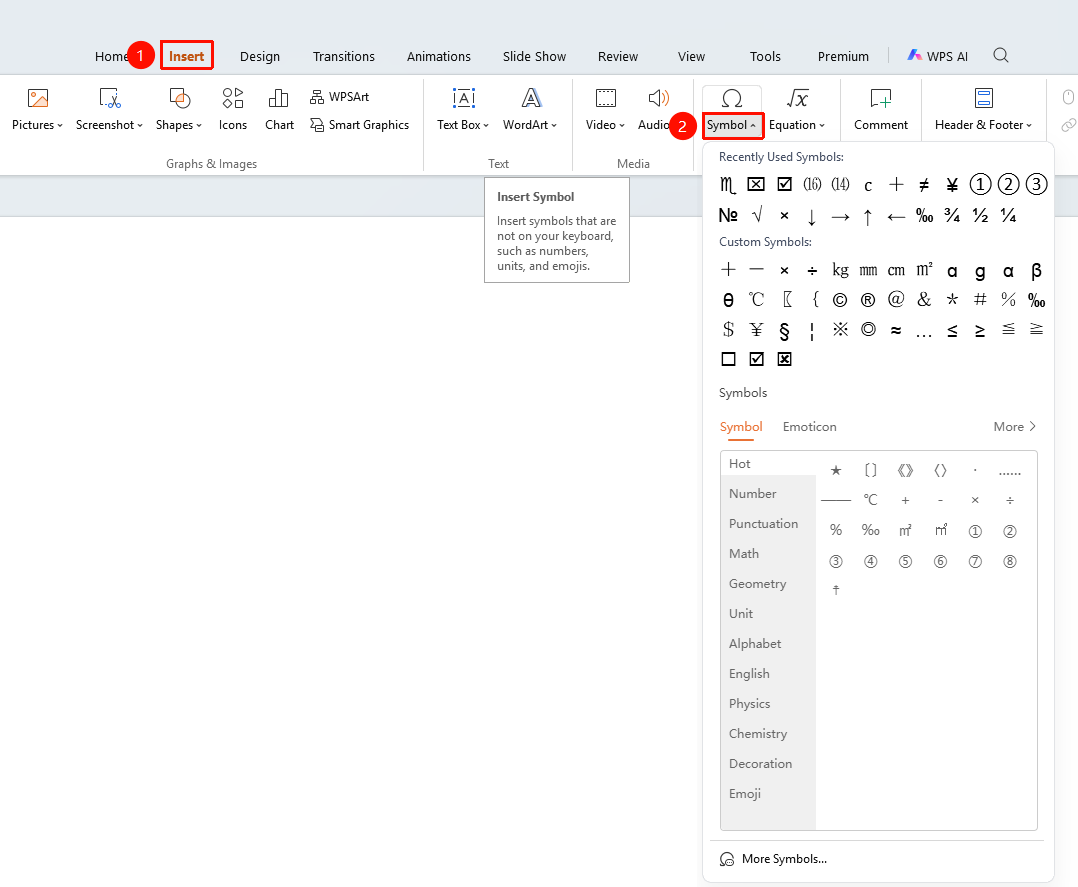
"Insert" tab → "Symbol" button
- Click the "Insert" tab in the top menu bar
- Click the "Symbol" button
- Select a symbol in the common symbols panel
- Click the symbol to insert it at the current position
Insert More Symbols
Feature Entry
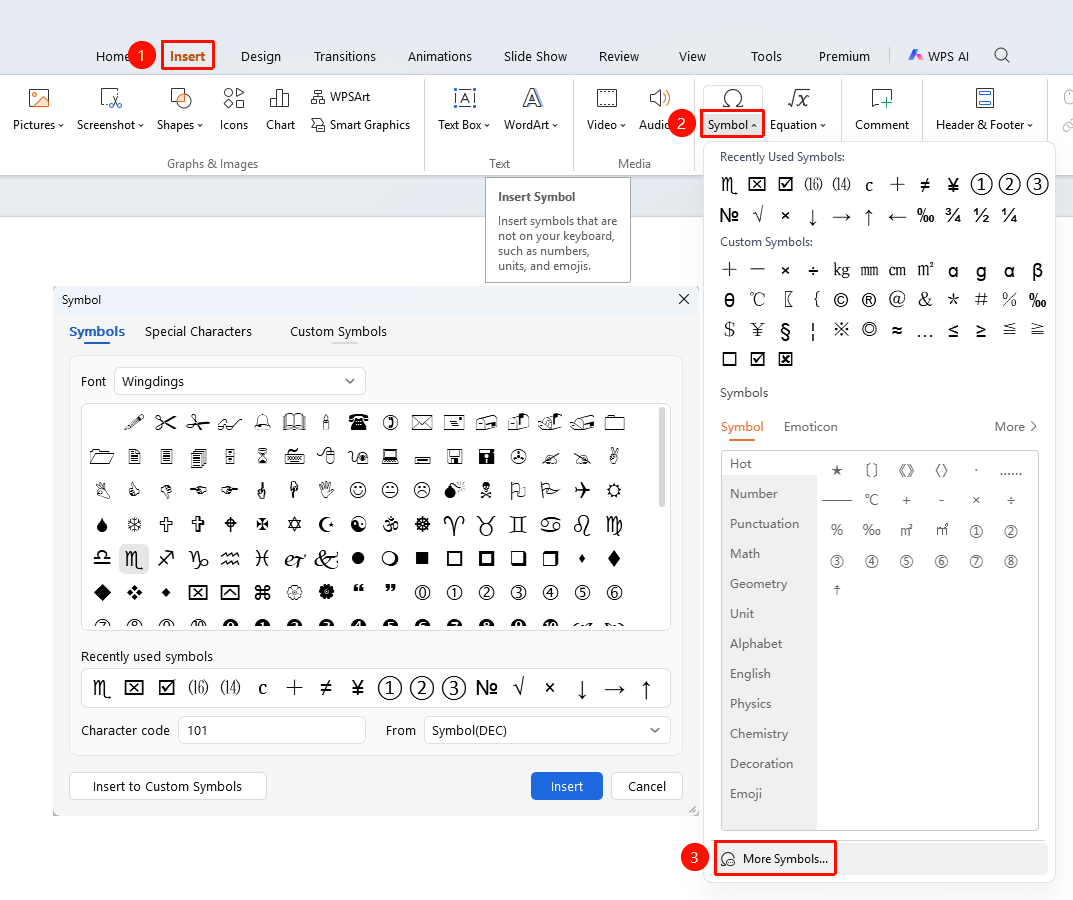
"Insert" tab → "Symbol" → "More Symbols"
- Click the dropdown arrow next to the "Symbol" button
- Select the "More Symbols" option
- Browse more symbols in the pop-up dialog box
- Select a symbol and click "Insert"
Frequently Asked Questions
Q1: Can the size of an inserted symbol be modified?
- Solution: Yes, after selecting the symbol, you can adjust the font size just like normal text.
Q2: How to quickly find commonly used symbols?
- Solution: In the symbol dialog box, you can filter symbols by font or subset.
Q3: What should I do if the inserted symbol appears as a box?
- Solution: The font may not support that symbol. Try changing the font.
Notes
- Inserted symbols are treated as text objects
- Different fonts support different symbol ranges