Feature Summary
The Insert Table feature is used to create table objects in slides, helping users quickly create structured data displays and enhance the data visualization effect of presentations.
Feature Description
| Feature Dimension | Description |
|---|---|
| Membership Restriction | Some table styles require a membership subscription to use |
| Version Restriction | No version restrictions |
Operation Steps
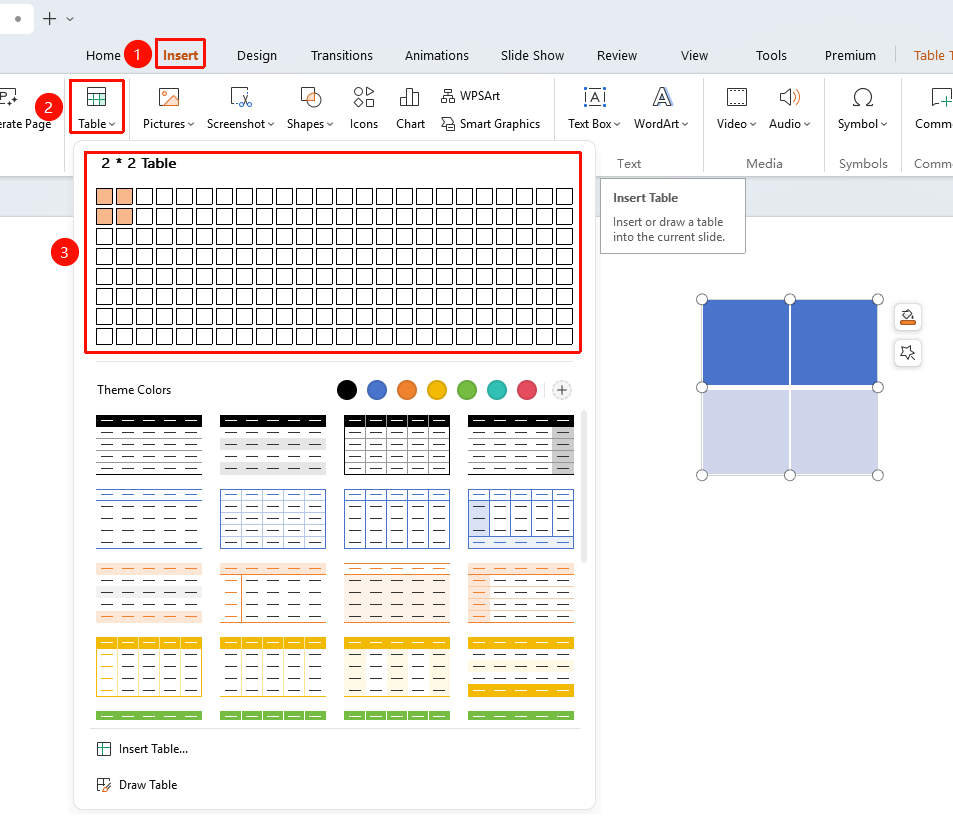
Quickly Insert a Table via Grid
Feature Entry
"Insert" tab → "Table" button → Grid selection area
- Click the "Table" button in the Insert tab
- Move the mouse over the pop-up grid area to select the desired number of rows and columns (up to 8×24)
- Click to confirm, and the table will be inserted into the current slide
- You can enter content into the table and adjust the formatting
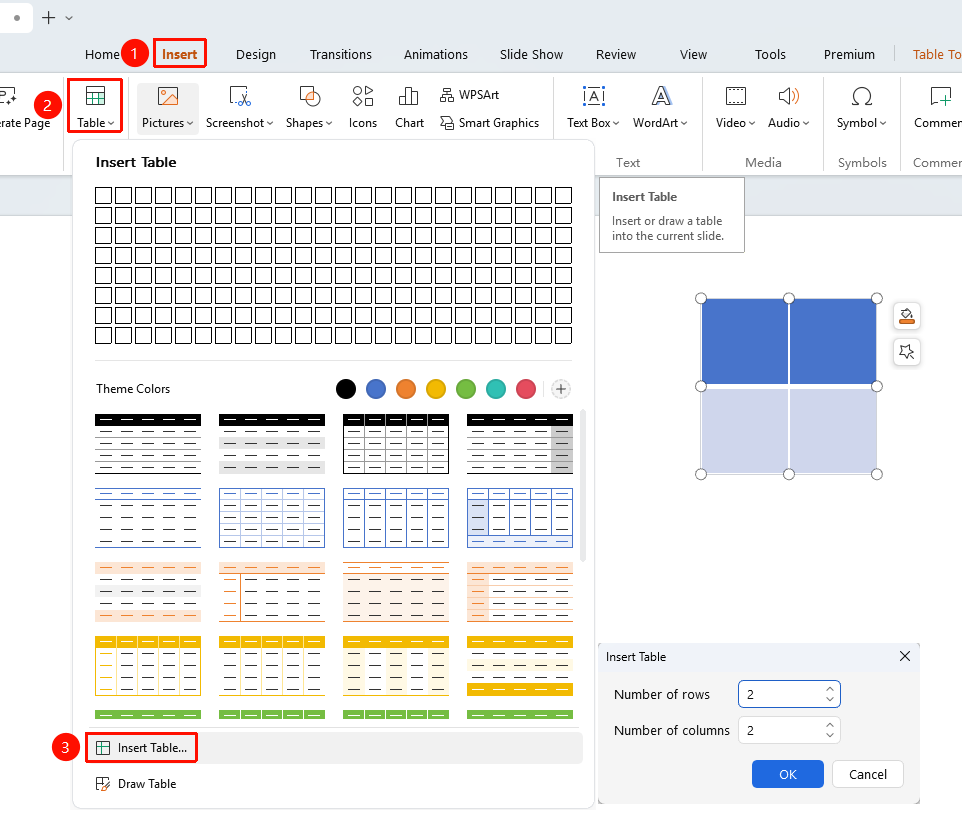
Insert a Table via Dialog Box
Feature Entry
"Insert" tab → "Table" button → "Insert Table" option
- Click the "Table" button in the Insert tab
- Select the "Insert Table" option from the drop-down menu
- Enter the number of rows and columns for the table in the pop-up dialog box
- Click "OK" to complete the table insertion
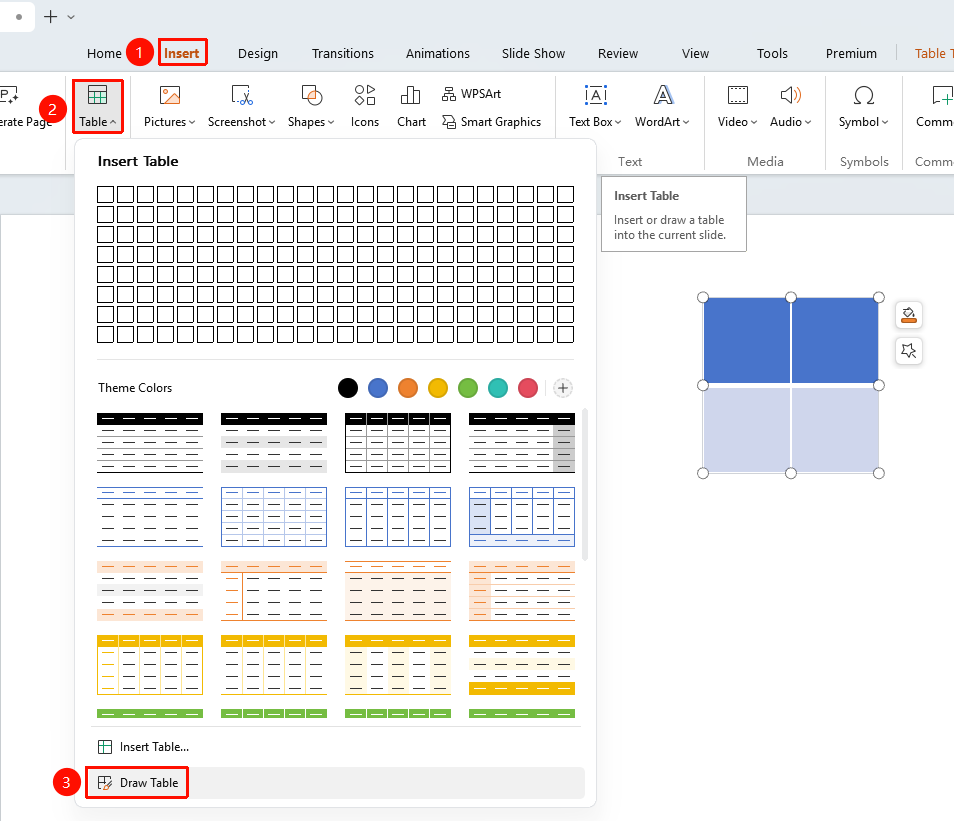
Draw a Custom Table
Feature Entry
"Insert" tab → "Table" button → "Draw Table" option
- Click the "Table" button in the Insert tab
- Select the "Draw Table" option from the drop-down menu
- The mouse cursor changes to a pencil shape; drag on the slide to draw the outer border of the table
- Drag the mouse inside the table to draw row and column divider lines
- Release the mouse to complete the drawing
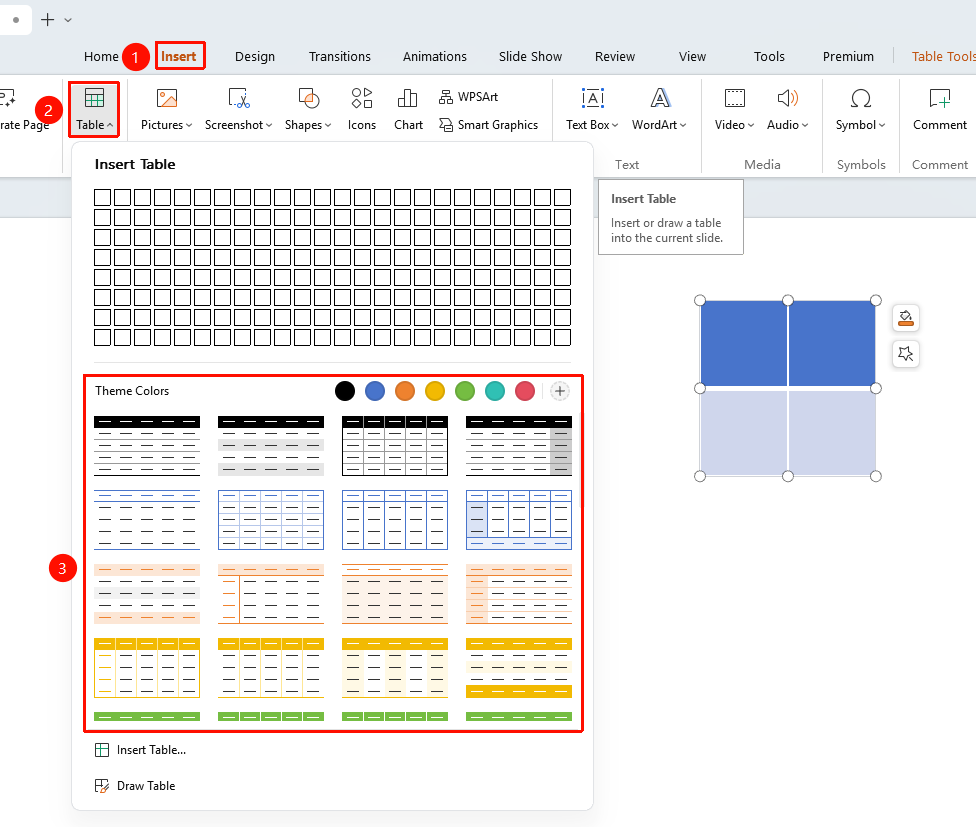
Insert by Applying a Table Style
Some table styles require a membership subscription to use. Please pay attention to the membership indicator before use.
Feature Entry
"Insert" tab → "Table" button → "Preset Table Styles"
- Click the "Table" button in the Insert tab
- Browse the "Preset Table Styles" in the drop-down menu
- Click "Theme Colors" to switch to the desired table color scheme
- Click the desired style to insert the table with one click
Frequently Asked Questions
Q1: How do I resize a table after inserting it?
- Solution: Select the table, move the mouse to the corner of the table, and when the cursor changes to a double-headed arrow, drag to resize. Alternatively, use the row height and column width values in the Table Tools tab for precise settings.
Q2: How do I modify the number of rows and columns in an inserted table?
- Solution: Select the table, and use the "Insert Rows/Columns" or "Delete Rows/Columns" functions in the Table Tools tab, or right-click to select the corresponding menu for adding or deleting rows and columns.
Q3: How do I apply a style to an inserted table?
- Solution: Select the table, click the "Table Styles" tab at the top, click the "Table Styles" drop-down menu, and choose a suitable style from the preset style gallery to beautify the table appearance with one click.
Notes
- After inserting a table, you can use the Table Tools tab for detailed formatting settings, including borders, fill, alignment, etc.
- It is recommended to set the table size reasonably based on the slide size and content volume to avoid the table being too large or too small.
- It is recommended to use concise and clear text in the table to ensure readability during the presentation.
- You can import existing table data from Excel or other documents by copying and pasting.