Feature Summary
WPS Slides local mode supports inserting audio, including background music, narration, etc.
Feature Description
| Feature Dimension | Description |
|---|---|
| Membership Restriction | No membership restriction |
| Version Restriction | No version restriction |
Operation Steps
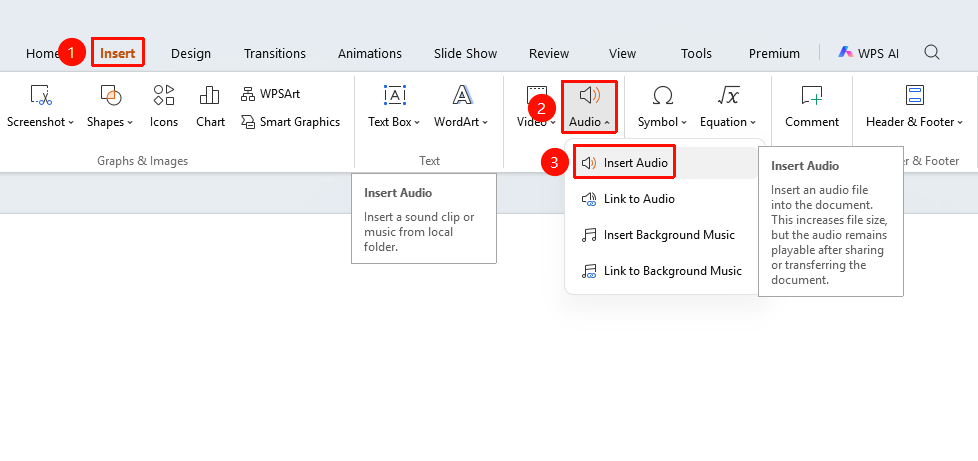
Embed Local Audio
Feature Entry
"Insert" tab → "Audio" → "Embed Audio"
- Click the "Insert" tab in the top menu bar
- Click the "Audio" button
- Select the "Embed Audio" option
- Select an audio file in the file dialog
- Click "Open" to complete insertion
Link to Audio
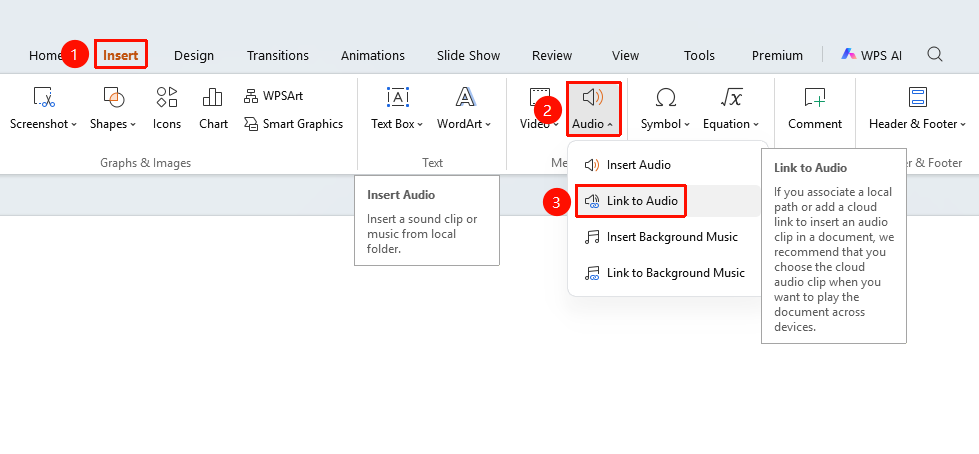
Feature Entry
"Insert" tab → "Audio" → "Link to Audio"
- Click the "Audio" button
- Select the "Link to Audio" option
- Select an audio file
- The audio will be inserted as a link
Embed Background Music
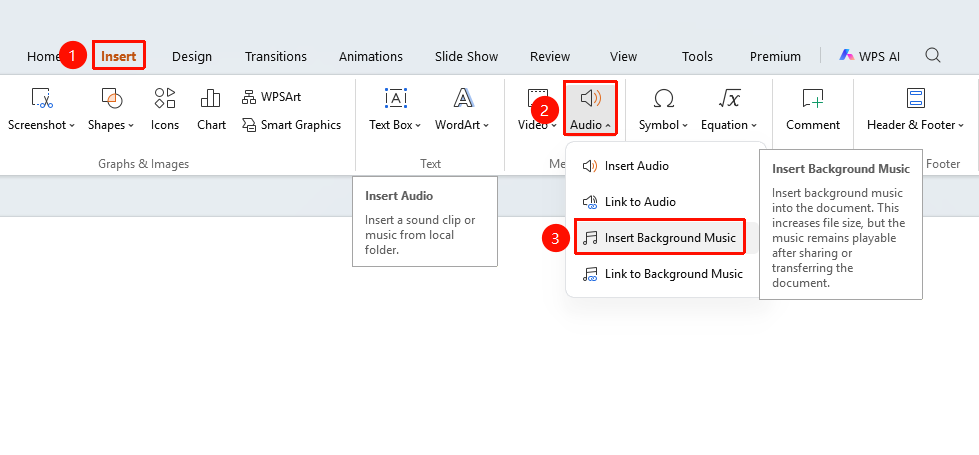
Feature Entry
"Insert" tab → "Audio" → "Embed Background Music"
- Click the "Audio" button
- Select the "Embed Background Music" option
- Select an audio file
- Background music will automatically play during the slideshow
FAQ
Q1: What audio formats are supported?
- Solution: Common audio formats such as MP3, WAV, WMA, and AAC are supported.
Q2: How to set audio to loop playback?
- Solution: Select the audio icon and set the loop playback option in the playback toolbar.
Q3: How to set background music to play across slides?
- Solution: Use the "Embed Background Music" feature, or select "Play Across Slides" in playback settings.
Notes
- It is recommended to use soft music for background music
- Embedding audio will increase the PPT file size