Feature Summary
WPS Slides local mode supports inserting text boxes to add custom text content on slides.
Feature Description
| Feature Dimension | Description |
|---|---|
| Membership Restriction | Includes some member styles |
| Version Restriction | No version restriction |
Operation Steps
Insert a Text Box via the Ribbon
Feature Entry
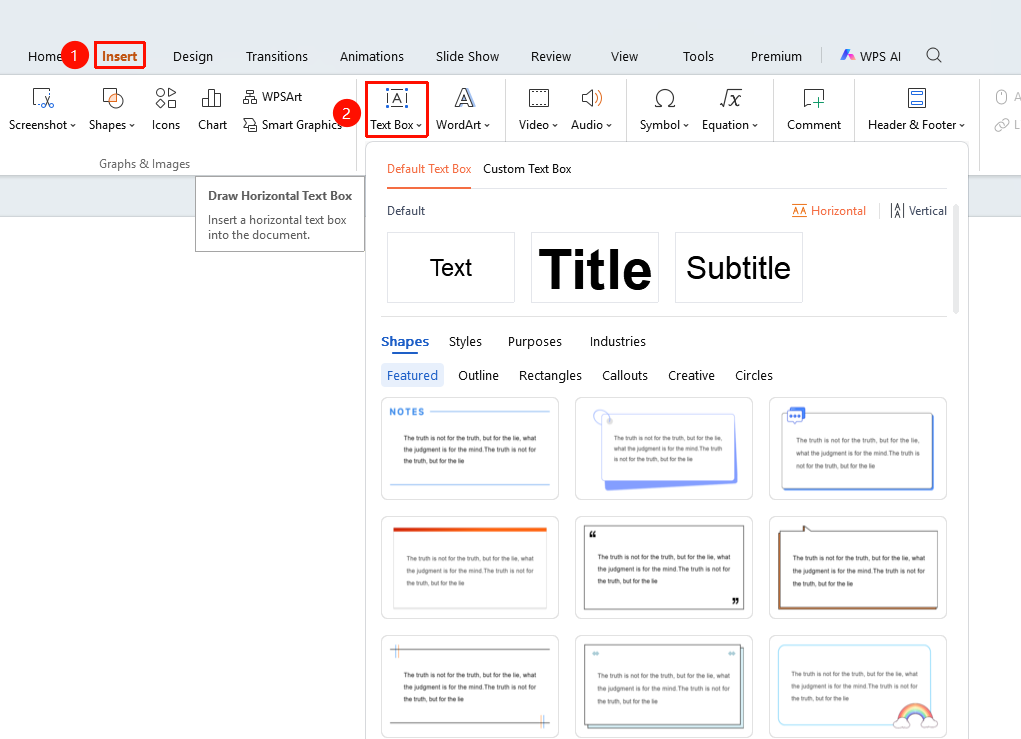
"Insert" tab → "Text Box" button
- Click the "Insert" tab in the top menu bar
- Click the "Text Box" button
- Select a horizontal or vertical text box
- Drag on the slide to draw the text box
- Enter text content
Insert via the Home Tab
Feature Entry
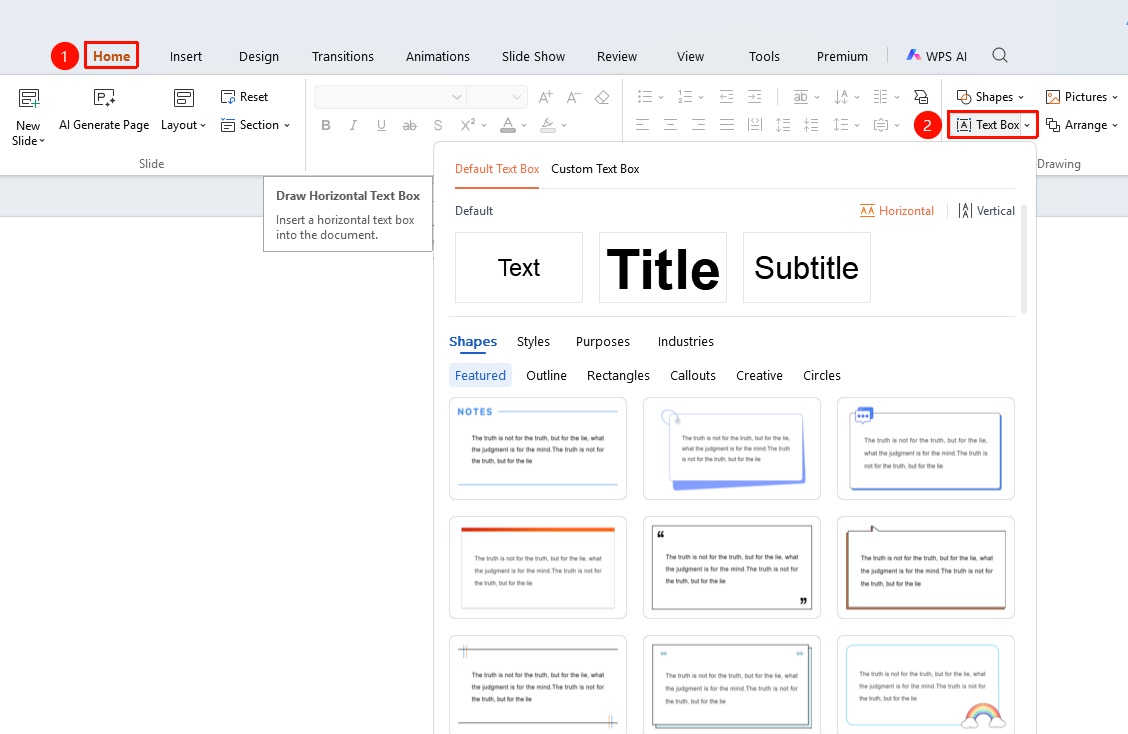
"Home" tab → "Text Box" button
- Click the "Home" tab in the top menu bar
- Click the "Text Box" button
- Select the text box type
- Draw the text box on the slide
Frequently Asked Questions
Q1: How to resize a text box?
- Solution: After clicking the text box, drag the control points on the border to resize it.
Q2: How to format a text box?
- Solution: After selecting the text box, you can set formats such as fill and border in the right-side properties panel.
Q3: How to rotate a text box?
- Solution: After selecting the text box, drag the rotation handle at the top to rotate it.
Notes
- Text boxes can be freely moved and resized
- It is recommended to choose the appropriate text box type based on the content