Feature Summary
This template feature is used to view and switch between existing template styles in the current presentation.
Feature Description
| Feature Dimension | Description |
|---|---|
| Membership Restriction | No membership restriction |
| Version Restriction | No version restriction |
Operation Steps
Apply This Template
Feature Entry
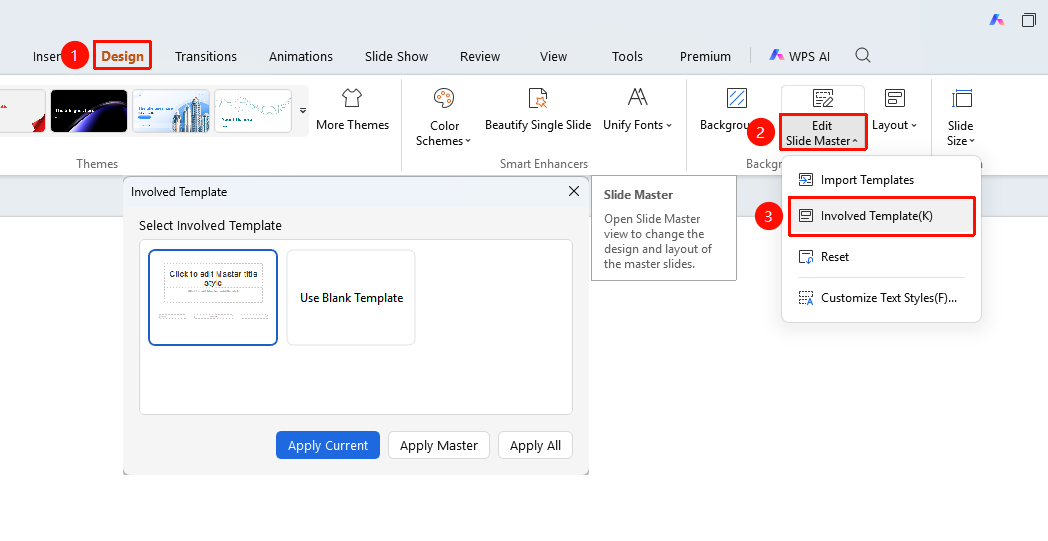
"Design" tab → "Master" → "This Template"
- Click the top "Design" tab
- Click the "Master" dropdown button
- Select the "This Template" option
- The "This Template" dialog box pops up, displaying all available templates in the current presentation
- Select the desired template style
- Click the bottom button to perform the operation
- "Apply to Current Page" : Apply the selected template to the current slide
- "Replace Current Master" : Replace the currently used master
- "Apply to All Pages" : Apply the selected template to all slides
FAQ
Q1: What is the difference between This Template and Import Template
- Solution: This Template refers to templates already existing in the current presentation, while Import Template imports new templates from external files.
Q2: How to apply to only a specific page
- Solution: After selecting the target slide, click the "Apply to Current Page" button.
Precautions
- Switching templates may affect the layout of the presentation
- It is recommended to save the current presentation before switching