Feature Summary
The Show/Hide Comments Pane feature is used to control the display state of the comments panel and comment markers, allowing you to conveniently view and manage all comments in the presentation.
Feature Description
| Feature Dimension | Description |
|---|---|
| Membership Restriction | No membership restriction |
| Version Restriction | No version restriction |
Operation Steps
Show/Hide Comments Pane
Feature Entry
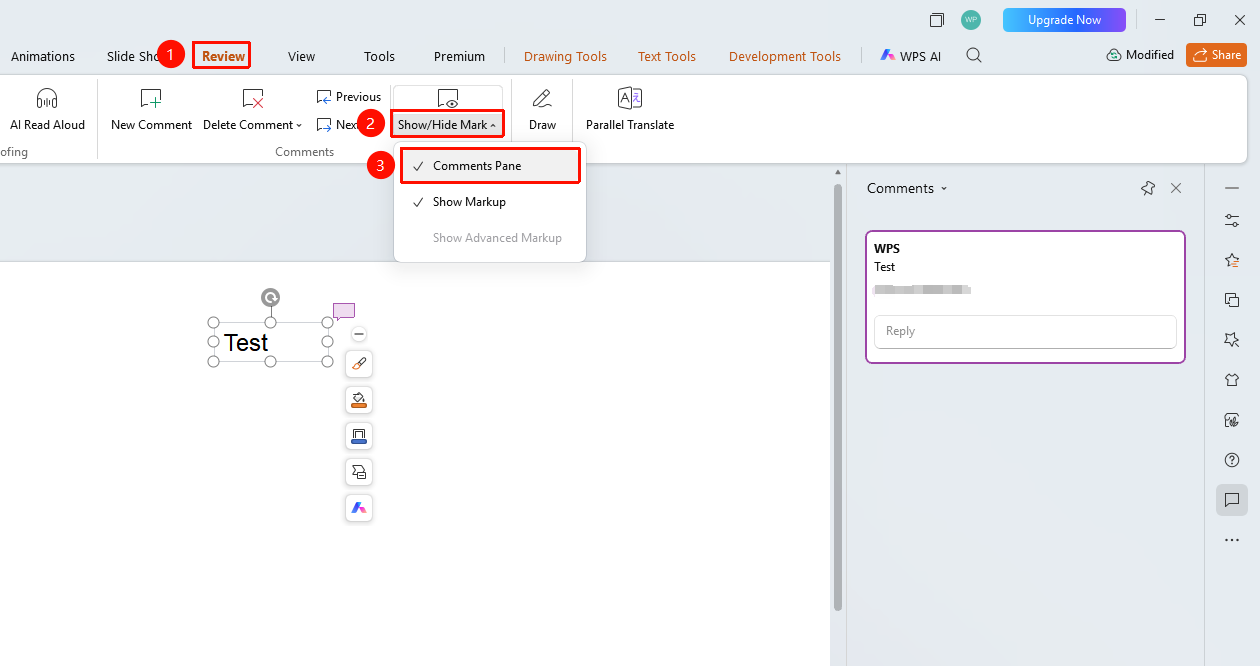
"Review" tab → "Show/Hide" → "Comments Pane"
- Click the top "Review" tab
- Find and click the "Show/Hide" drop-down button
- Select "Comments Pane"
- Control the display or hiding of the comments panel on the right side
Show/Hide Comment Markers
Feature Entry
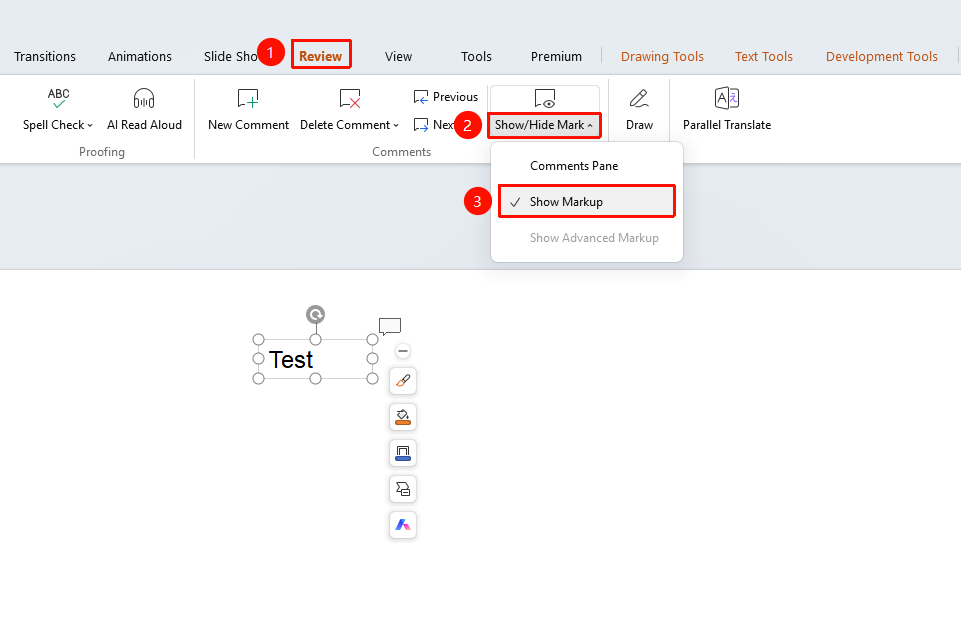
"Review" tab → "Show/Hide" → "Show Markers"
- Click the top "Review" tab
- Find and click the "Show/Hide" drop-down button
- Select "Show Markers"
- Control the display or hiding of comment markers (small bubble icons) on the slides
FAQ
Q1: Where is the Comments Pane?
- Solution: Click the "Review" tab → "Show/Hide" → "Comments Pane" to open or close the comments pane. You can also find the "Comments" button in the side task pane and click it to open the comments pane.
Q2: How to hide comment markers on slides?
- Solution: Click the "Review" tab → "Show/Hide" → "Show Markers", and uncheck it to hide comment markers.
Q3: What is the difference between Comments Pane and Show Markers?
- Solution: Comments Pane controls the display of the comments panel on the right side; Show Markers controls the display of the small comment bubble icons on the slides.
Notes
- Hiding comment markers will not delete the comment content
- Comments will not be displayed during the slideshow