Feature Summary
The Change Icon feature is used to replace an inserted icon with another icon without deleting and reinserting it, allowing you to quickly switch icon styles.
Feature Description
| Feature Dimension | Description |
|---|---|
| Membership Restriction | Some features require a WPS Premium subscription |
| Version Restriction | No version restriction |
Steps
Some online icon resources require a membership subscription to use. Please note the membership label before applying.
Change Icon
Feature Entry
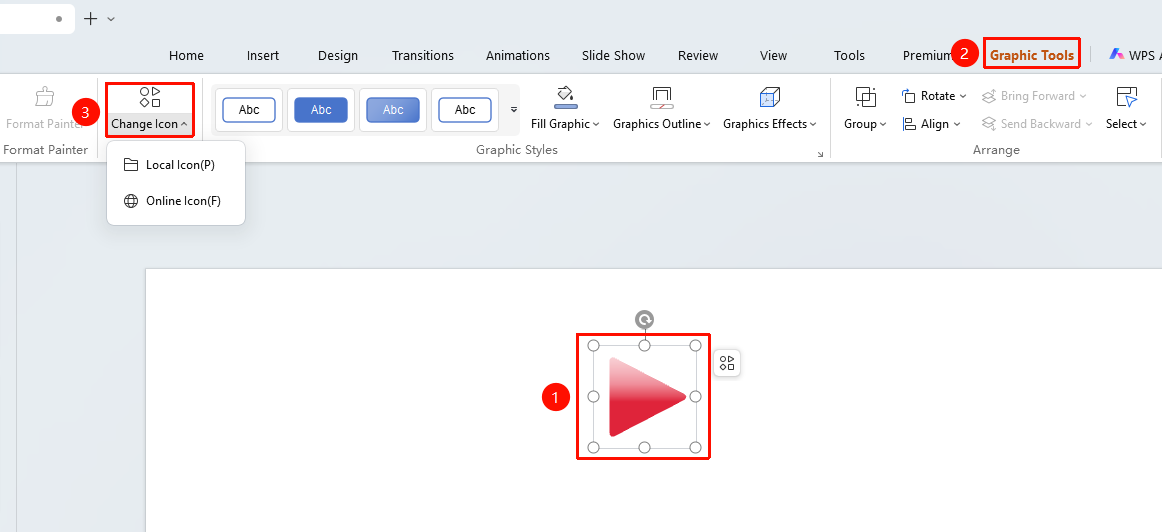
"Drawing Tools" tab → "Change Icon"
- Select the icon you want to change
- Click the "Drawing Tools" tab at the top
- Find and click the "Change Icon" button
- Choose from the following options in the drop-down menu
- "Local Icon": Select a local icon file
- "Online Icon": Choose from the online icon library
- After selecting a new icon, the original icon will be replaced
Right-click Change Icon
Feature Entry
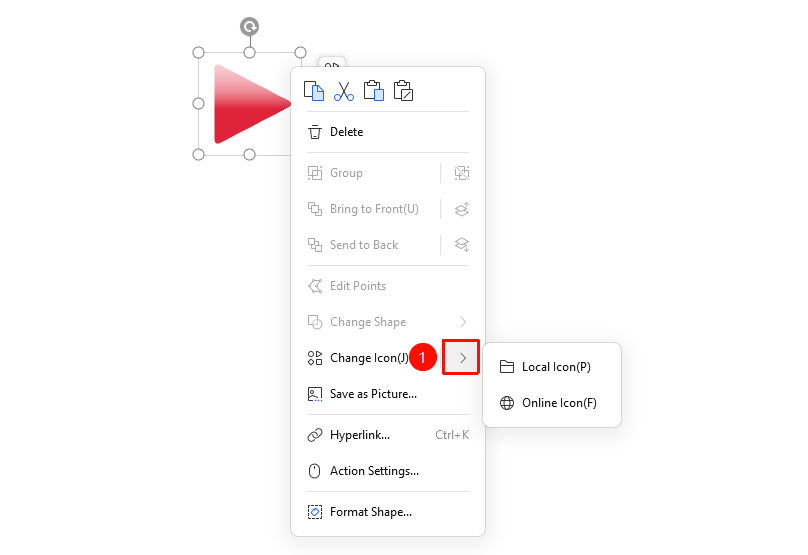
Right-click on icon → "Change Icon"
- Select the icon you want to change
- Right-click the icon, find and click the "Change Icon" button in the context menu that appears
- After selecting a new icon, the original icon will be replaced
FAQ
Q1: Will the original style be retained after changing the icon?
- Solution: No, it will not be retained. You will need to set it again.
Q2: How to batch change multiple icons?
- Solution: Batch changing is currently not supported. You need to change icons one by one.
Q3: Will the size change after changing the icon?
- Solution: The original size will be maintained after changing the icon.
Notes
- Changing an icon is more efficient than deleting and reinserting it.