Feature Summary
The Change Picture feature is used to replace an existing picture on a slide. It allows you to quickly swap in a different picture while preserving the original picture's position and formatting settings. You can choose a new picture from a local file, clipboard, AI generation, or online gallery for replacement.
Feature Description
| Feature Dimension | Description |
|---|---|
| Membership Restrictions | Some features and image resources require a membership to use |
| Version Restrictions | No version restrictions |
Operation Steps
Change Picture via the Picture Tools Tab
Feature Entry
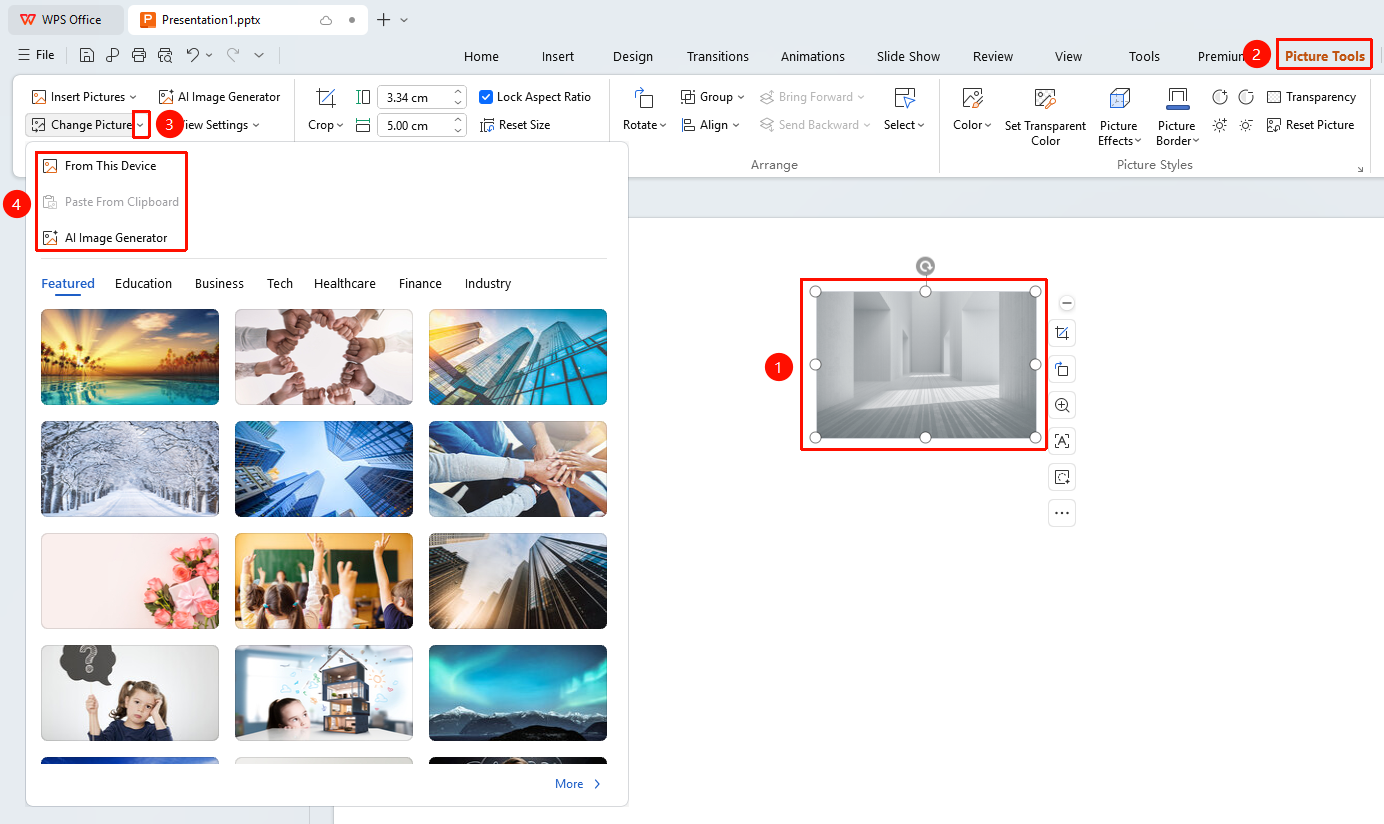
"Picture Tools" tab → Layout area → "Change Picture" button
- Select the picture you want to replace
- Click the "Picture Tools" tab
- Click the "Change Picture" button in the Layout area
- Select the image source from the drop-down menu:
- "Local Picture": Select a new picture from your computer files
- "Paste from Clipboard": Paste a copied picture
- "AI Generate Picture": Use AI to generate a new picture
- After selecting a picture, it will be automatically replaced, retaining the original picture's position and formatting
Change Picture via the Right-Click Menu
Feature Entry
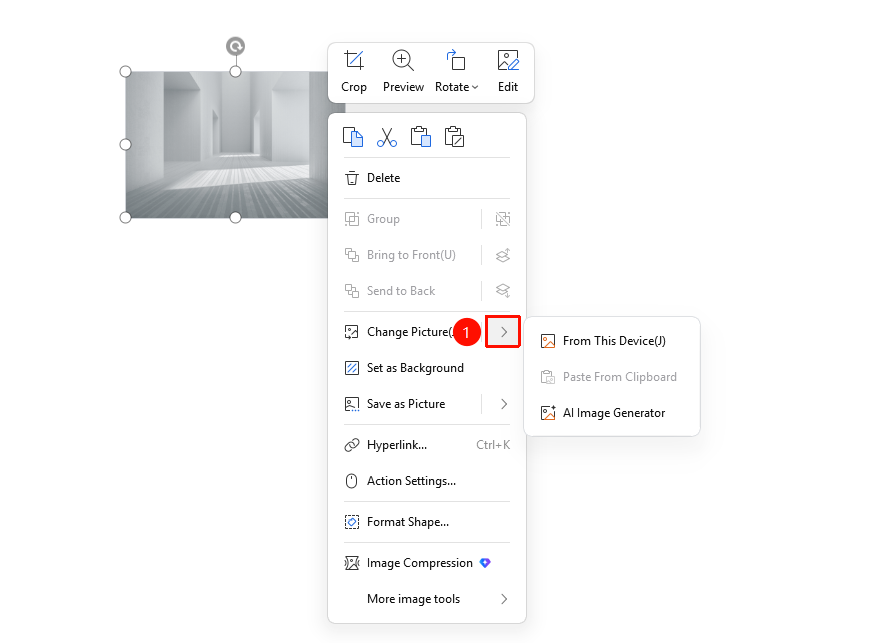
"Select picture" → "Right-click" menu → "Change Picture"
- Select the picture you want to replace
- Right-click on the picture
- Select "Change Picture" from the pop-up menu
- Select the image source from the sub-menu:
- "Local Picture": Select a picture from your computer
- "Paste from Clipboard": Paste a picture from the clipboard
- "AI Generate Picture": AI generates a new picture
- Select the new picture to complete the replacement
Select Picture from Online Gallery
Feature Entry
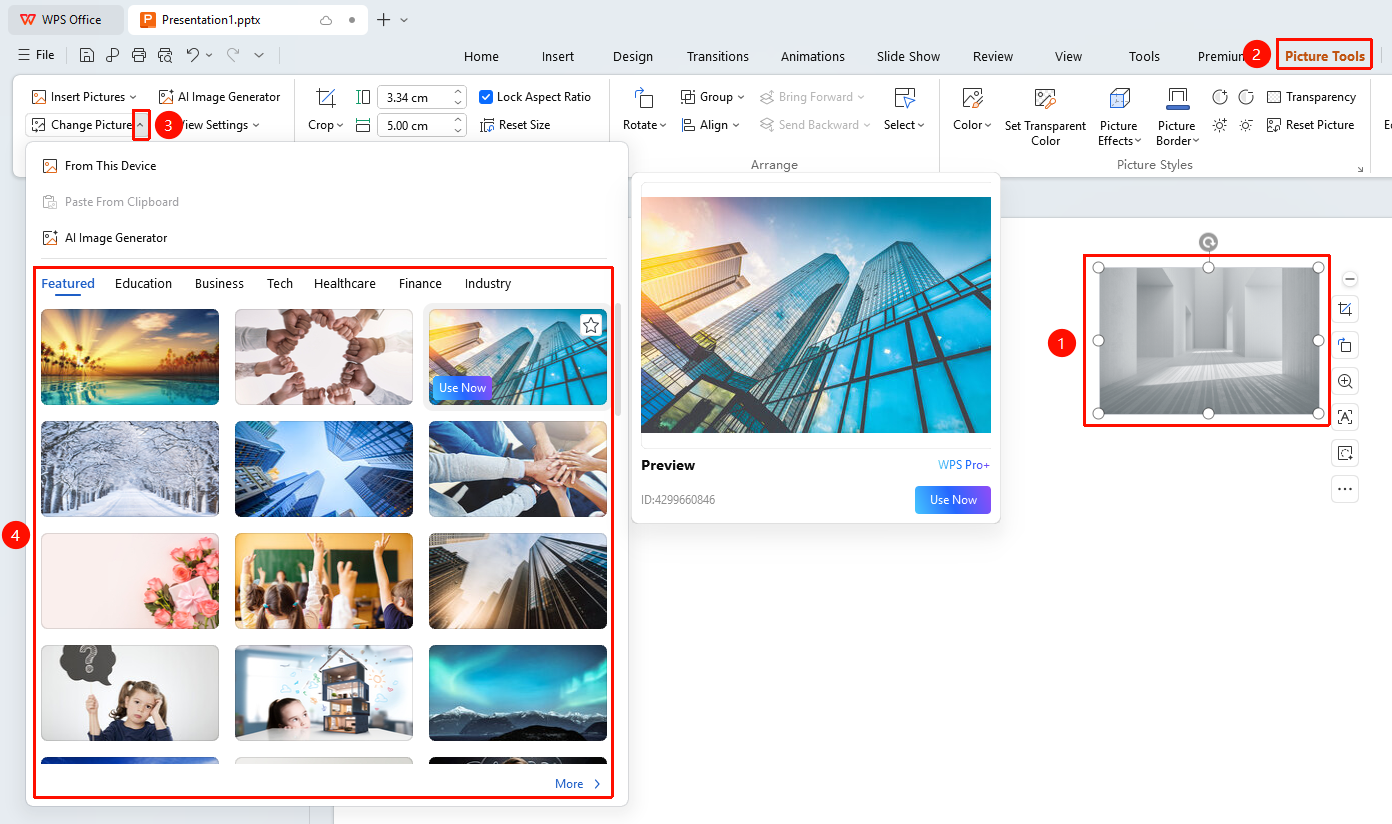
"Picture Tools" tab → "Change Picture" → Online Gallery
- Click the "Change Picture" button
- Browse the online gallery in the drop-down menu
- Select a picture category (Featured, Education, Business, Technology, Medical, Finance, Industry, Agriculture, Home, Food, Animals, etc.)
- Click the target picture to replace
- Click "More Pictures" to view more online pictures
Frequently Asked Questions
Q1: Will the original cropping and effect settings be retained after changing the picture?
- Solution: Yes, they will be retained. The Change Picture feature preserves all formatting settings of the original picture, such as position, size, cropping, borders, and effects, replacing only the picture content itself.
Q2: How do I paste a picture from the clipboard for replacement?
- Solution: First copy a picture (Ctrl+C), then select the target picture, right-click and choose "Change Picture" → "Paste from Clipboard" to complete the replacement.
Q3: Can pictures from the online gallery be used for free?
- Solution: Pictures in the online gallery can be used for free in presentation creation, but please check the usage authorization notes for the pictures, as some may have commercial use restrictions.
Notes
- Changing a picture will retain all formatting settings of the original picture (size, position, cropping, effects, etc.)
- If the new picture's dimensions differ significantly from the original, manual adjustment may be required
- Supports common image formats such as JPG and PNG
- The AI generation feature requires an internet connection and is exclusive to members