Feature Summary
WPS Slides local mode supports finding and replacing text content, allowing you to quickly modify text in your slides.
Feature Description
| Feature Dimension | Description |
|---|---|
| Membership Restrictions | No membership restrictions |
| Version Restrictions | No version restrictions |
Operation Steps
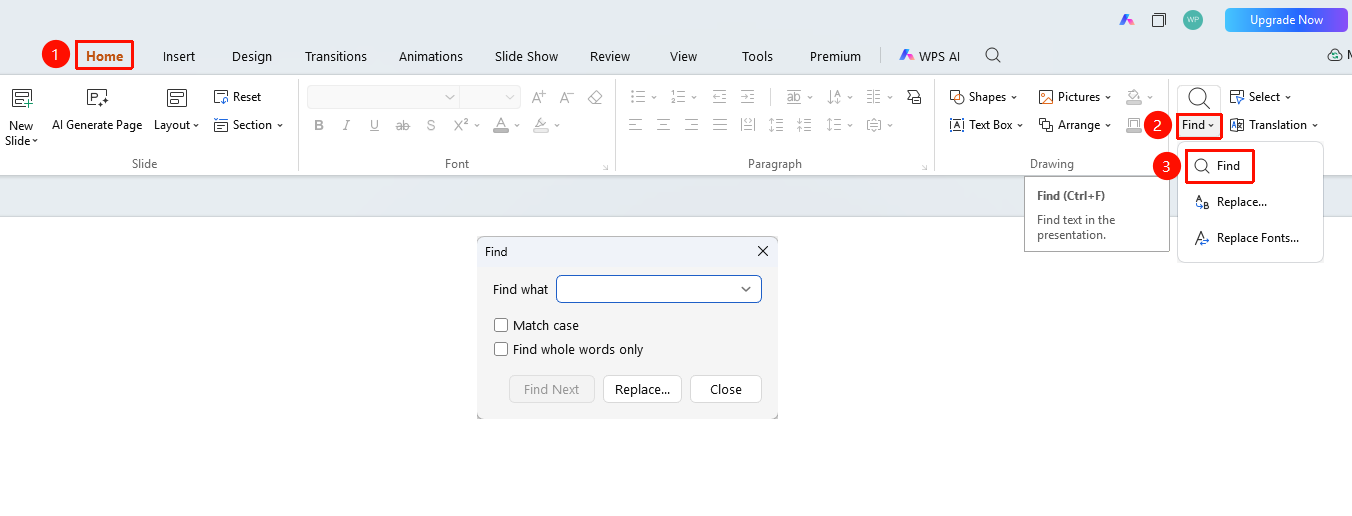
Find via the Ribbon
Feature Entry
"Home" tab → "Find" button (Shortcut: Ctrl+F)
- Click the "Home" tab in the top menu bar
- Click the "Find" button
- Enter the content you want to find in the search box
- Press Enter or click the find button
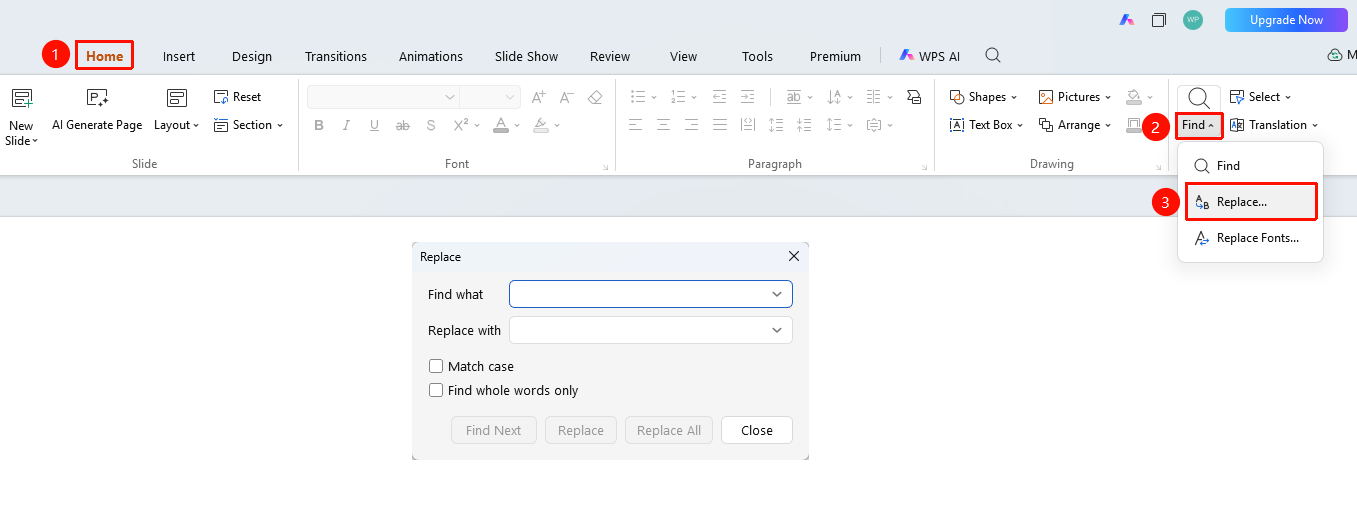
Replace via the Ribbon
Feature Entry
"Home" tab → "Find" → "Replace" (Shortcut: Ctrl+H)
- Click the dropdown arrow next to the "Find" button
- Select the "Replace" option
- Enter the content you want to find in the search box
- Enter the replacement content in the replace box
- Click the "Replace" or "Replace All" button
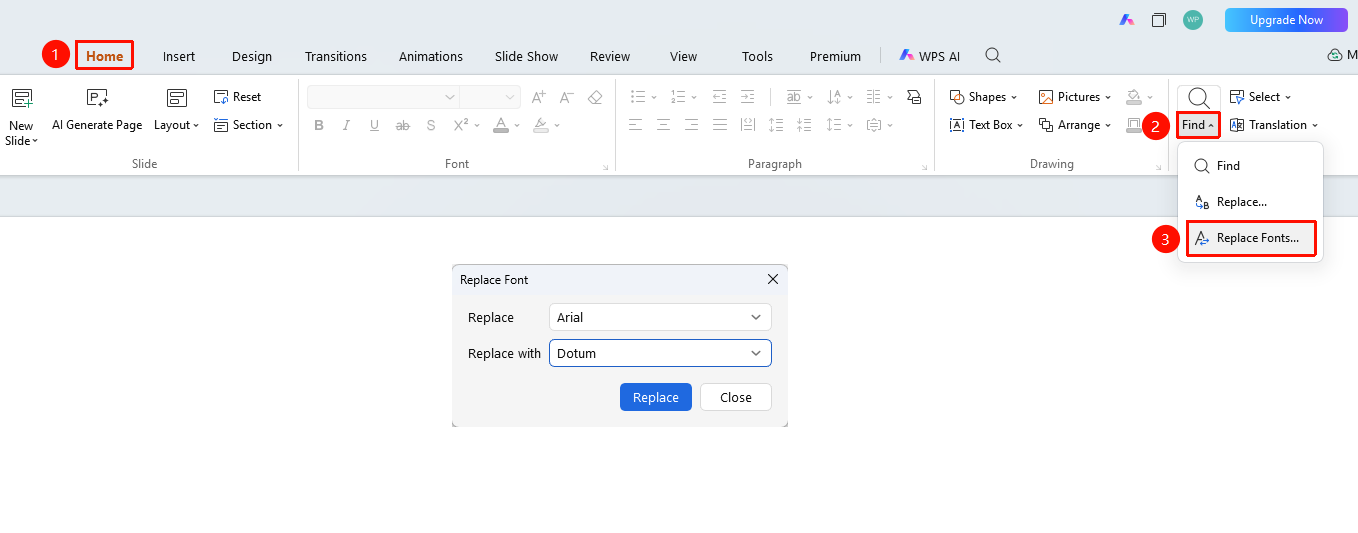
Replace Font
Feature Entry
"Home" tab → "Find" → "Replace Font"
- Click the dropdown arrow next to the "Find" button
- Select the "Replace Font" option
- Select the font to be replaced
- Select the replacement font
- Click the "Replace" button
Frequently Asked Questions
Q1: How to perform a case-sensitive search?
- Solution: Check the "Match Case" option in the find dialog box.
Q2: How to replace all fonts?
- Solution: Use the Replace Font feature to batch replace fonts throughout the entire presentation.
Notes
- Replace operations cannot be undone; it is recommended to back up first
- The Replace Font feature can quickly unify the font style of a presentation