Feature Summary
The Master Layout feature is used to set the placeholder elements included in the current master, controlling the structural composition of the master page.
Feature Description
| Feature Dimension | Description |
|---|---|
| Membership Restriction | No membership restriction |
| Version Restriction | No version restriction |
Operation Steps
Feature Entry
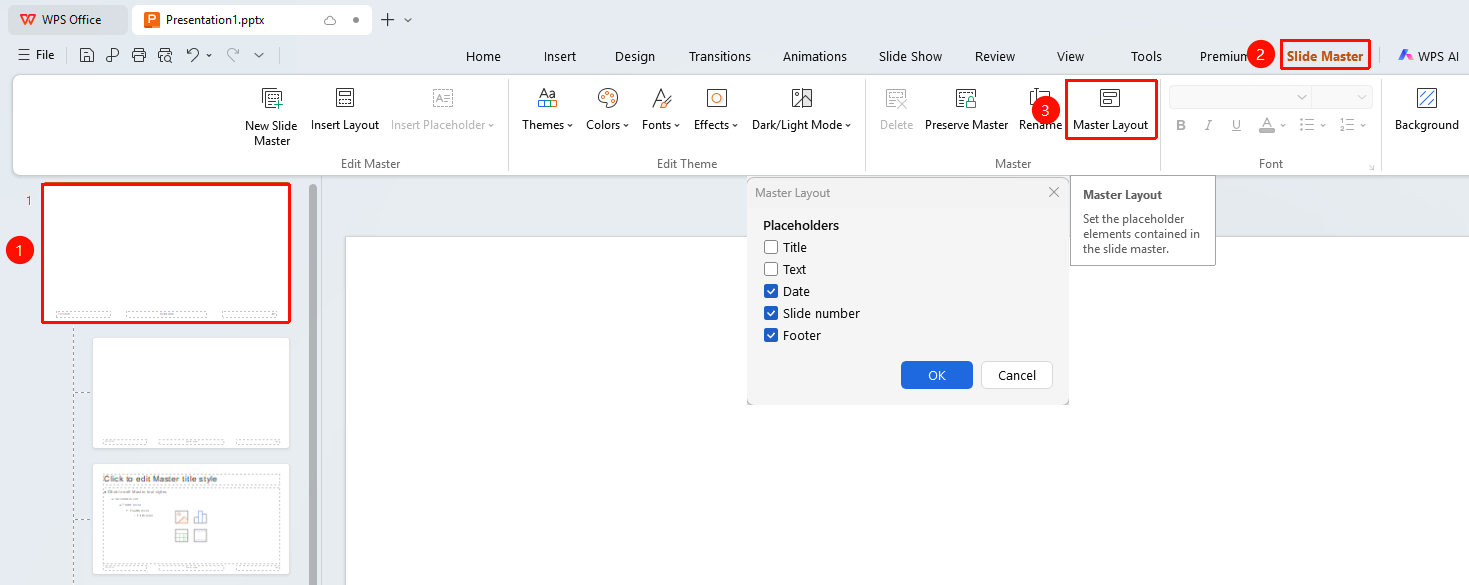
"Slide Master" tab → "Master Layout"
- Switch to the "Slide Master" tab
- Click the "Master Layout" button
- In the pop-up "Master Layout" dialog box, check the placeholder elements you want to display in the master
The "Slide Master" tab needs to be enabled first by clicking the "Slide Master" option under the "View" tab
FAQ
Q1: What is the difference between checking and unchecking?
- Solution: Checking means displaying the placeholder element in the master, while unchecking hides the element.
Q2: Will existing slides change after modifying the master layout?
- Solution: Yes. Modifications to the master layout will affect the page structure of all slides that use this master.
Notes
- Modifying the master layout will affect all slides that apply this master