Feature Summary
The master background feature is used to set the background style of the master, including color, gradient, picture, or texture, unifying the background of all slides that use this master.
Feature Description
| Feature Dimension | Description |
|---|---|
| Membership Restriction | No membership restriction |
| Version Restriction | No version restriction |
Operation Steps
Setting the Master Background
Feature Entry
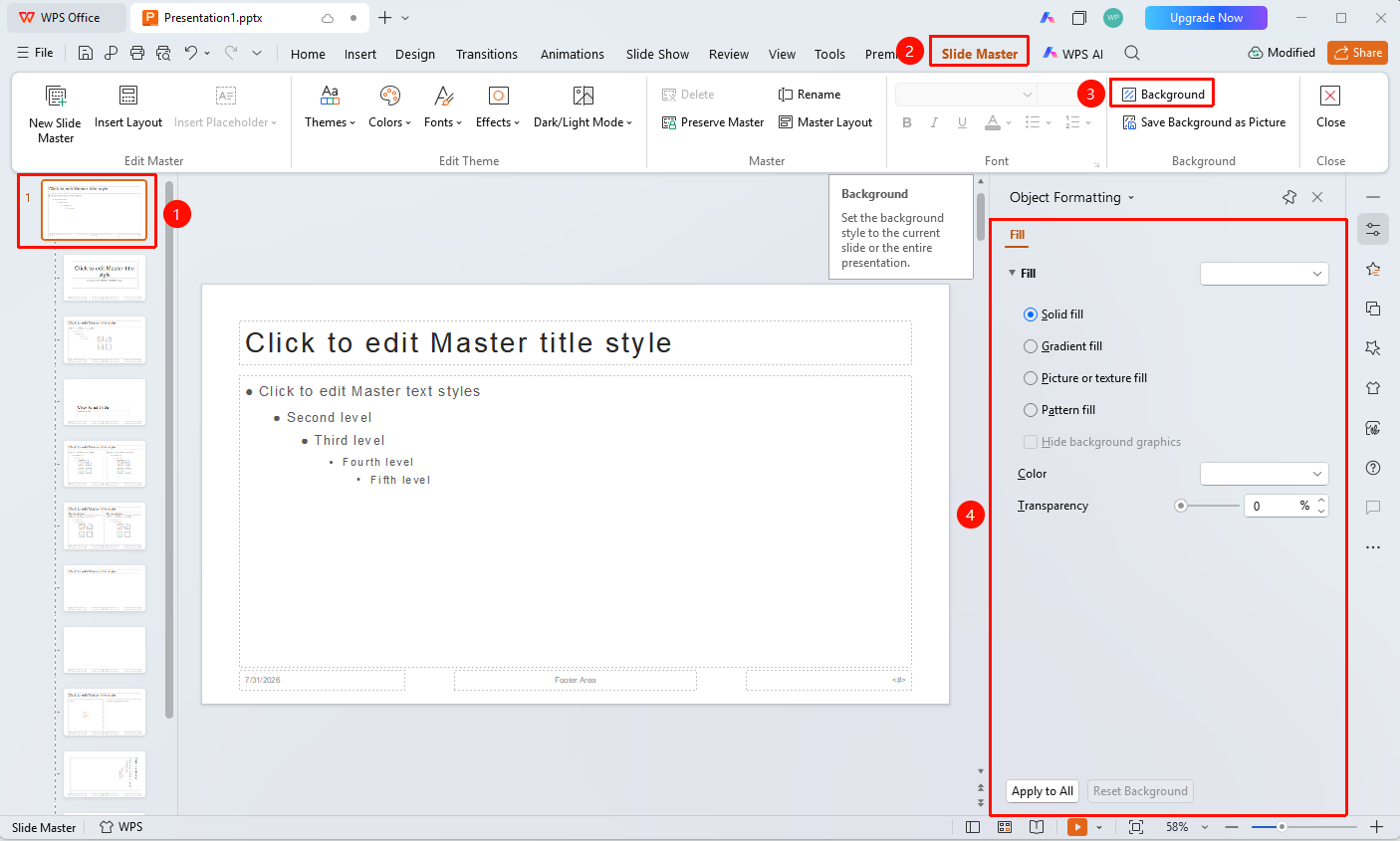
"Slide Master" tab → "Background"
- Switch to the "Slide Master" tab
- Select the master you want to set the background for in the left thumbnail pane
- Click the "Background" button
- The object properties panel will pop up on the right; select the fill type
The "Slide Master" tab needs to be enabled first by clicking the "Slide Master" option under the "View" tab
FAQ
Q1: Will the master background affect all slides?
- Solution: It will affect the background of all slides that use this master.
Q2: Can different backgrounds be set for different layouts?
- Solution: Yes, you can select a specific layout and set its background separately.
Notes
- It is recommended to set the background uniformly in the master view.