Feature Summary
The light/dark mode feature is used to switch the master slide's dark or light background mode, quickly adjusting the overall color tone of the presentation.
Feature Description
| Feature Dimension | Description |
|---|---|
| Membership Restriction | No membership restriction |
| Version Restriction | No version restriction |
Operation Steps
Switching Light/Dark Mode
Feature Entry
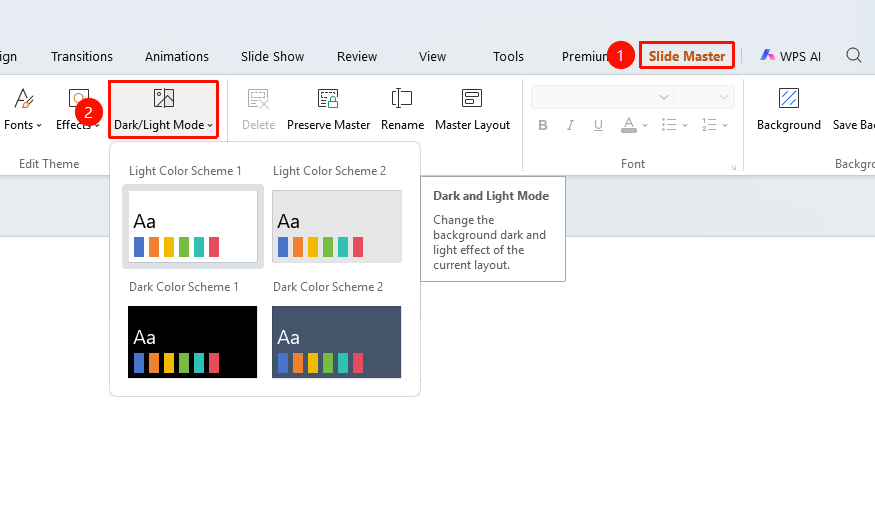
"Slide Master" tab → "Light/Dark Mode"
- Switch to the "Slide Master" tab
- Click the "Light/Dark Mode" button
- Select dark or light mode from the drop-down menu
The "Slide Master" tab needs to be enabled first by clicking the "Slide Master" option under the "View" tab
FAQ
Q1: What is the purpose of light/dark mode?
- Solution: Dark mode is suitable for dark-background presentations, while light mode is suitable for light-background presentations. You can switch with one click.
Q2: Will switching affect the content?
- Solution: Switching light/dark mode mainly affects the background and text color combination; the content itself is not affected.
Notes
- Light/dark mode will automatically adjust text color to ensure readability
- After switching, it is recommended to check whether the text is clearly visible