Feature Summary
WPS Slides local mode supports adding and deleting sections to group slides, making it easier to organize large presentations.
Feature Description
| Feature Dimension | Description |
|---|---|
| Membership Restriction | No membership restriction |
| Version Restriction | No version restriction |
Operation Steps
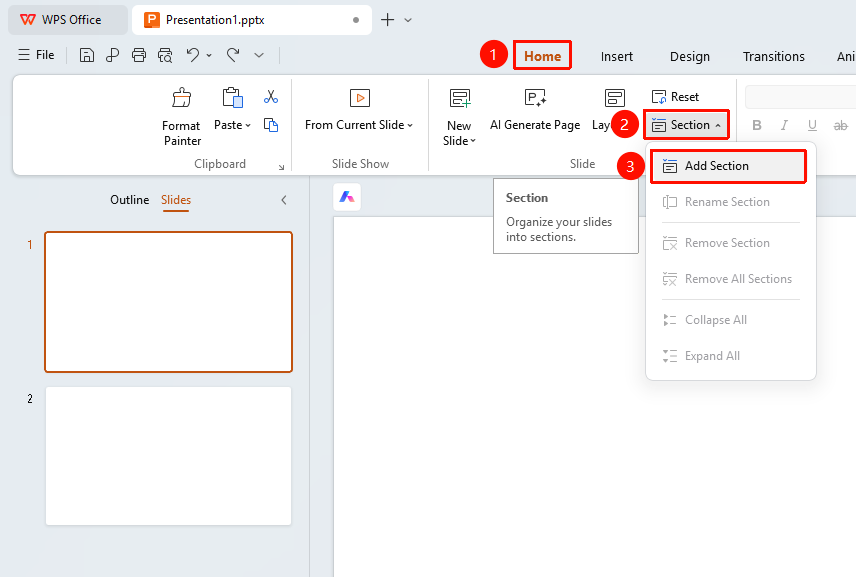
Add a Section via the Home Tab
Feature Entry
"Home" tab → "Section" → "Add Section"
- Click the "Home" tab in the top menu bar
- Click the "Section" button
- Select the "Add Section" option
- A new section will be added at the current position
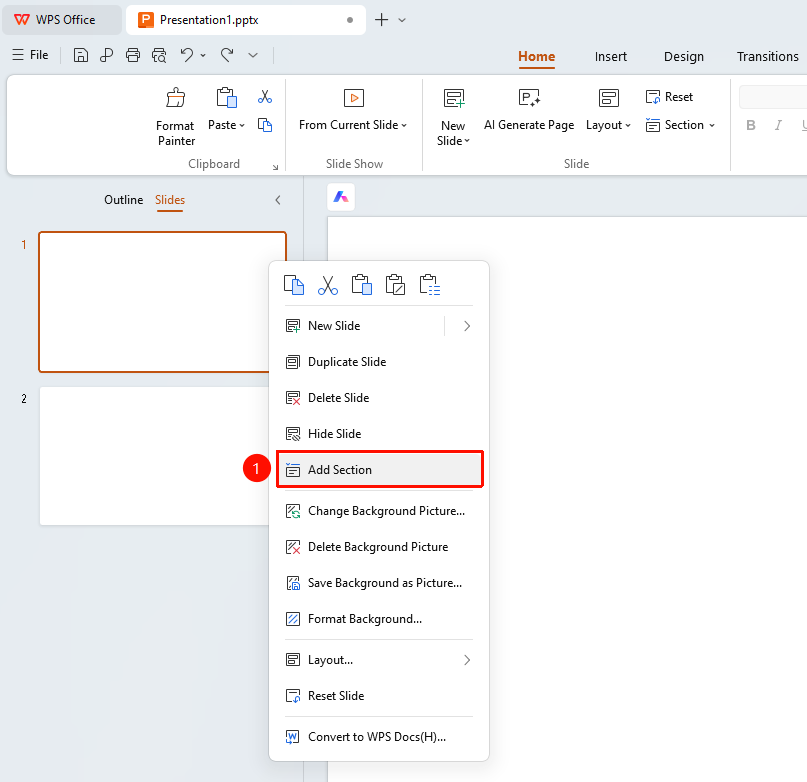
Add a Section via the Right-Click Menu
Feature Entry
Left thumbnail pane → Right-click → "Add Section"
- Right-click in the slide thumbnail area on the left
- Select the "Add Section" option
- A new section will be added at the current position
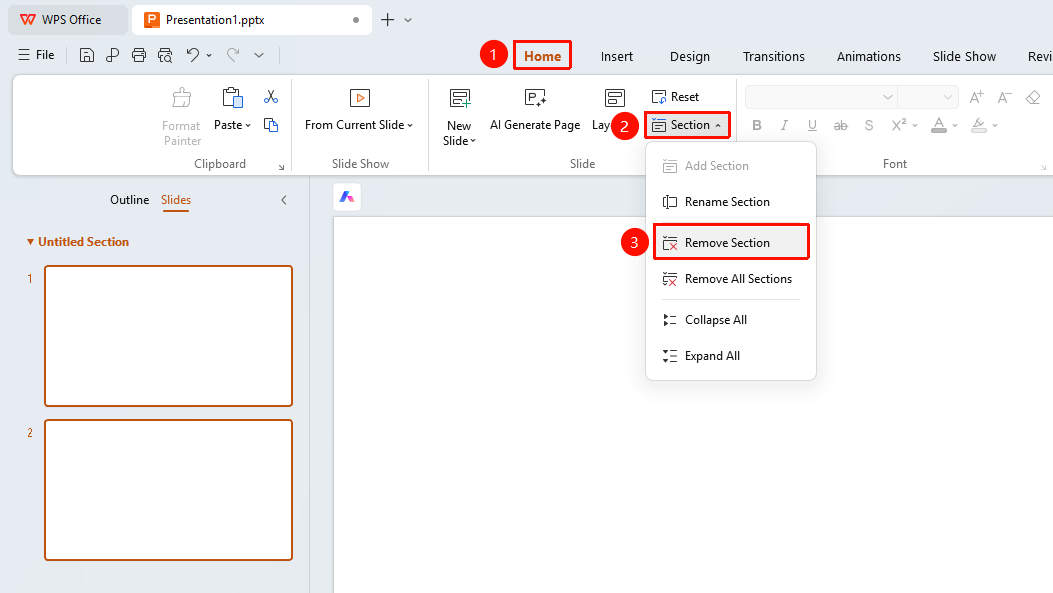
Delete a Section via the Home Tab
Feature Entry
"Home" tab → "Section" → "Delete Section"
- Select the section you want to delete
- Click the "Section" button
- Select the "Delete Section" option
- The section will be deleted, and the slides will be retained
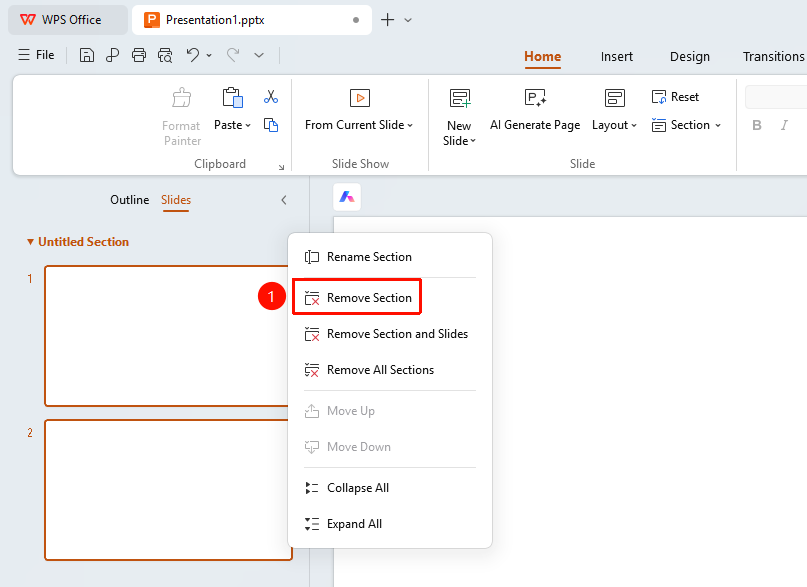
Delete a Section via the Right-Click Menu
Feature Entry
Left thumbnail pane → Right-click → "Delete Section"
- Right-click the section title in the slide thumbnail area on the left
- Select the "Delete Section" option
- The section will be deleted, and the slides will be retained
FAQ
Q1: Will deleting a section delete the slides?
- Solution: Deleting a section only removes the section marker; the slide content will be retained.
Q2: How do I delete all sections?
- Solution: Select the "Remove All Sections" option in the section menu.
Q3: What is the purpose of sections?
- Solution: Sections allow you to group slides, making it easier to manage and navigate large presentations.
Notes
- Using sections appropriately can improve the organization of your presentation
- It is recommended to keep section names concise and clear