Feature Summary
The scroll bar feature is used to insert a scroll bar control into a presentation. Users can drag the slider to select a value within a specified range, commonly used in scenarios requiring numerical adjustment.
Feature Description
| Feature Dimension | Description |
|---|---|
| Membership Restriction | No membership restriction |
| Version Restriction | No version restriction |
Operation Steps
Insert a Scroll Bar Control
Feature Entry
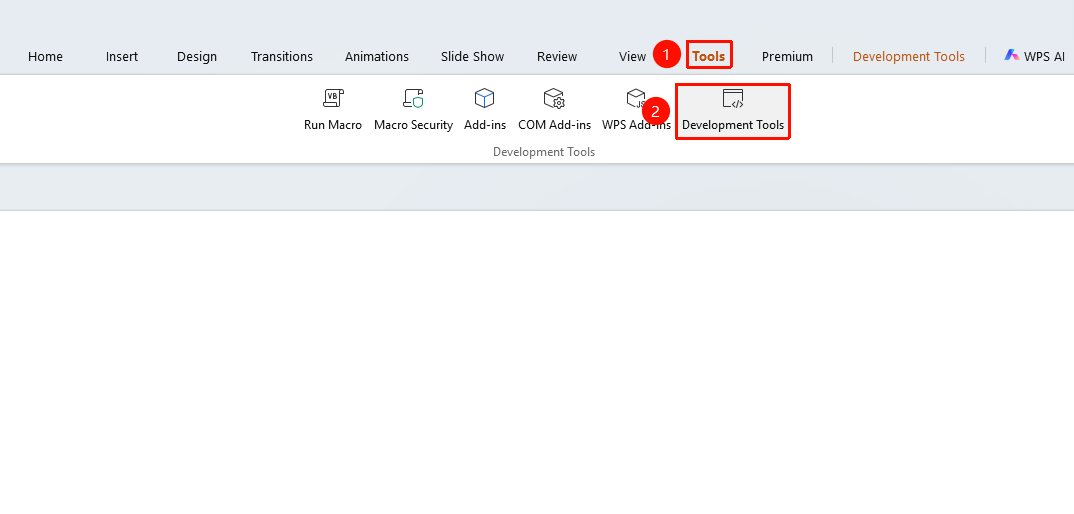
"Tools" tab → "Developer Tools" button → "Developer Tools" tab → "Scroll Bar"
- Click the "Tools" tab at the top, locate and click the "Developer Tools" button to bring up the "Developer Tools" tab at the top
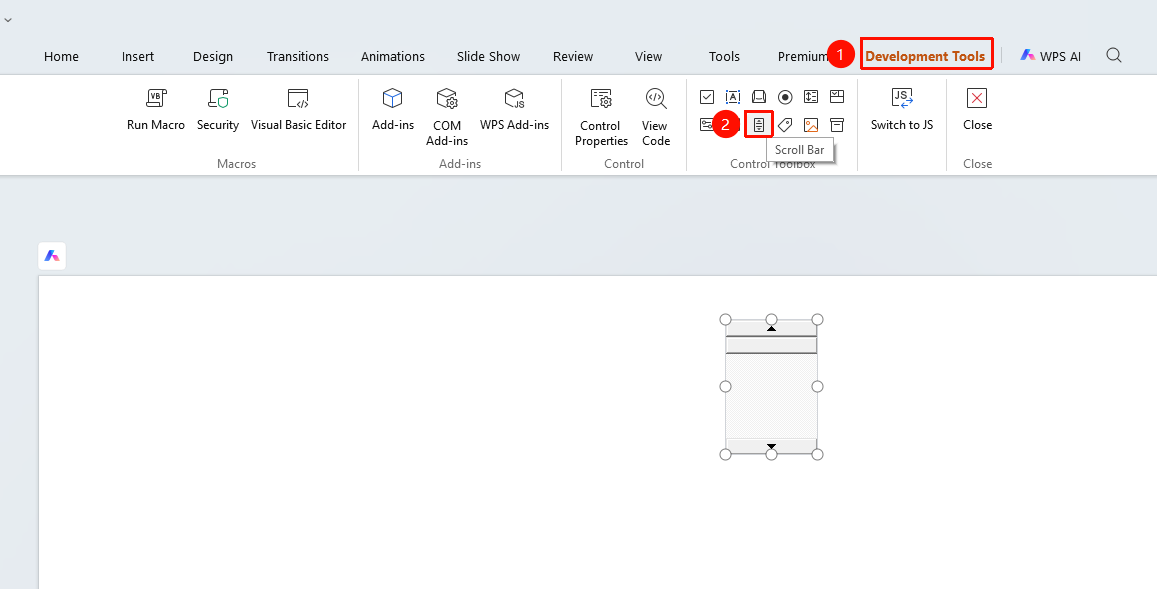
- Click the "Developer Tools" tab at the top
- Select the "Scroll Bar" control
- Drag the mouse on the slide to draw the scroll bar
Common Scroll Bar Properties
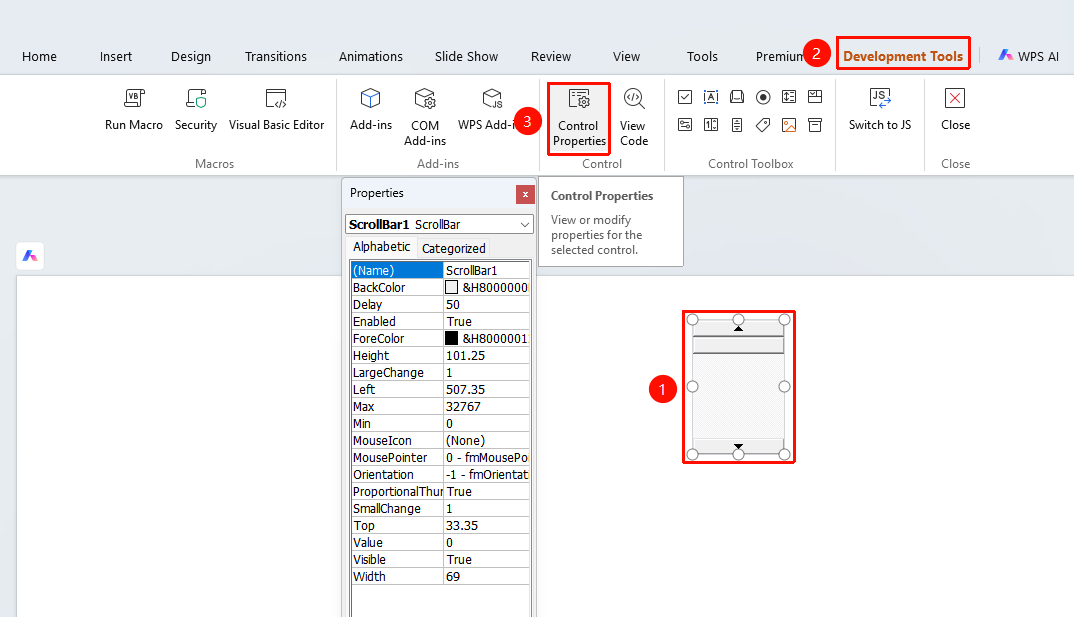
- Select the inserted scroll bar
- Click the "Control Properties" button
- Set the following options in the properties panel
- "Value": Set the current value
- "Min": Set the minimum value
- "Max": Set the maximum value
- "SmallChange": Set the increment/decrement value when clicking the arrow
- "LargeChange": Set the increment/decrement value when clicking the slider track area
- "Name": Set the control name
FAQ
Q1: What is the difference between a scroll bar and a spin button
- Solution: The scroll bar allows you to directly drag the slider to quickly locate a value; the spin button can only adjust the value step by step by clicking the up and down arrows.
Q2: How to set the step size of the scroll bar
- Solution:"SmallChange"** sets the step size when clicking the arrow, and "LargeChange" sets the step size when clicking the area on either side of the slider.
Notes
- Often used in conjunction with other controls to achieve real-time value updates