Feature Summary
The Draw Table feature allows users to freely draw row and column lines for tables on slides, creating custom-structured tables suitable for scenarios requiring non-standard table layouts.
Feature Description
| Feature Dimension | Description |
|---|---|
| Membership Restriction | No membership restriction |
| Version Restriction | No version restriction |
Operation Steps
Starting Draw Table
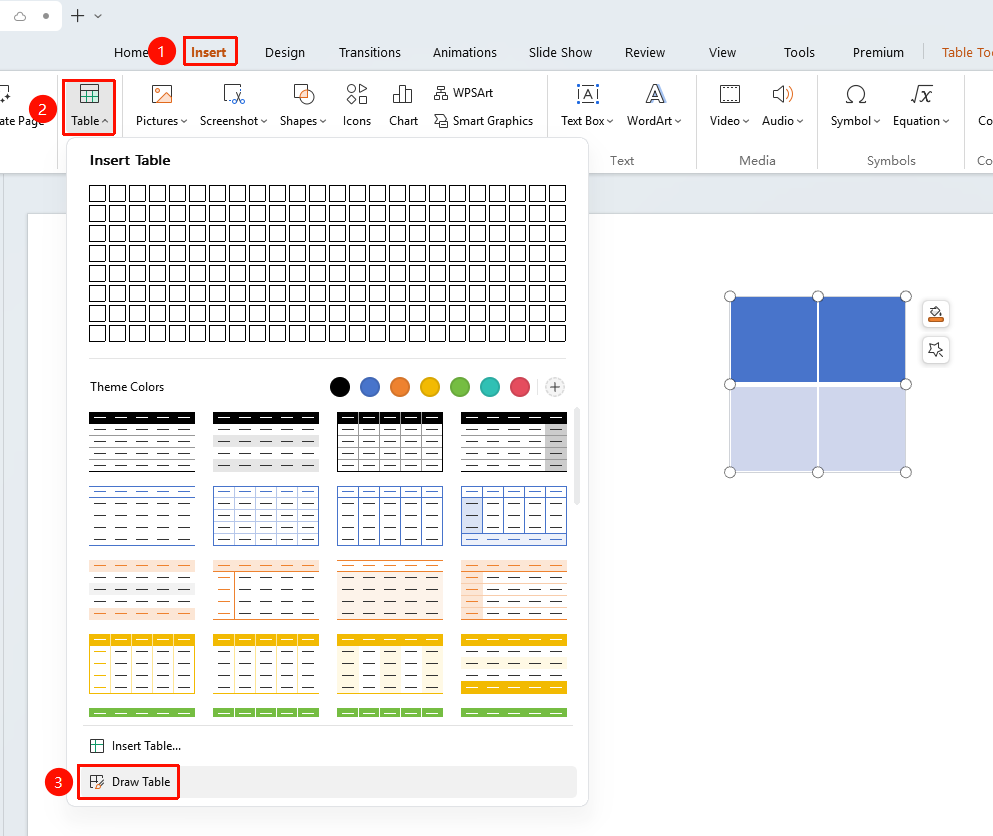
Feature Entry ①
"Insert" tab → "Table" dropdown menu → "Draw Table"
- Click the Insert tab
- Click the "Table" dropdown menu
- Select "Draw Table"
- The mouse cursor turns into a pencil shape. Hold down the left mouse button and drag on the slide to draw the outer border of the table.
- Drag the mouse inside the table to draw row and column divider lines.
Feature Entry ②
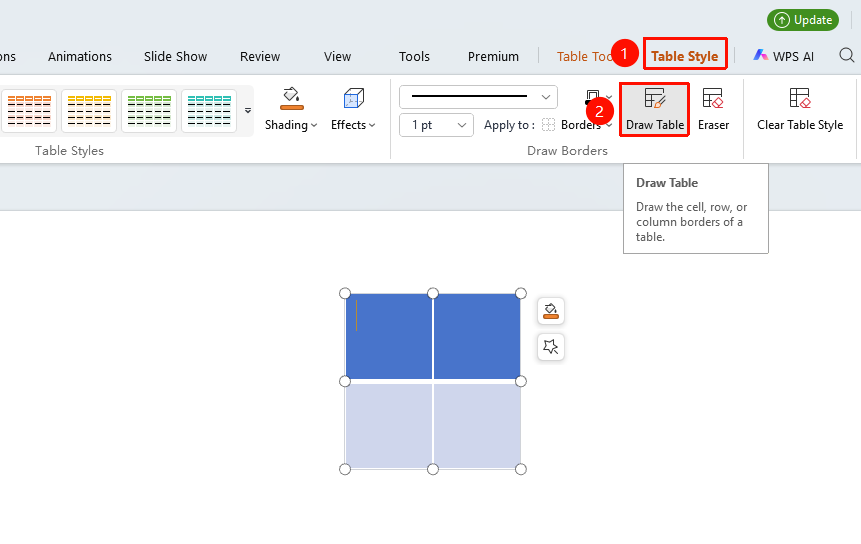
"Table Style" tab → "Draw Table"
- Click the Table Style tab
- Select the "Draw Table" feature
- Hold down the left mouse button and drag on a blank area of the slide to draw the outer border of the table.
- Drag the mouse horizontally inside the table to add row divider lines.
- Drag the mouse vertically inside the table to add column divider lines.
Frequently Asked Questions
Question 1: How do I exit Draw Table mode?
- Solution: Press the
Esckey or click "Draw Table" again to exit.
Question 2: How do I delete incorrectly drawn lines while drawing a table?
- Solution: Click the "Eraser" feature in the "Table Style" tab, then click the unwanted line to delete it. Alternatively, use Ctrl+Z to undo the previous action.
Notes
- While drawing a table, hold down the Shift key to quickly invoke the "Eraser" to erase lines at any time.
- Press the Esc key to exit drawing mode after finishing.
- A drawn table can be formatted in the same way as an inserted table.