Feature Summary
The Edit Shape feature is used to modify the appearance of a shape. It allows you to convert a shape into another shape, edit shape vertices, and achieve custom shape editing.
Feature Description
| Feature Dimension | Description |
|---|---|
| Membership Restriction | No version restriction |
| Version Restriction | No version restriction |
Steps
Change Shape
Feature Entry
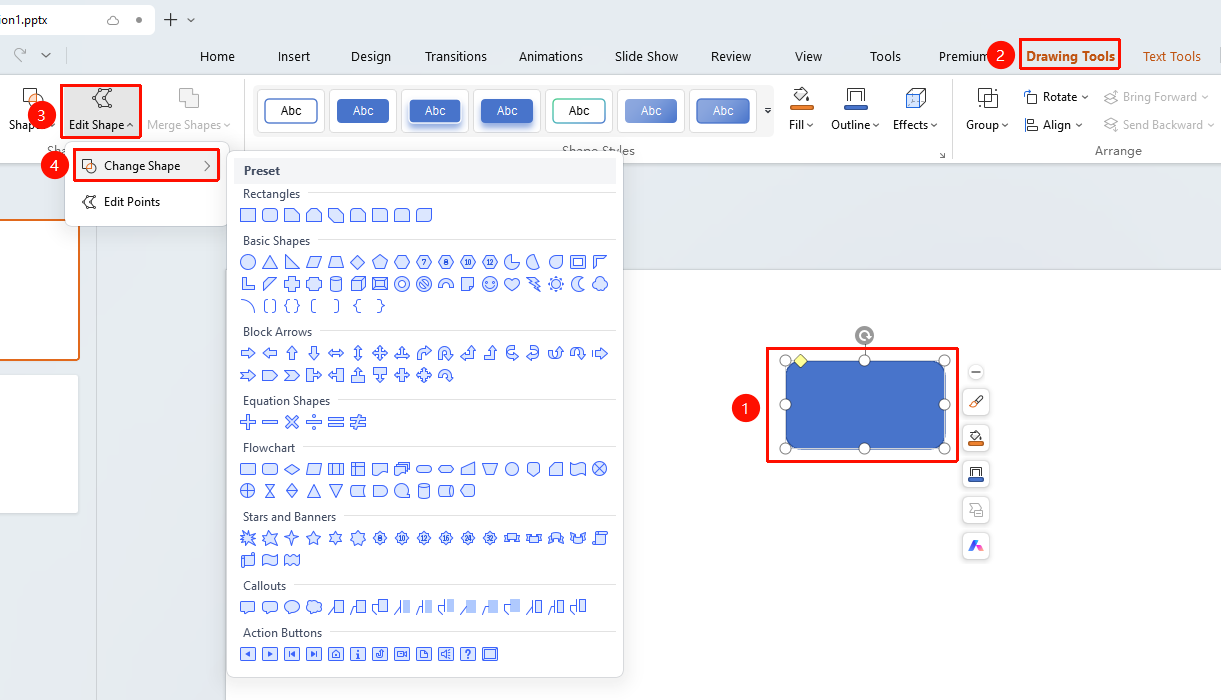
"Drawing Tools" tab → Shape Editing area → "Edit Shape"
- Select the shape you want to edit
- Click the top "Drawing Tools" tab
- Locate and click the "Edit Shape" button to expand and set the following options
- "Change Shape": Change the current shape to another preset shape
- "Edit Vertices": Enter vertex editing mode
Edit Shape Vertices
Feature Entry
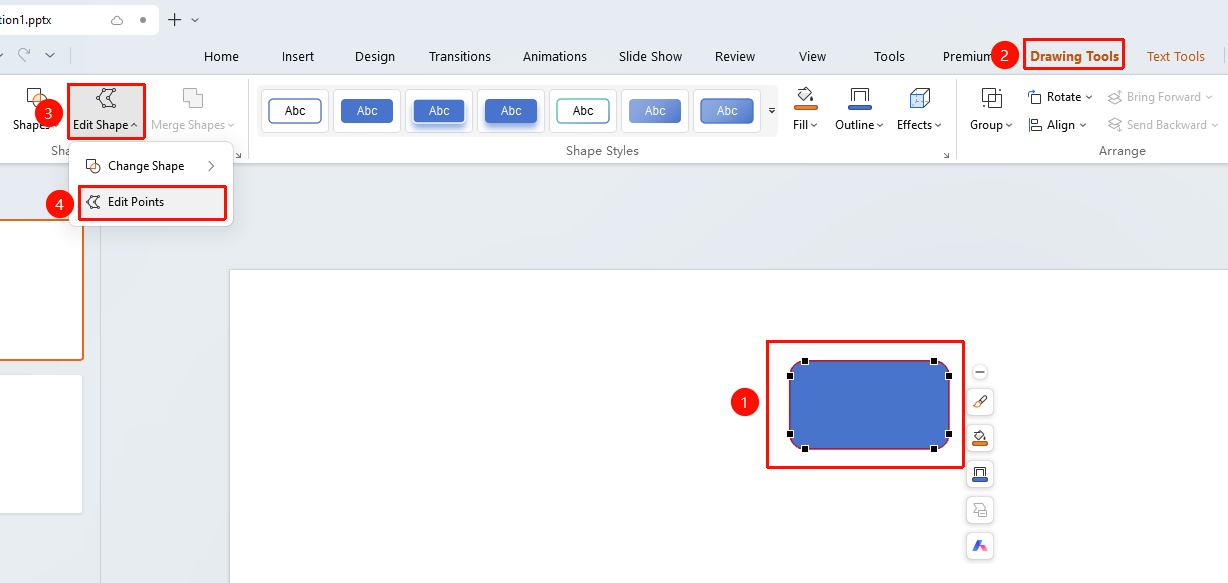
"Drawing Tools" tab → Shape Editing area → "Edit Shape" → "Edit Vertices"
- Select the shape whose vertices you want to edit
- Click the "Drawing Tools" tab
- Click the "Edit Shape" button
- Select "Edit Vertices" to enter vertex editing mode
- Drag vertices or control points to adjust the shape outline
Right-Click Menu Settings
Feature Entry
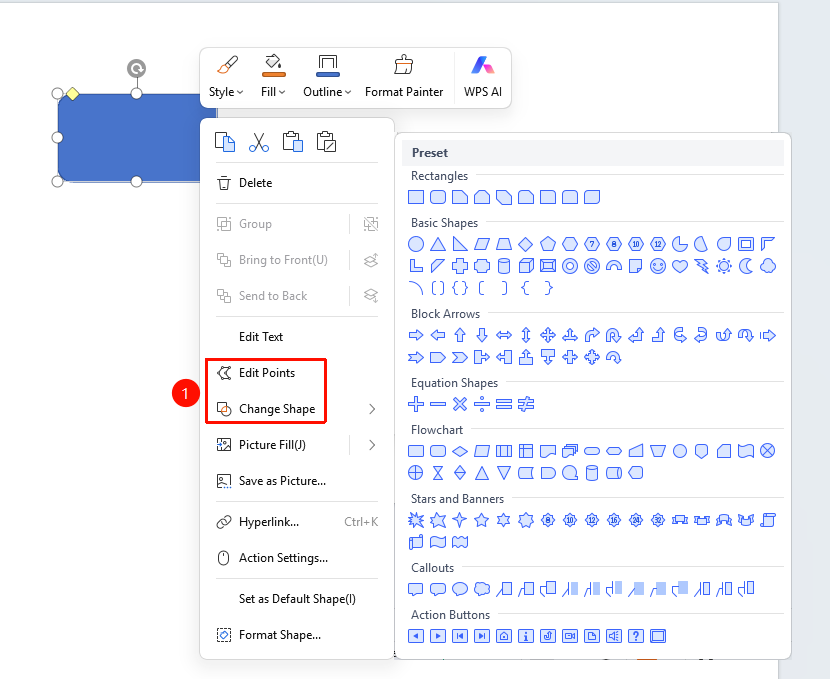
Shape right-click menu → "Edit Vertices" / "Change Shape"
- Select the shape whose vertices you want to edit
- Right-click the shape
- Select "Edit Vertices" to enter vertex editing mode
- Select "Change Shape" to re-select a shape style
FAQ
Q1: How to change a rectangle to a circle
- Solution: Use the "Change Shape" feature to replace the current shape with another preset shape.
Q2: How to customize a shape outline
- Solution: Use the "Edit Vertices" feature to freely adjust the shape outline by dragging vertices.
Q3: How to vertex editing mode after editing vertices
- Solution: Click outside the shape or press the Esc key to exit vertex editing mode.
Notes
- Changing the shape will preserve the current style settings
- Editing vertices allows for custom shapes
- Vertex editing requires certain operational skills
- Hold the Shift key while drawing a shape to draw perfect circles, squares, and other patterns