Feature Summary
The Handout Master feature is used to configure the page layout of the handout master, including the number of slides per page, page orientation, placeholder display, and background style.
Feature Description
| Feature Dimension | Description |
|---|---|
| Membership Restriction | No membership restriction |
| Version Restriction | No version restriction |
Steps
Enter Handout Master View
Feature Entry
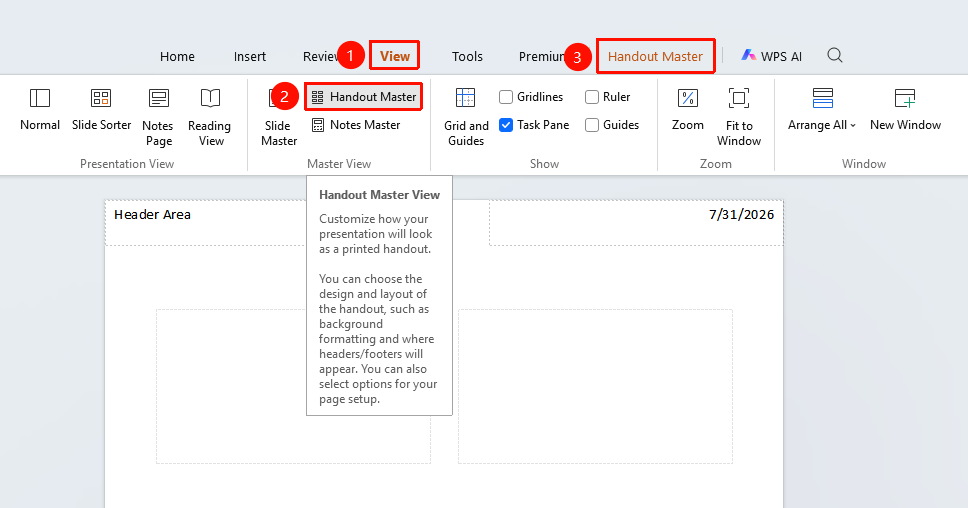
"View" tab → "Master Views" → "Handout Master"
- Switch to the "View" tab
- In the "Master Views" area, click the "Handout Master" button
- Enter the handout master editing interface; the "Handout Master" tab appears at the top
Page Setup
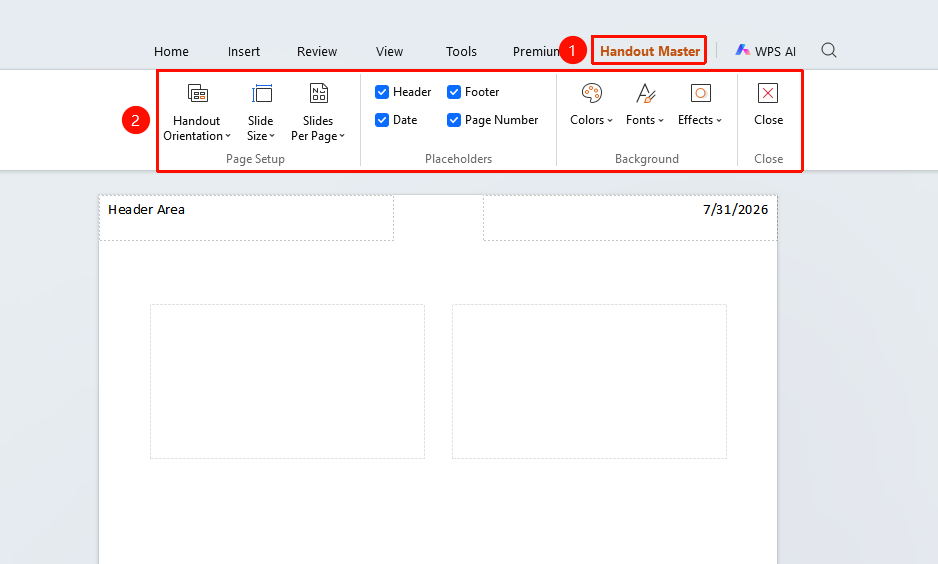
"Handout Master" tab → "Page Setup" area
- "Handout Orientation" : Set the handout page to portrait or landscape
- "Slide Size" : Set the display scale of slides in the handout
- "Slides Per Page" : Set the number of slides included on each handout page
Placeholder Settings
"Handout Master" tab → "Placeholders" area
Select or clear the following checkboxes to control the elements displayed in the handout:
- "Header" : Display the header area at the top of the handout
- "Footer" : Display the footer area at the bottom of the handout
- "Date" : Display the date in the handout
- "Page Number" : Display page numbers in the handout
Background Settings
"Handout Master" tab → "Background" area
- "Color" : Set the color scheme for the handout
- "Font" : Set the font used in the handout
- "Effects" : Set the visual effect style for the handout
Exit Handout Master
Feature Entry
"Handout Master" tab → "Close"
After completing the settings, click the "Close" button to exit the handout master view
FAQ
Q1: What is the maximum number of slides per page that can be set?
- Solution: A maximum of 9 slides per page is supported.
Notes
- Settings are automatically saved after closing the handout master.