Feature Summary
WPS Slides local mode supports inserting hyperlinks to web pages, documents, emails, or other slides.
Feature Description
| Feature Dimension | Description |
|---|---|
| Membership Restriction | No membership restriction |
| Version Restriction | No version restriction |
Steps
Insert Web Link
Feature Entry
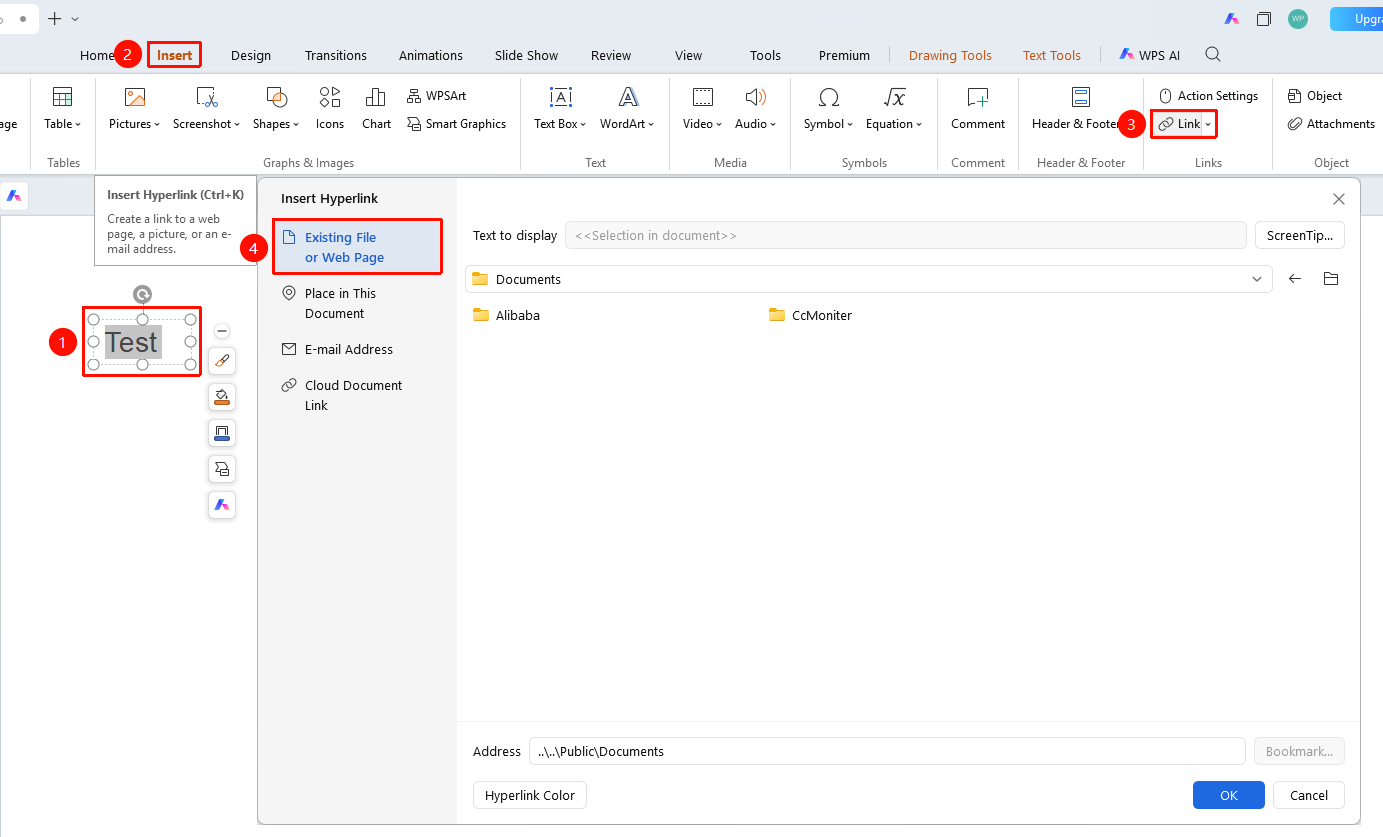
"Insert" tab → "Hyperlink" button (Shortcut: Ctrl+K)
- Select the object or text to which you want to add a link
- Click the "Insert" tab in the top menu bar
- Click the "Hyperlink" button
- Enter the URL in the "Existing File or Web Page" tab
- Click "OK" to finish
Insert Document Link
Feature Entry
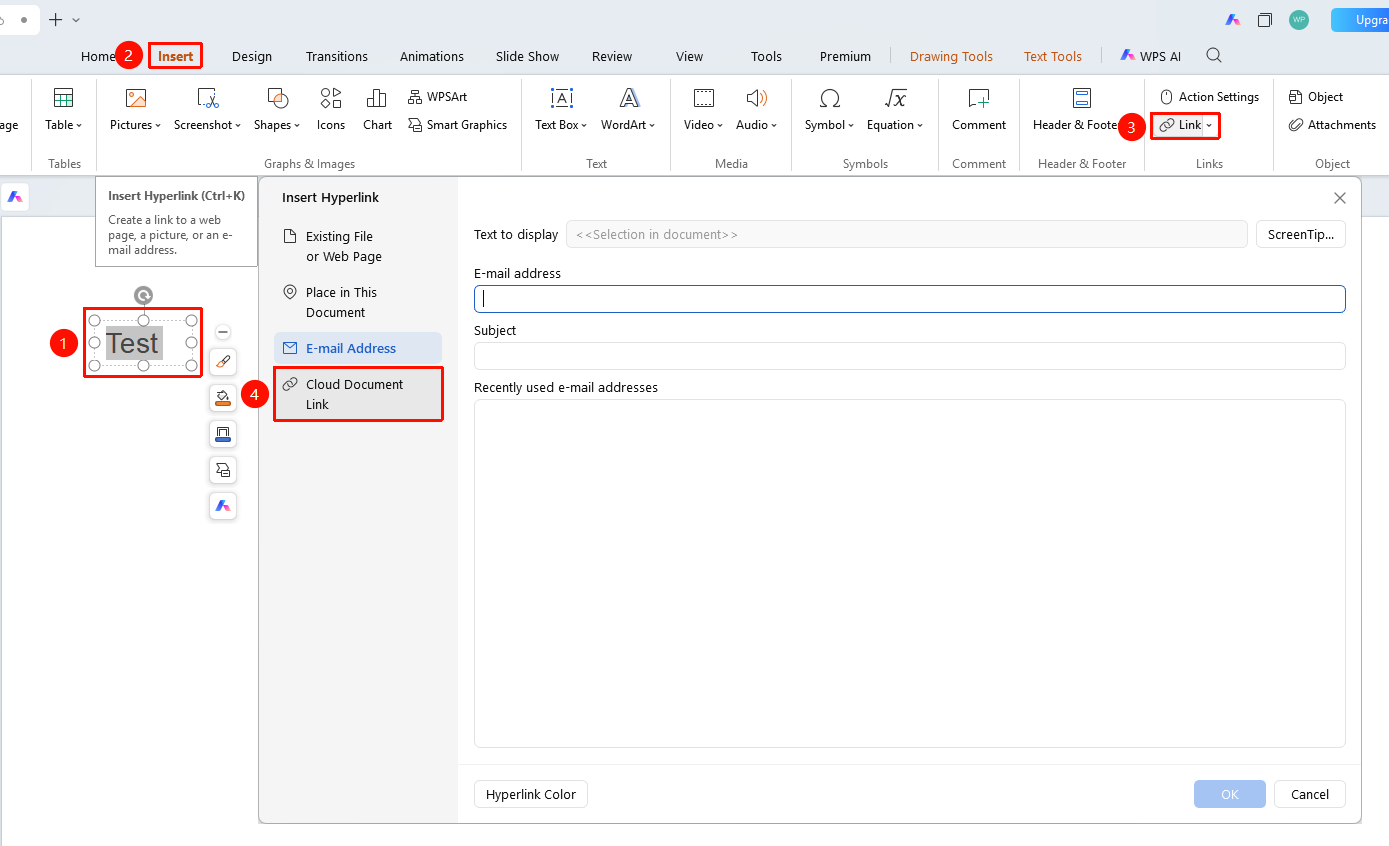
"Insert Hyperlink" dialog box → "Cloud Document Link" tab
- Select a file in the Hyperlink dialog box
- Browse and select the document you want to link to
- Click "OK"
Link to a Location in This Document
Feature Entry
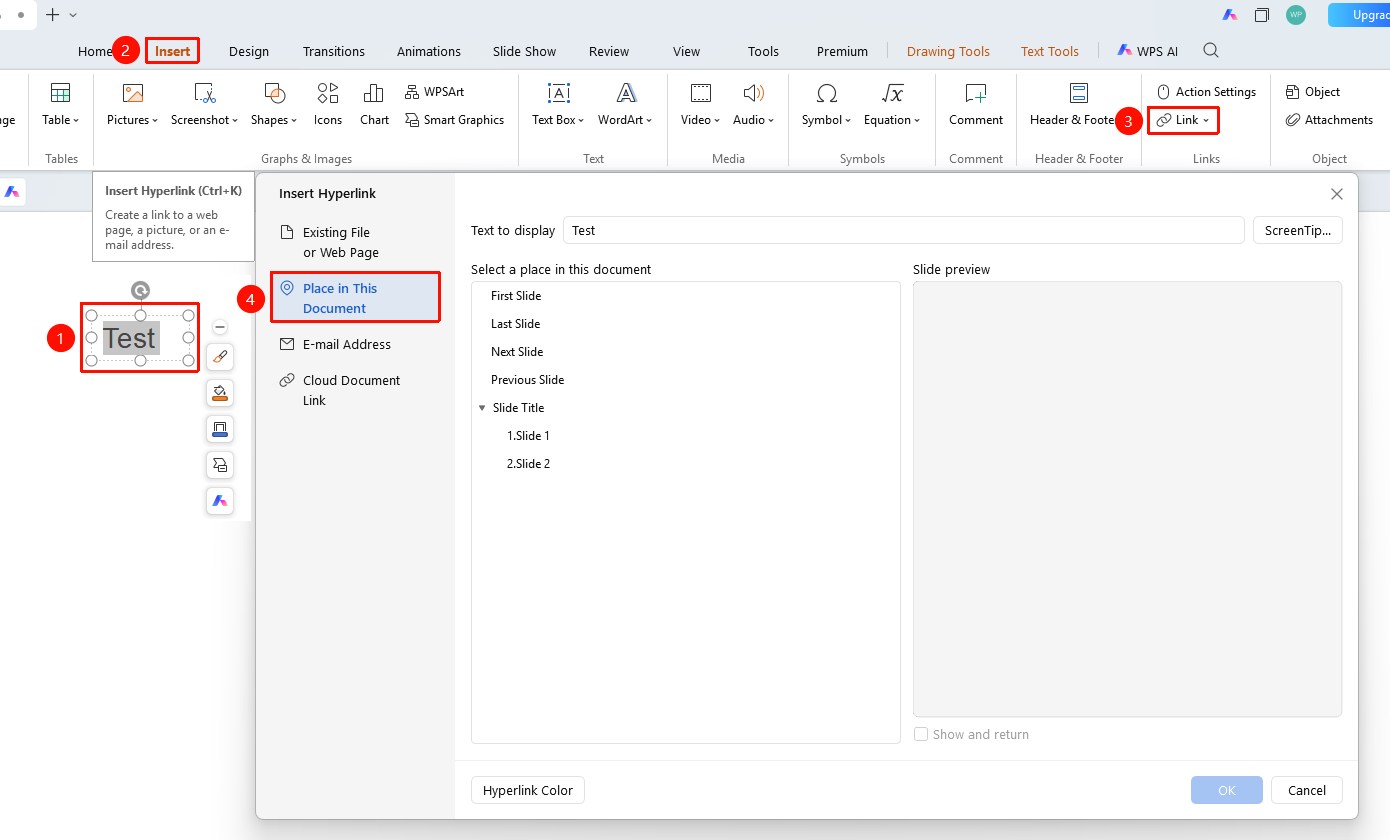
"Insert Hyperlink" dialog box → "Place in This Document" tab
- Select "Place in This Document" in the Hyperlink dialog box
- Select the target slide
- Click "OK"
Notes
- Linking to a location in this document is convenient for creating navigation menus
- Cloud document links require a network connection to access