Feature Summary
The Option Button feature is used to insert radio button controls into a presentation. Users can select one option from multiple choices, and it is commonly used to create forms with mutually exclusive selections.
Feature Description
| Feature Dimension | Description |
|---|---|
| Membership Restriction | No membership restriction |
| Version Restriction | No version restriction |
Steps
Insert an Option Button
Feature Entry
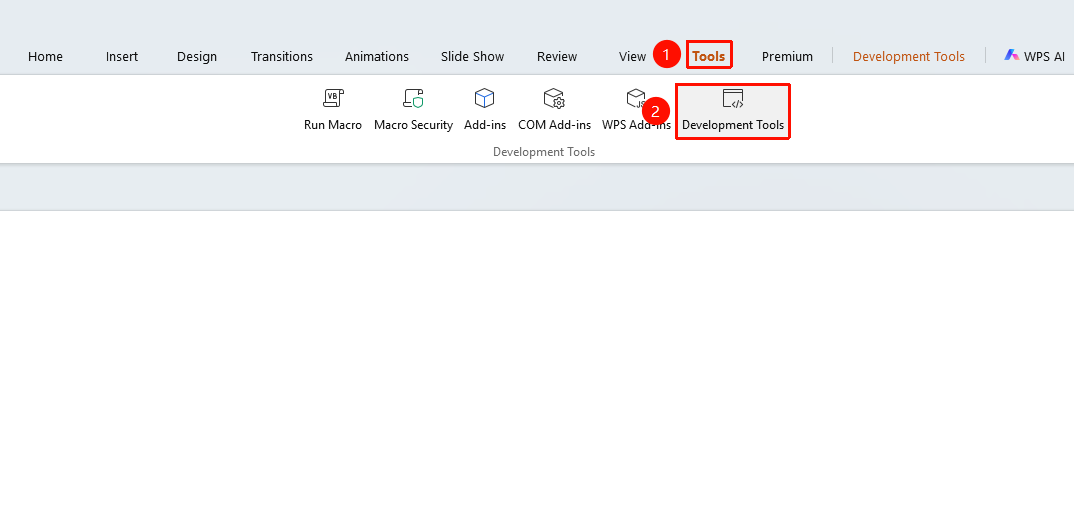
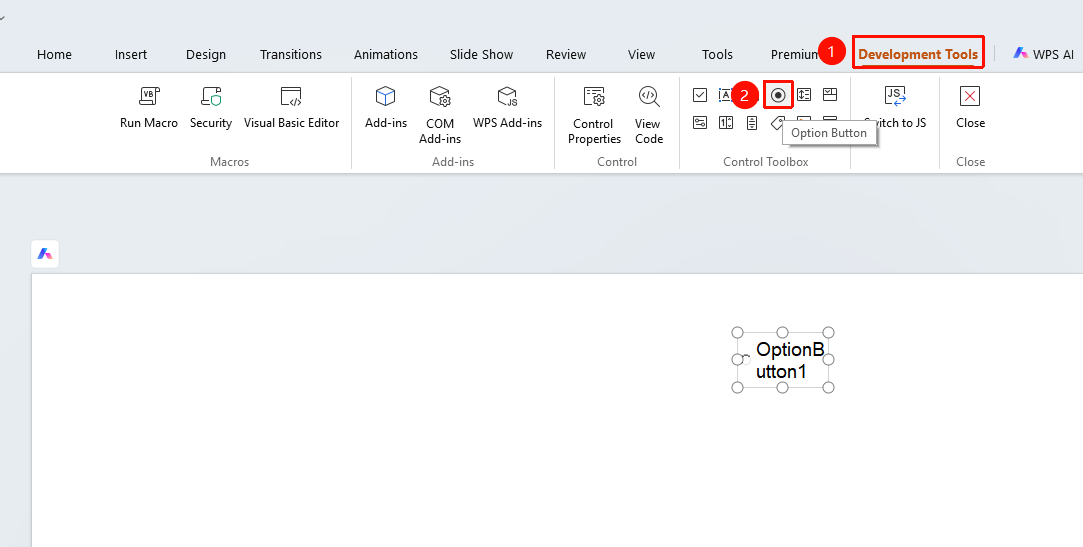
"Tools" tab → "Developer Tools" button → "Developer" tab→ "Option Button"
- Click the "Tools" tab at the top, locate and click the "Developer Tools" button to bring up the "Developer Tools" tab at the top
- Click the "Developer Tools" tab at the top
- Select the "Option Button" control
- Drag the mouse on the slide to draw the option button
Common Option Button Properties
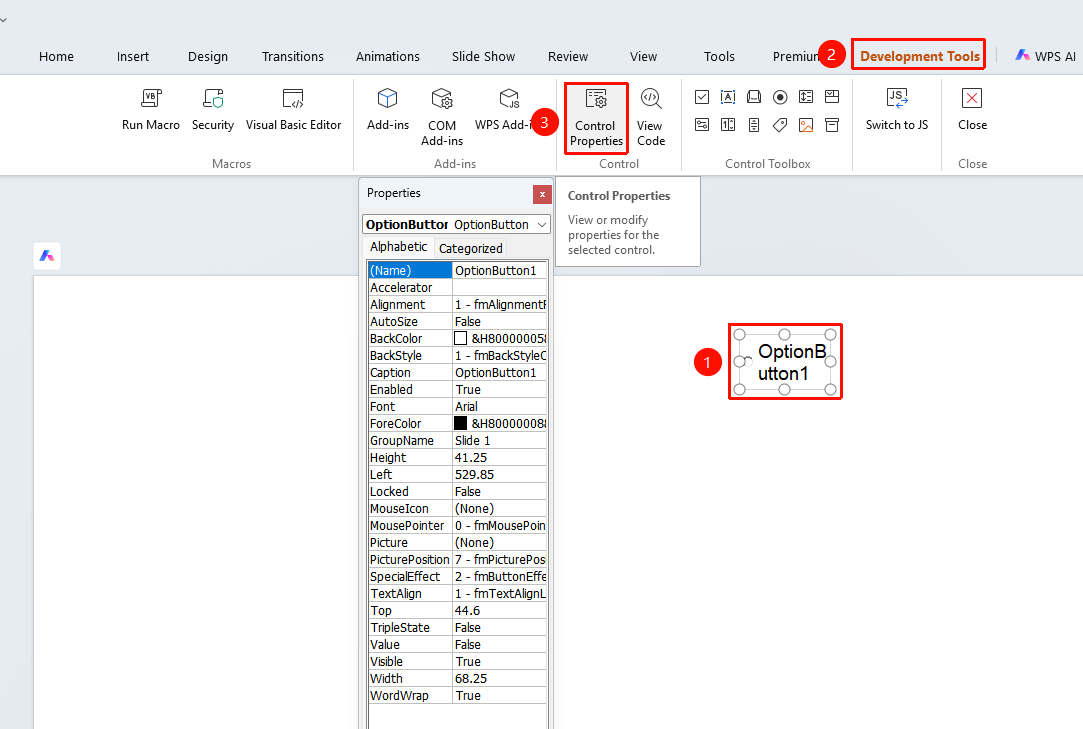
- Select the inserted option button
- Click the "Control Properties" button
- Set the following options in the properties panel
- "Caption": Set the display text of the option button
- "Value": Set the checked state of the option button (True/False)
- "Name": Set the name of the option button