Feature Summary
The rename template feature is used to modify the name of a master or layout, making it easier to identify and manage multiple master styles.
Feature Description
| Feature Dimension | Description |
|---|---|
| Membership Restriction | No membership restriction |
| Version Restriction | No version restriction |
Operation Steps
Rename Template
Feature Entry
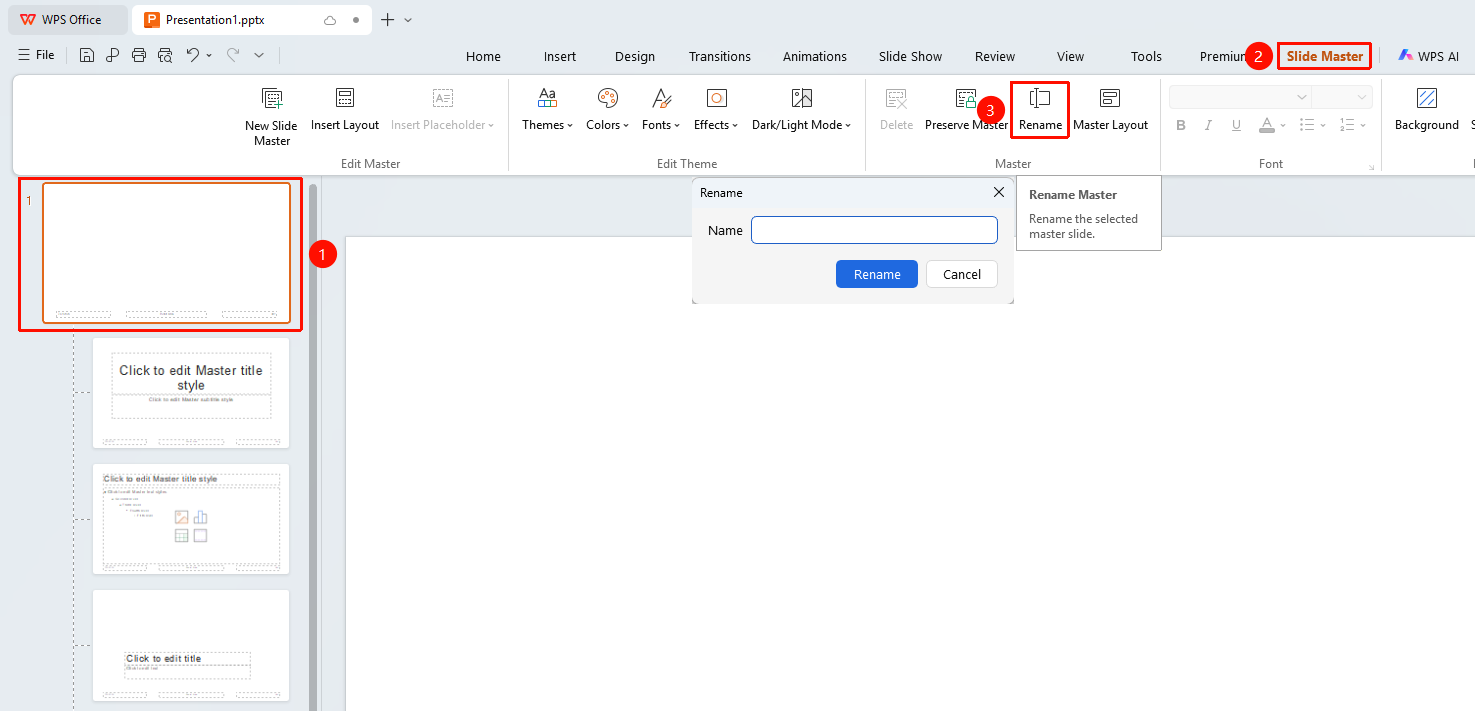
"Slide Master" tab → "Rename"
- Switch to the "Slide Master" tab
- Select the master to be renamed in the left thumbnail pane
- Click the "Rename" button
- Enter a new name in the pop-up dialog box
- Click "Rename" to confirm
The "Slide Master" tab needs to be enabled by first clicking the "Slide Master" option under the "View" tab
FAQ
Q1: Can I rename a layout?
- Solution: Yes, after selecting a layout, you can also click the "Rename" button to modify its name.
Q2: What are the naming requirements?
- Solution: The name cannot be the same as an existing master. It is recommended to use meaningful, descriptive names.
Notes
- After renaming, the new name will be displayed in the layout selection menu
- It is recommended to use clear names to support collaborative work