Feature Summary
WPS Slides local mode supports adding headers and footers, including slide numbers, dates, footer text, and more.
Feature Description
| Feature Dimension | Description |
|---|---|
| Membership Restriction | No membership restriction |
| Version Restriction | No version restriction |
Steps
Insert Header & Footer
Feature Entry
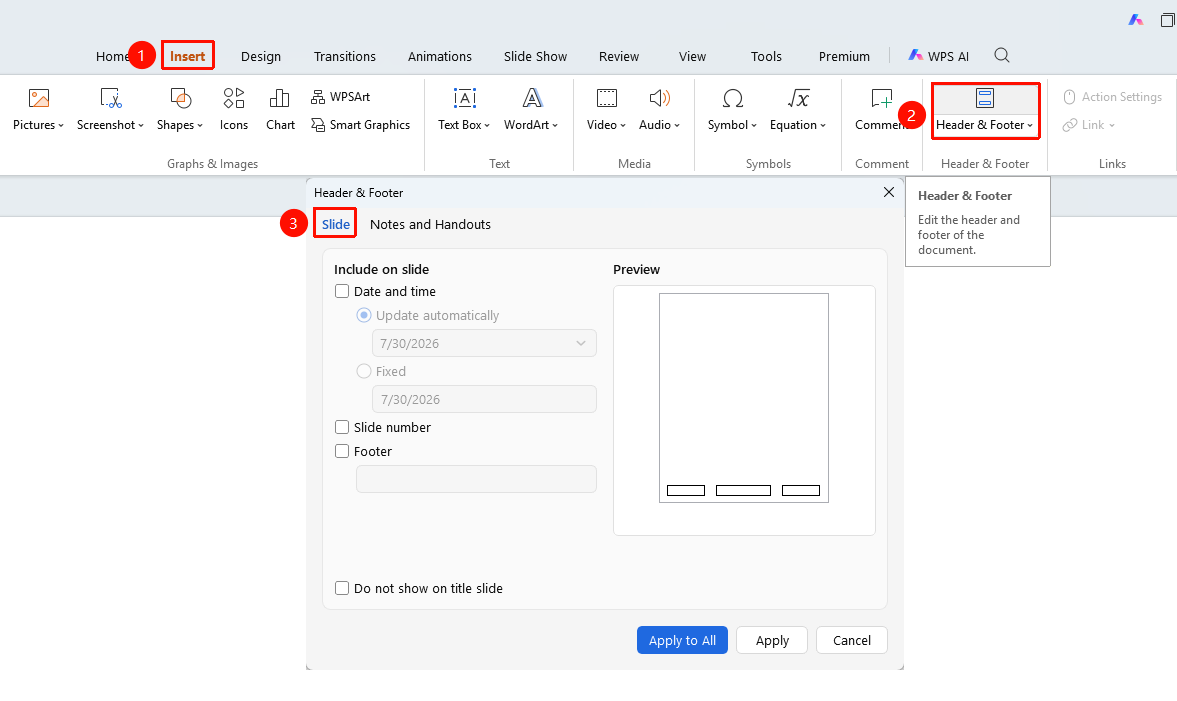
"Insert" tab → "Header & Footer" button
- Click the "Insert" tab in the top menu bar
- Click the "Header & Footer" button
- Set options in the pop-up dialog box:
- "Date & Time": Choose fixed date or auto-update
- "Slide Number": Display slide number
- "Footer": Enter footer text
- "Don't show on title slide": Exclude the title slide
- Click "Apply" or "Apply to All"
Set Notes & Handouts Header & Footer
Feature Entry
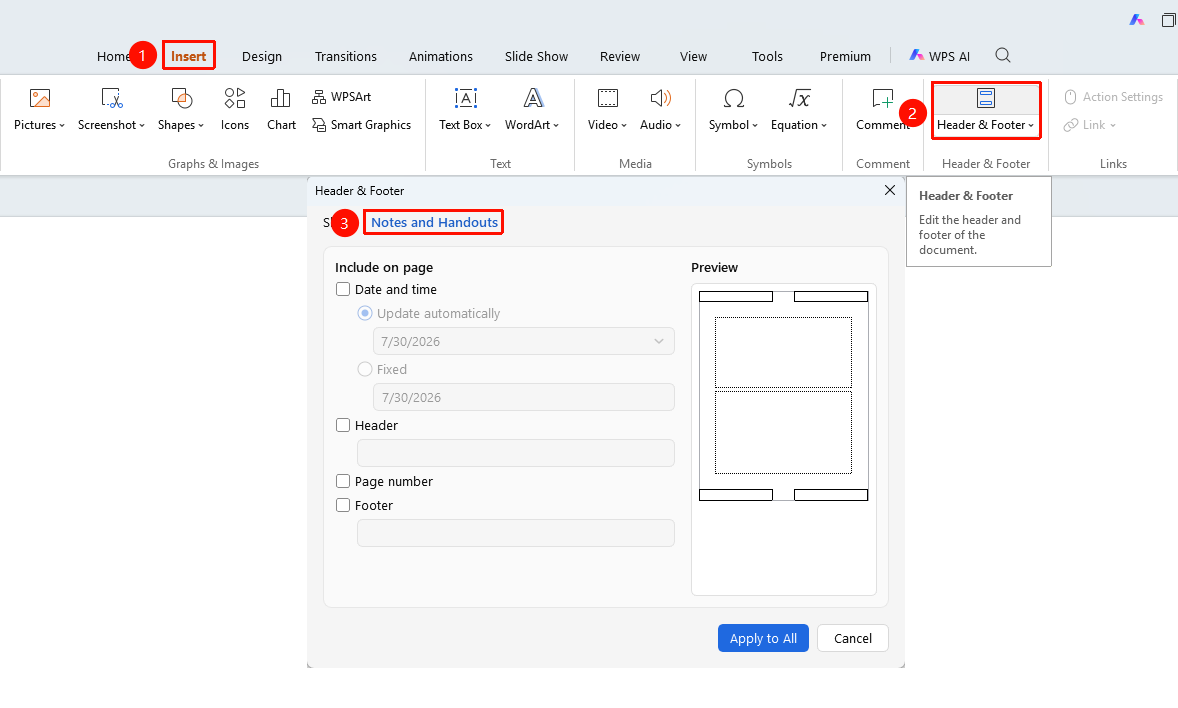
"Header & Footer" dialog box → "Notes and Handouts" tab
- Select the "Notes and Handouts" tab in the Header & Footer dialog box
- Set header, footer, date, page number, and other options
- Click "Apply" or "Apply to All"
FAQ
Q1: Will the header and footer be displayed during the slideshow?
- Solution: The footer will be displayed. The header is displayed in Normal view but not during the slideshow.
Q2: How to modify the footer of a single slide individually?
- Solution: Select "Apply" instead of "Apply to All" in the Header & Footer dialog box.
Q3: How to remove the header and footer?
- Solution: Open the Header & Footer dialog box, uncheck all options, and then apply.
Notes
- It is recommended to keep footer text concise
- Title slides usually do not need to display footers