Feature Summary
The Shapes feature is used to insert various geometric figures, arrows, flowchart symbols, etc., into a worksheet. It supports custom styles and effects for creating illustrations and annotations.
Feature Description
| Feature Dimension | Description |
|---|---|
| Membership Restriction | No membership restriction |
| Version Restriction | No version restriction |
Operation Steps
Insert a Shape
Feature Entry
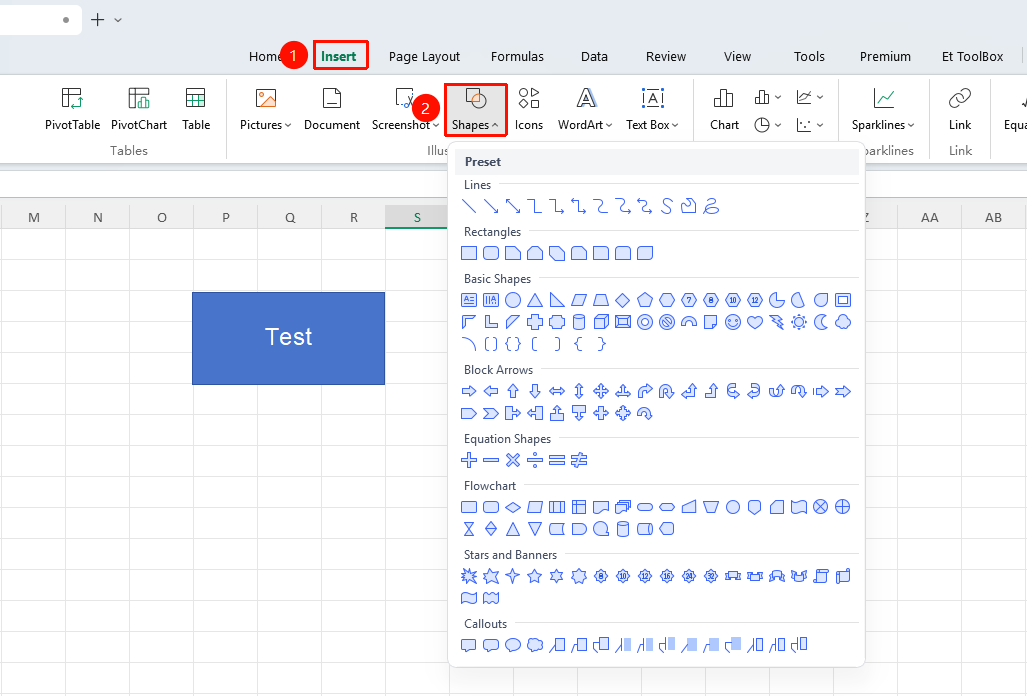
"Insert" tab → "Shapes" option
- Click the "Shapes" button in the "Insert" tab
- Select the desired shape from the shape library
- Drag the mouse on the worksheet to draw the shape
- Text can be added inside the shape
Format Shape
Feature Entry
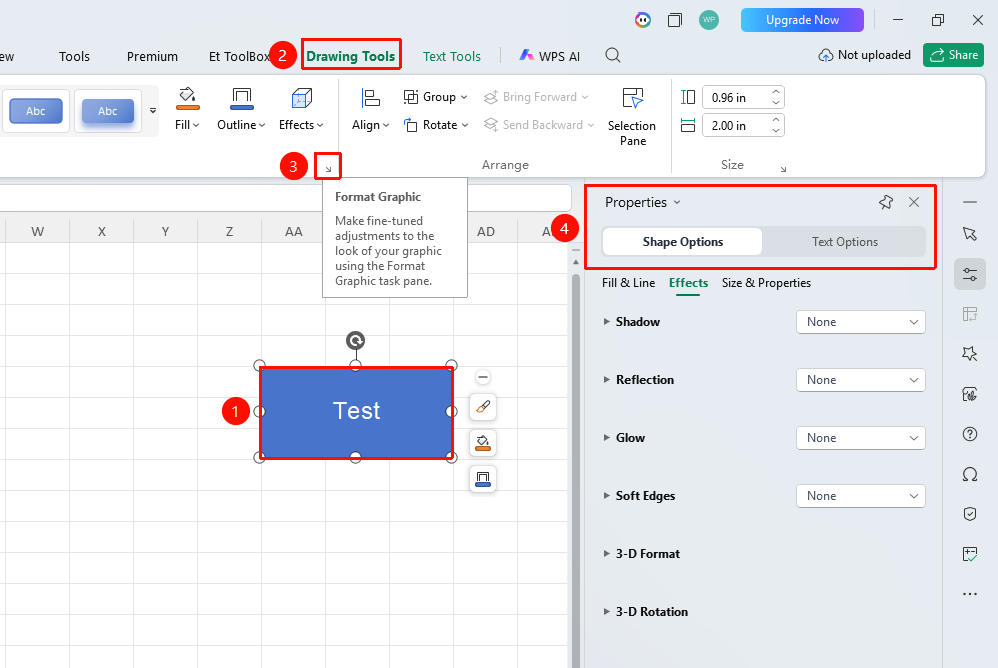
"Drawing Tools" tab → "Format Shape" arrow
- Select the shape
- Click the Drawing Tools tab
- Click the "Format Shape" arrow
- Adjust in the task pane that pops up on the right:
- Fill & Line
- Effects
- Size & Properties
Edit Shape Vertices
Feature Entry
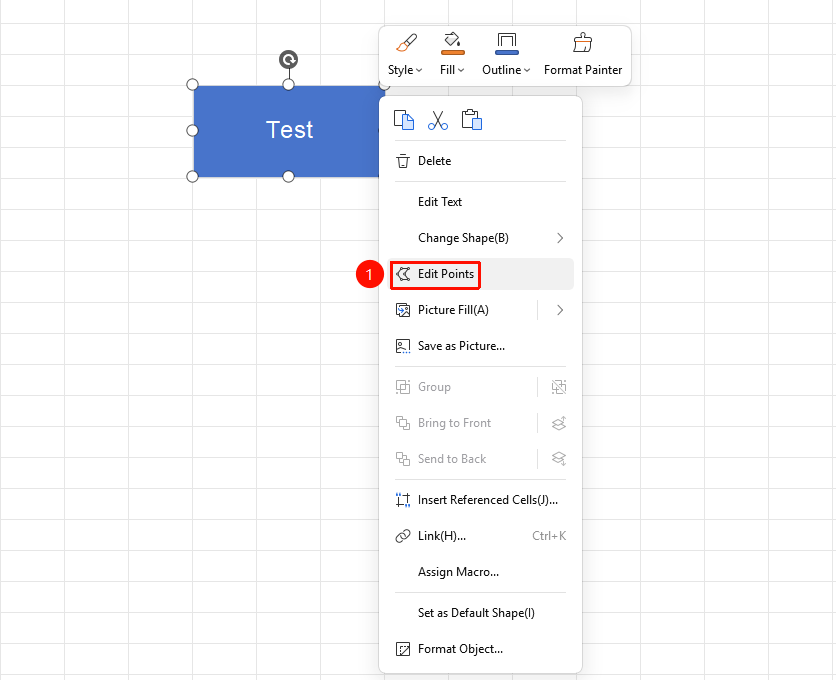
Right-click menu → "Edit Vertices" button
- Right-click the shape
- Select the "Edit Vertices" button
- Drag the vertices to adjust the shape outline
- Click outside the area to exit editing when done
FAQ
Q1: How to group multiple shapes?
- Solution: Select multiple shapes (hold Ctrl and click), right-click and select "Group" → "Group".
Notes
- Text can be added to shapes and formatting can be applied
- Multiple shapes can be grouped or aligned
- Shapes can be placed above or below text