Feature Summary
The WPS Art Move Forward / Move Backward feature is used to adjust the arrangement order of items at the same level. Move Forward shifts an item one position forward, and Move Backward shifts an item one position backward.
Feature Description
| Feature Dimension | Description |
|---|---|
| Membership Restriction | No membership restriction |
| Version Restriction | No version restriction |
Operation Steps
Move Forward
Feature Entry
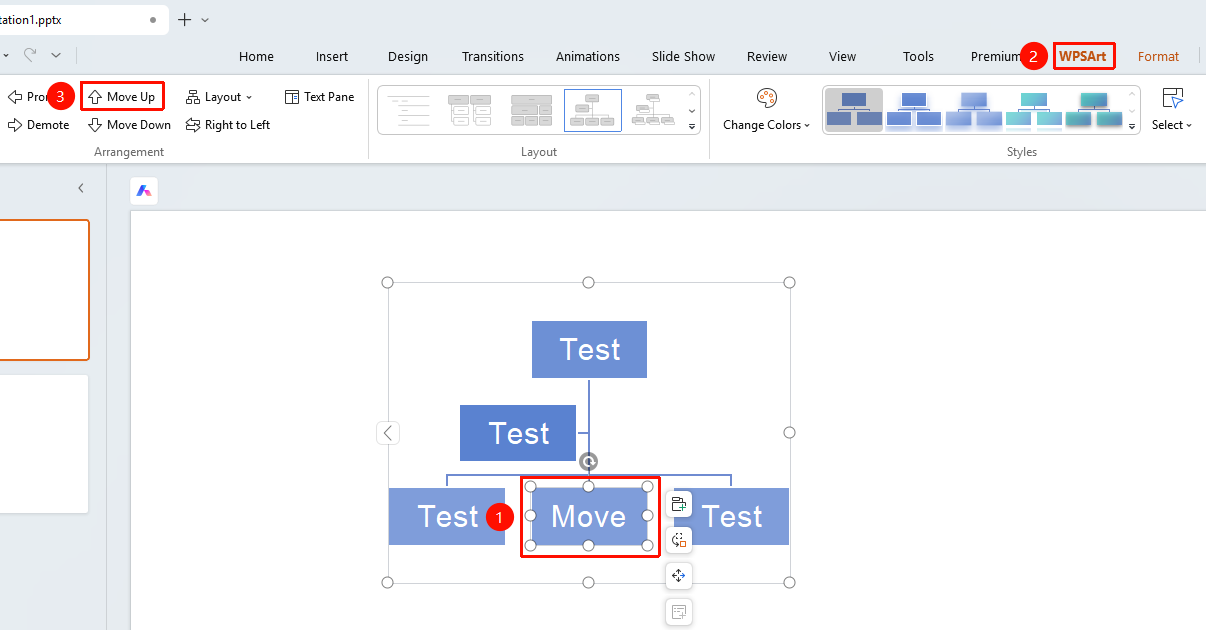
"Design" tab → "Move Forward"
- Select the item to move forward
- Click the top "Design" tab
- Find and click the "Move Forward" button
- The item will move one position forward
Move Backward
Feature Entry
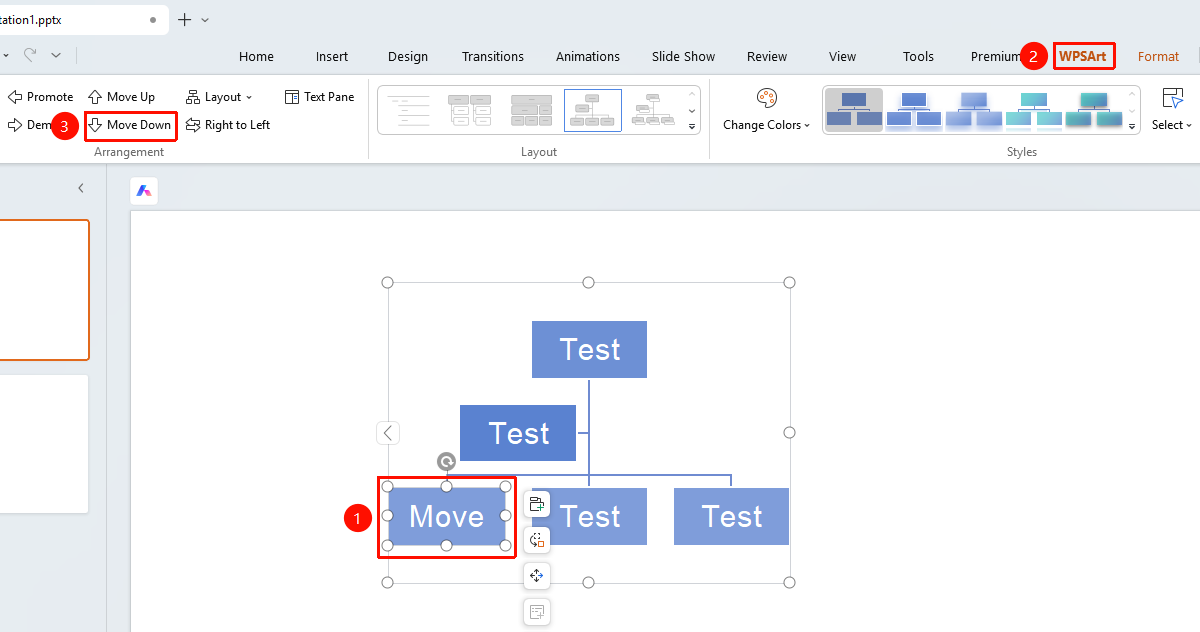
"Design" tab → "Move Backward"
- Select the item to move backward
- Click the top "Design" tab
- Find and click the "Move Backward" button
- The item will move one position backward
Floating Editing Bar Settings
Feature Entry ②
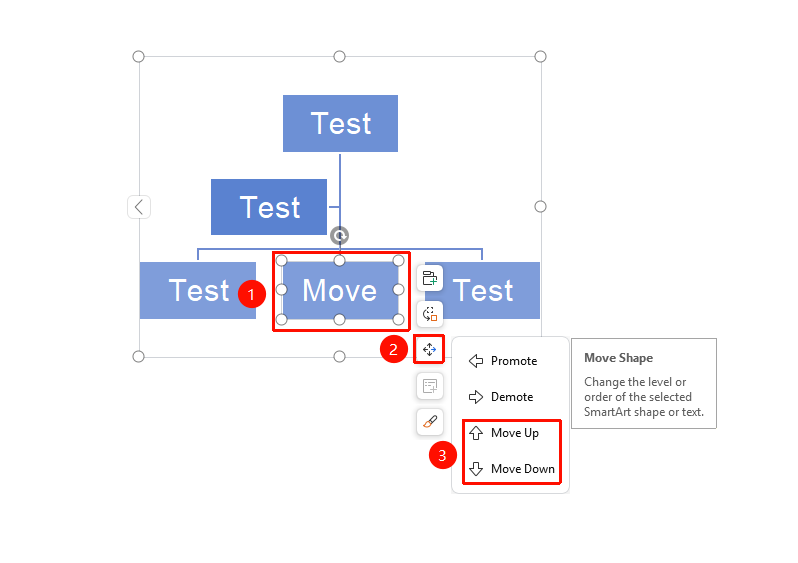
Floating Editing Bar → "Change Position" → "Move Forward" / "Move Backward"
- Select the item to adjust
- Click "Change Position" in the floating editing bar
- Select "Move Forward" or "Move Backward"
FAQ
Q1: What is the difference between Move Forward/Backward and Promote/Demote?
- Solution: Move Forward/Backward adjusts the order at the same level, while Promote/Demote changes the hierarchical relationship.
Q2: Can the first item be moved forward further?
- Solution: No, the first item cannot be moved forward further, and the last item cannot be moved backward further.
Notes
- Move Forward/Backward only changes the order of items at the same level and does not affect the hierarchical structure
- The visual effect of the graphic will automatically adjust after moving