Feature Summary
The WPS Art Size feature is used to adjust the dimensions of WPS Art graphics. You can manually adjust by dragging control points, precisely set the height and width in the Size area, or configure detailed settings in the Object Properties.
Feature Description
| Feature Dimension | Description |
|---|---|
| Membership Restriction | No membership restriction |
| Version Restriction | No version restriction |
Steps
Set Size
Feature Entry
"Design" tab → Size area
- Select the WPS Art graphic
- Click the top "Design" tab
- Enter the height and width values in the Size area, or use the buttons to fine-tune
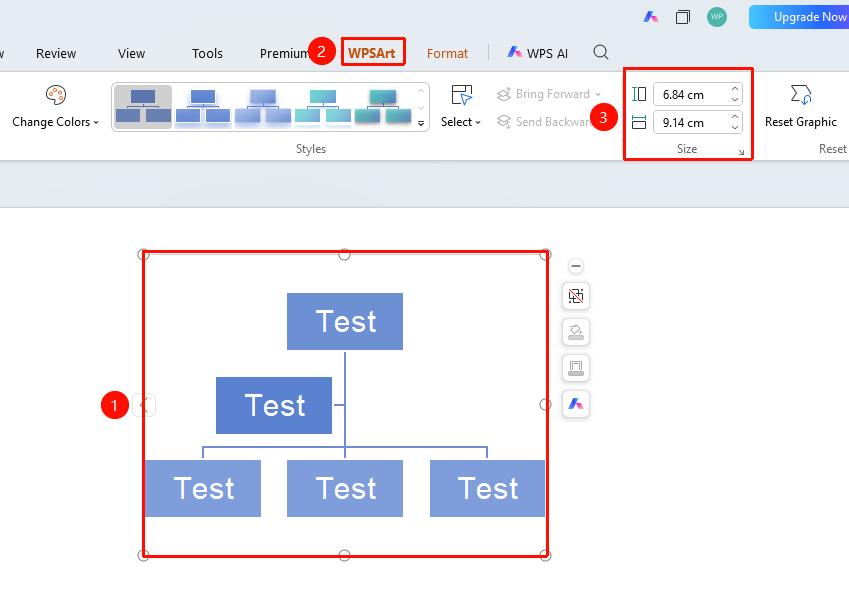
Precise Size Setting
Feature Entry ①
"Design" tab → Size function group expand button → "Object Properties" → "Size"
- Select the WPS Art graphic
- Click the top "Design" tab
- Click the expand button in the lower right corner to open the "Object Properties" sidebar on the right, and set the following options under the "Size & Properties" tab
- "Height": Set the graphic height, in centimeters
- "Width": Set the graphic width, in centimeters
- "Rotation": Set the rotation angle
- "Scale Height": Scale height by percentage
- "Scale Width": Scale width by percentage
- "Lock Aspect Ratio": Check to scale proportionally
- Preview changes in real time, click on a blank area to apply
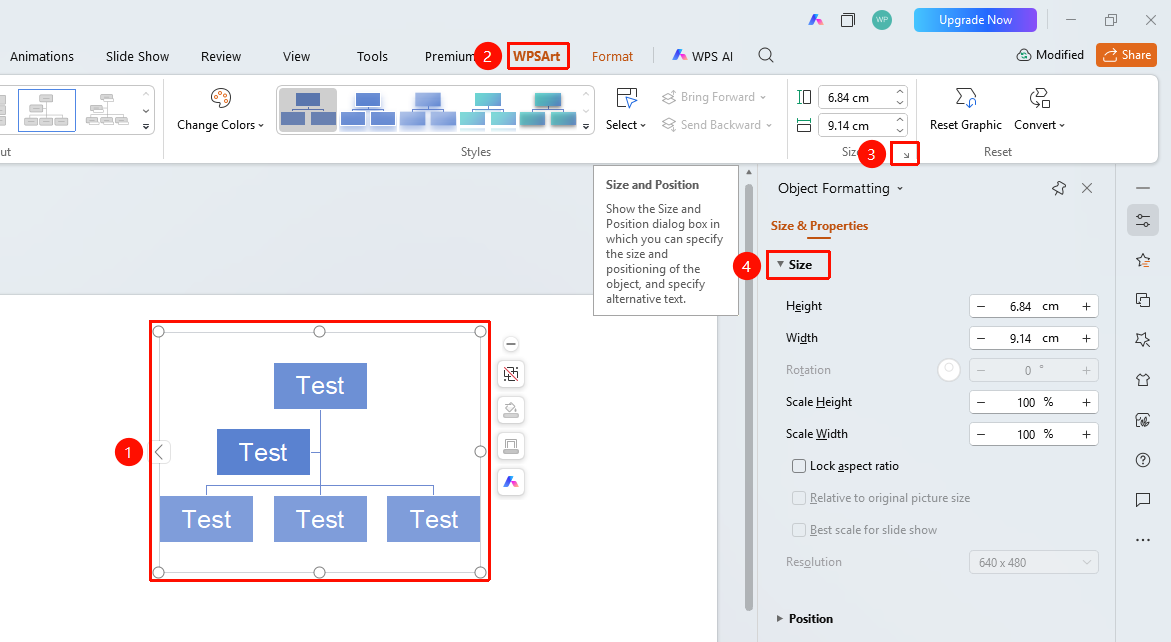
Feature Entry ②
Right-click menu → "Format Object"
- Select the WPS Art graphic
- Right-click
- Select "Format Object"
- Open the "Object Properties" sidebar on the right for detailed settings
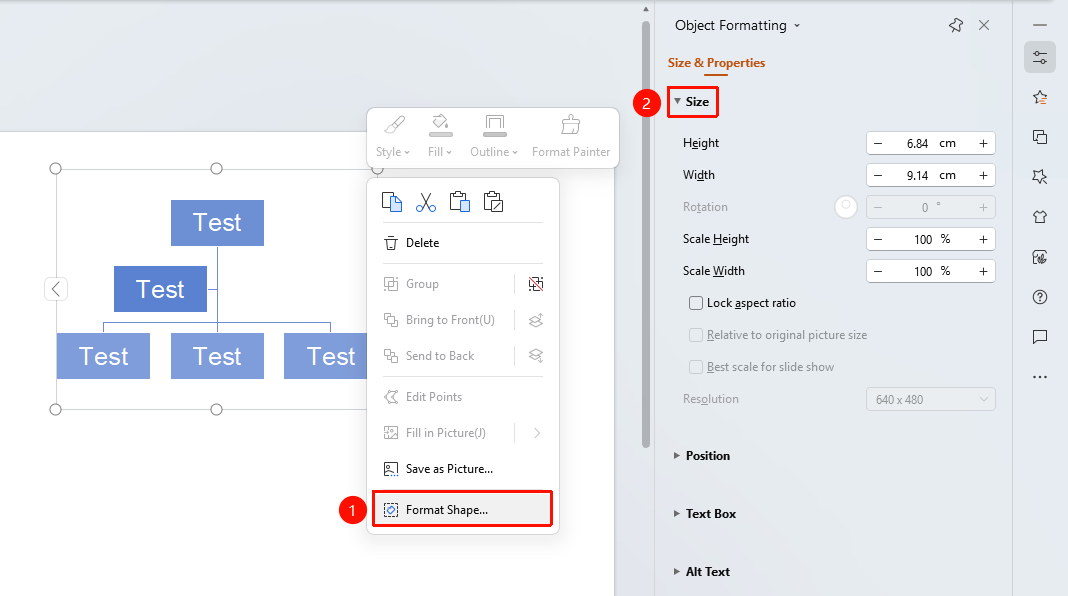
Task Pane Settings
Feature Entry ③
Right task pane → "Properties" → "Object Properties"
- Select the WPS Art graphic
- Click the "Properties" button in the right task pane
- Set the size parameters in "Object Properties"
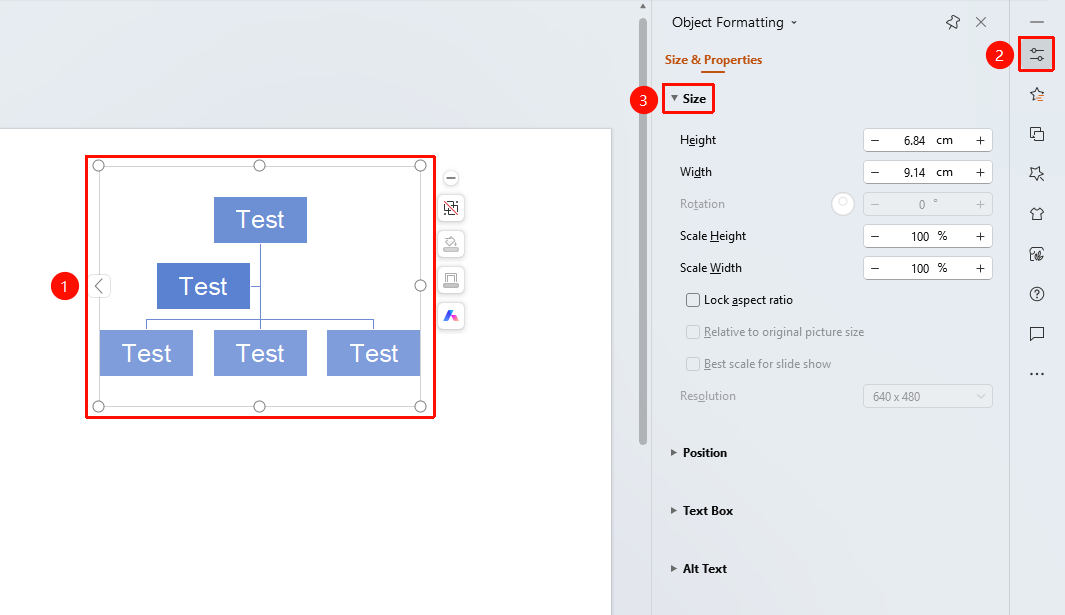
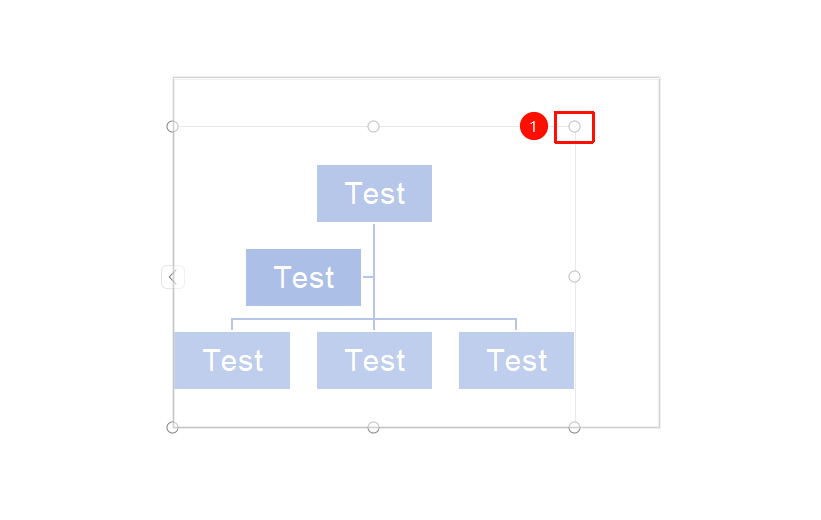
Manually Adjust Size
- Select the WPS Art graphic
- Move the mouse to a control point at a corner of the graphic
- Hold down the left mouse button and drag the control point
- Release the mouse to complete the size adjustment
FAQ
Q1: What should I do if the text becomes blurry after resizing?
- Solution: Excessive shrinking may cause text to become blurry. It is recommended to adjust the font size appropriately or maintain an appropriate graphic size.
Q2: How to resize while maintaining the graphic's proportions?
- Solution: Hold down the Shift key while dragging a corner control point, or check "Lock Aspect Ratio" in the Object Properties to resize the graphic proportionally.
Q3: How to precisely set a specific size?
- Solution: Directly enter the height and width values in the Size area, or set them precisely in the Object Properties.
Notes
- Text and shapes within the graphic will automatically scale when resizing
- Excessively small sizes may affect text readability